Step 14: NetSuite Role Permission Setup
If you receive an "INSUFFICIENT_PERMISSION" error or can't see all the accounts, it's because your NetSuite user role does not have the correct permissions. You'll need to update your permissions following these steps.
Update Role Permissions
The Administrator has full access to the plugin features. To set permissions for user roles, follow these steps.
Go to Manage Roles
Go to Setup → Users/Roles → Manage Roles.
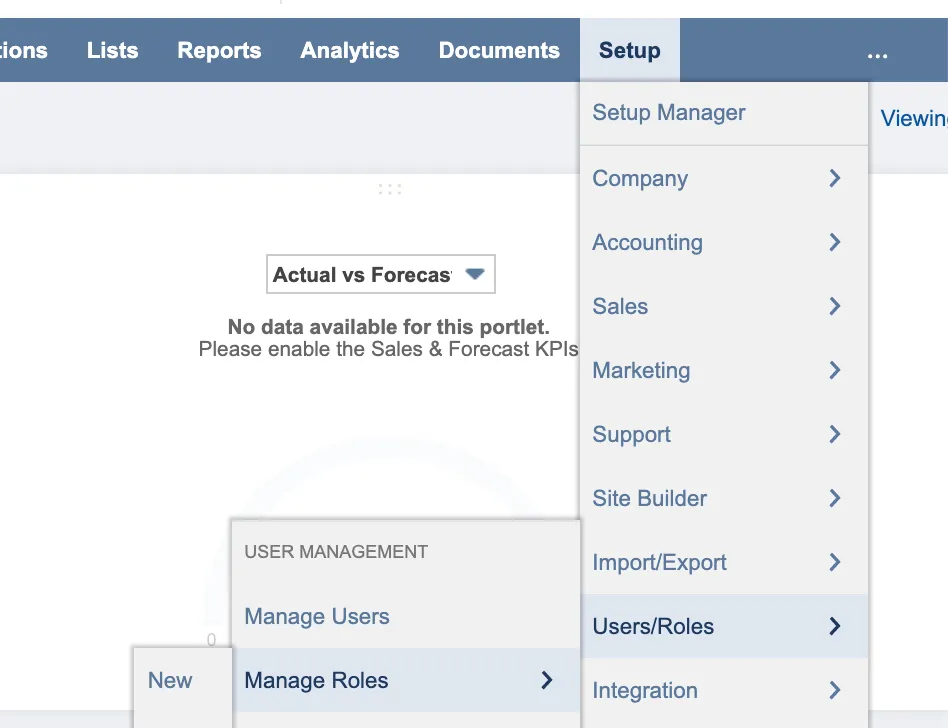
On the Manage Roles page, click Edit beside the role of choice.
Add List Permissions
After selecting Edit, go to Permissions → List.
Click the dropdown in the last row of the Permissions table.
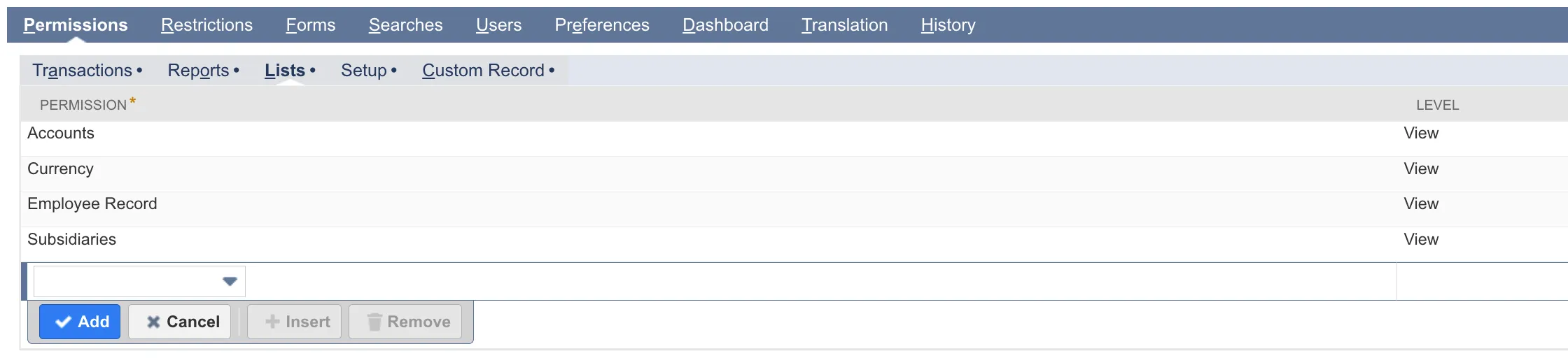
Scroll through the list, or begin typing to find and select the following permissions:
- Accounts (Level: View): Required to access the chart of accounts to fulfill the payment request.
- Currency (Level: View): Required to load the table of open bills on the Bill Payments page.
- Customers (Level: View): Required to load the Positive Pay page of the plugin.
- Documents and Files (Level: View): Required to access plugin pages and scripts to run and display the plugin.
- Vendors (Level: View): Required to load vendor bills on the plugin pay page.
- Employee Record (Level: View): Required to view transactions on the Bill History page and to load employee expense reports on the Expense Reports page.
- Subsidiaries (Level: View): Required to add and view subsidiaries as a column option when customizing the Pay Vendor Bills page.
Add Setup Permissions
Next, click Permissions → Setup.
Click the dropdown in the last row of the Permissions table.
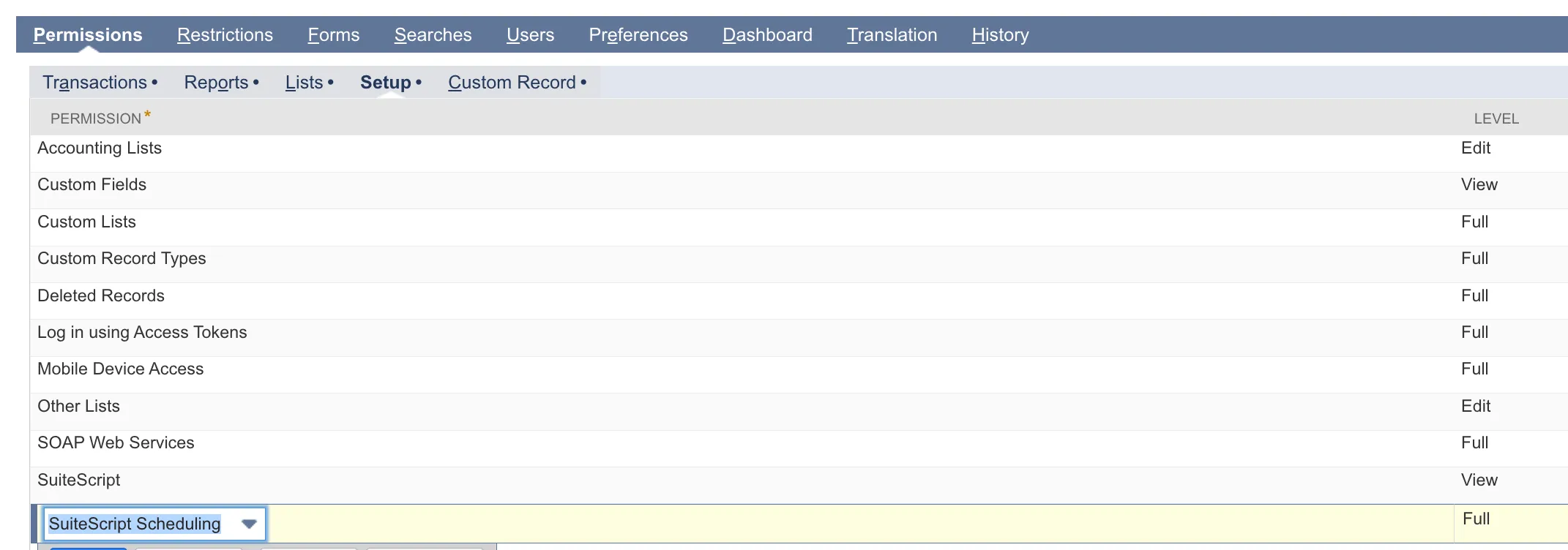
Scroll through the list, or begin typing to find and select the following permissions:
- Accounting Lists (Level: View): Required to be able to use the Pay Bills page.
- Custom Fields (Level: View): Required to pull in custom fields from the Bill record, which are then used for customizable columns on the Pay Vendor Bills page. This is necessary for the Pay Vendor Bills page to load if a user has any customizations.
- Custom Lists (Level: Full): Required to load the available payment methods from your bank on the Pay page.
- SuiteScript (Level: View): Required to check if there are currently payments being processed.
- SuiteScript Scheduling (Level: Full): Required to schedule payments for processing.
Select Save.
Note: If you are using Payables, you will also need to install and configure the Entity Bank Details bundle and set the NetSuite permissions required to allow selected roles to view and interact with the Entity Bank Details tab.
If you are adding new users, make sure they have suitable permissions to access the Entity Bank Details tab and information.
If you have already installed the Entity Bank Details bundle and assigned the role permissions enabling the associated Entity Bank Details Suitelet, RESTlet and User Event script deployments, refer to the following link to grant role based access to the Entity Bank Details tab.
If this is the intial installation, you can wait to install and configure the Entity Bank Details bundle as described in the next step: