Setting Default Payment Information
Save time paying bills by setting Vendor Default Payment methods, and choose to group bills into one lump sum payment for vendors. Follow the steps in this guide to get started.
Method 1: Vendor Record
Go to a Vendor Record and select Edit. Then, select the bank plugin tab in the sub-menu.
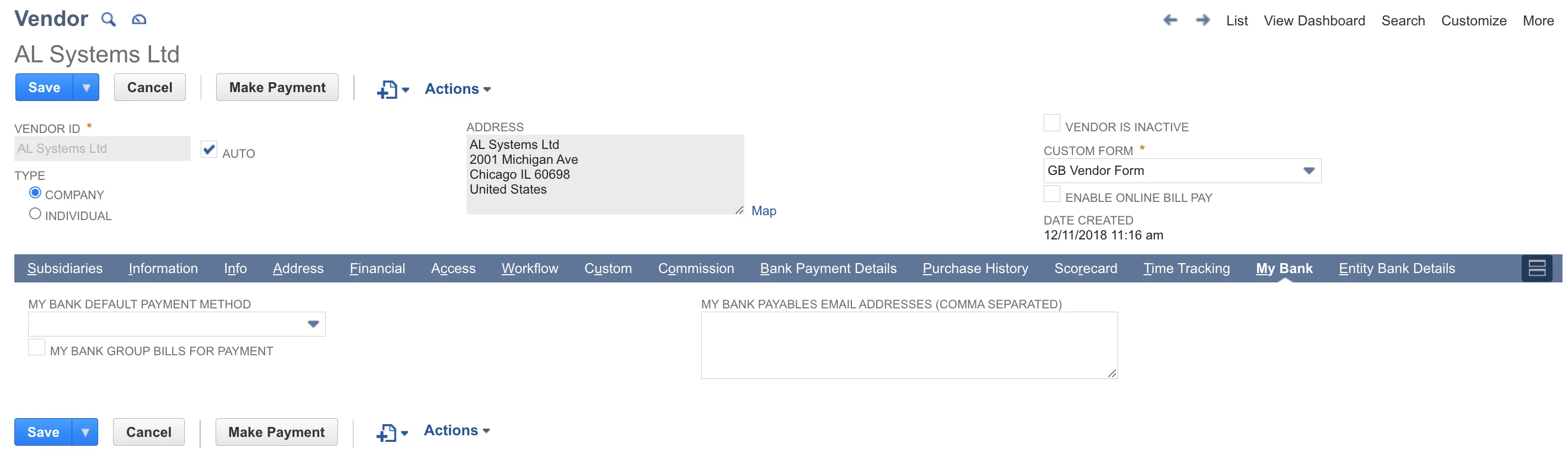
Here you will be able to set the Default Payment Method and enable the option to Group Bills for Payment.
Method 2: Vendor List
Go to Customize View
Select Lists → Relationships → Vendors.
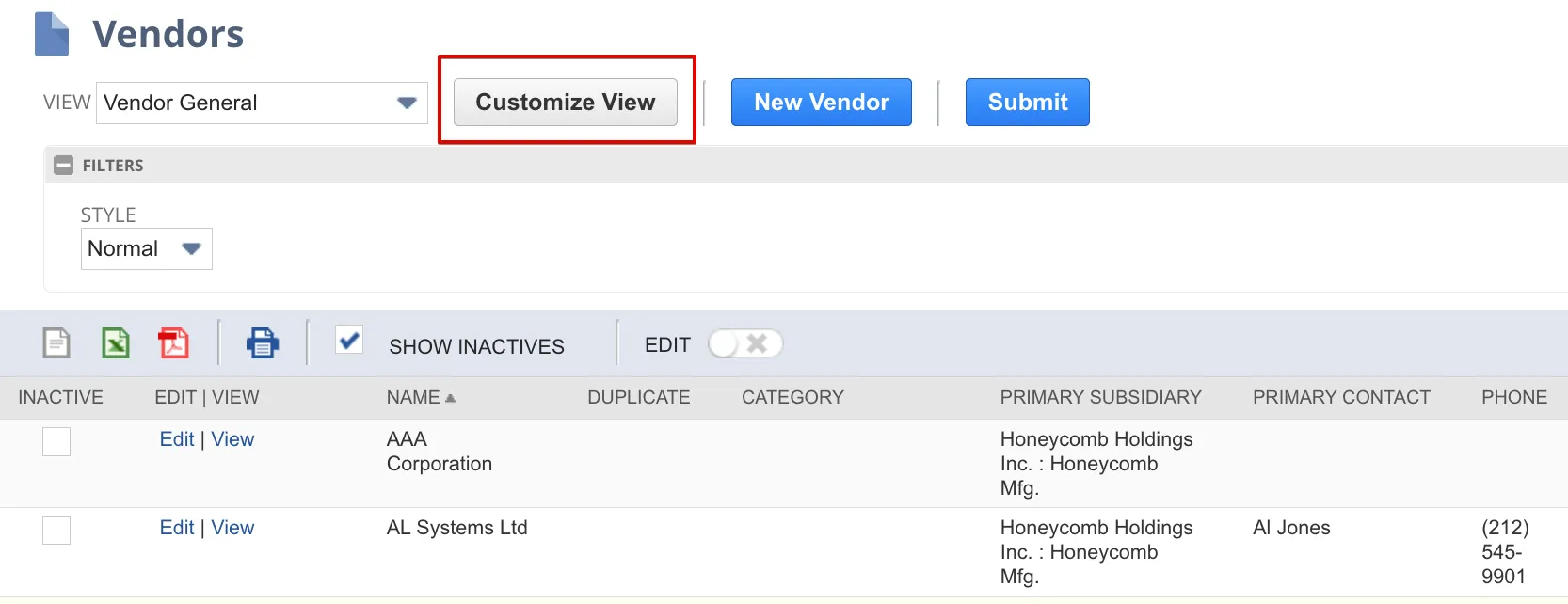
Then, select Customize/Edit View.
Add Custom Fields
Add the Default Payment Method (Custom) and Group Bills for Payment (Custom) fields for your bank to the list.
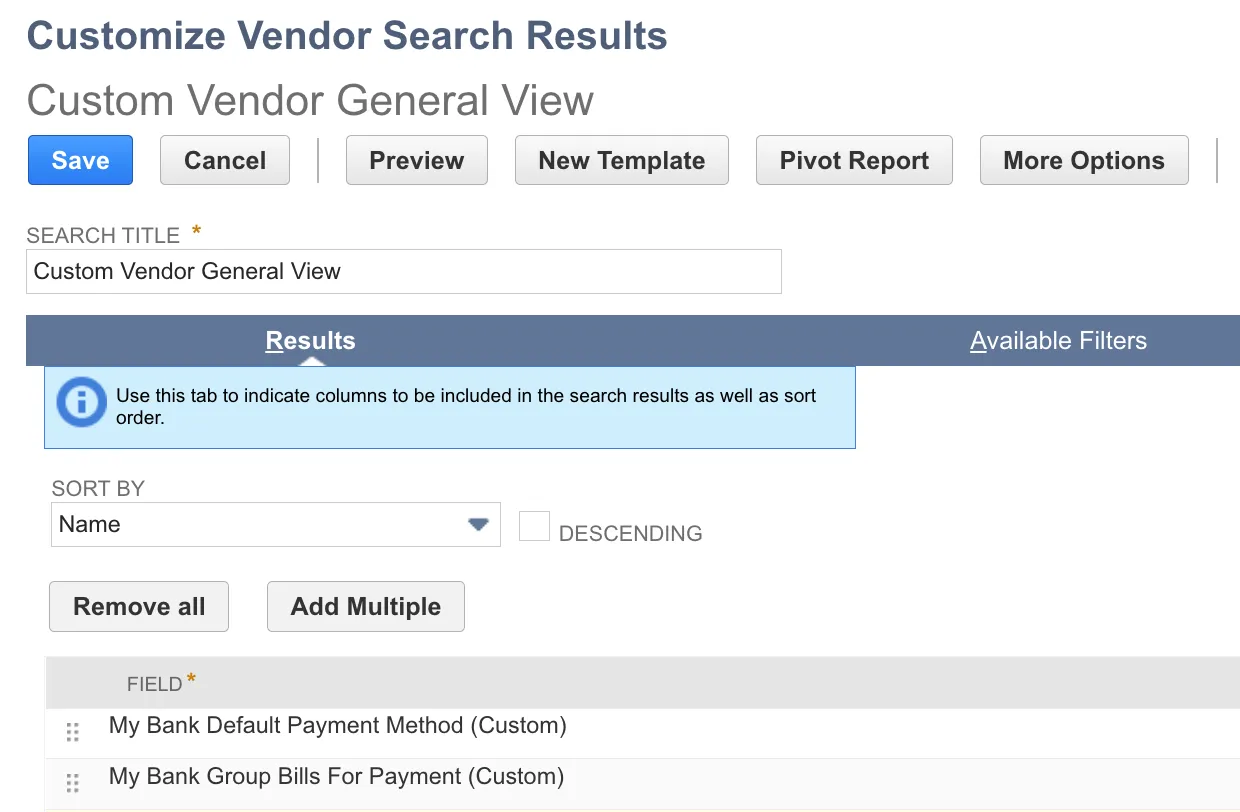
Then, select Save.
Set Default Payment Method and Group Bills
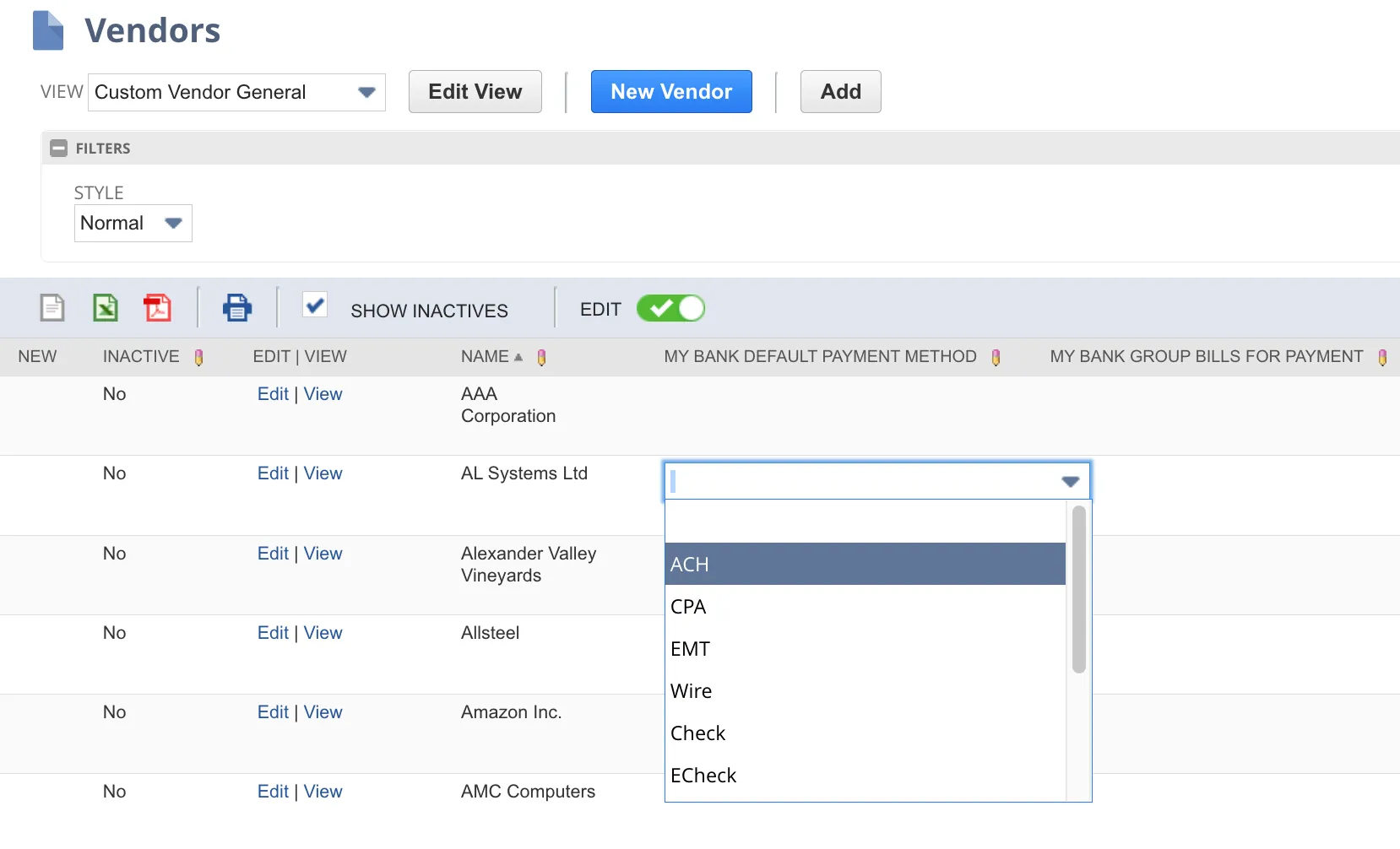
Toggle the Edit option.
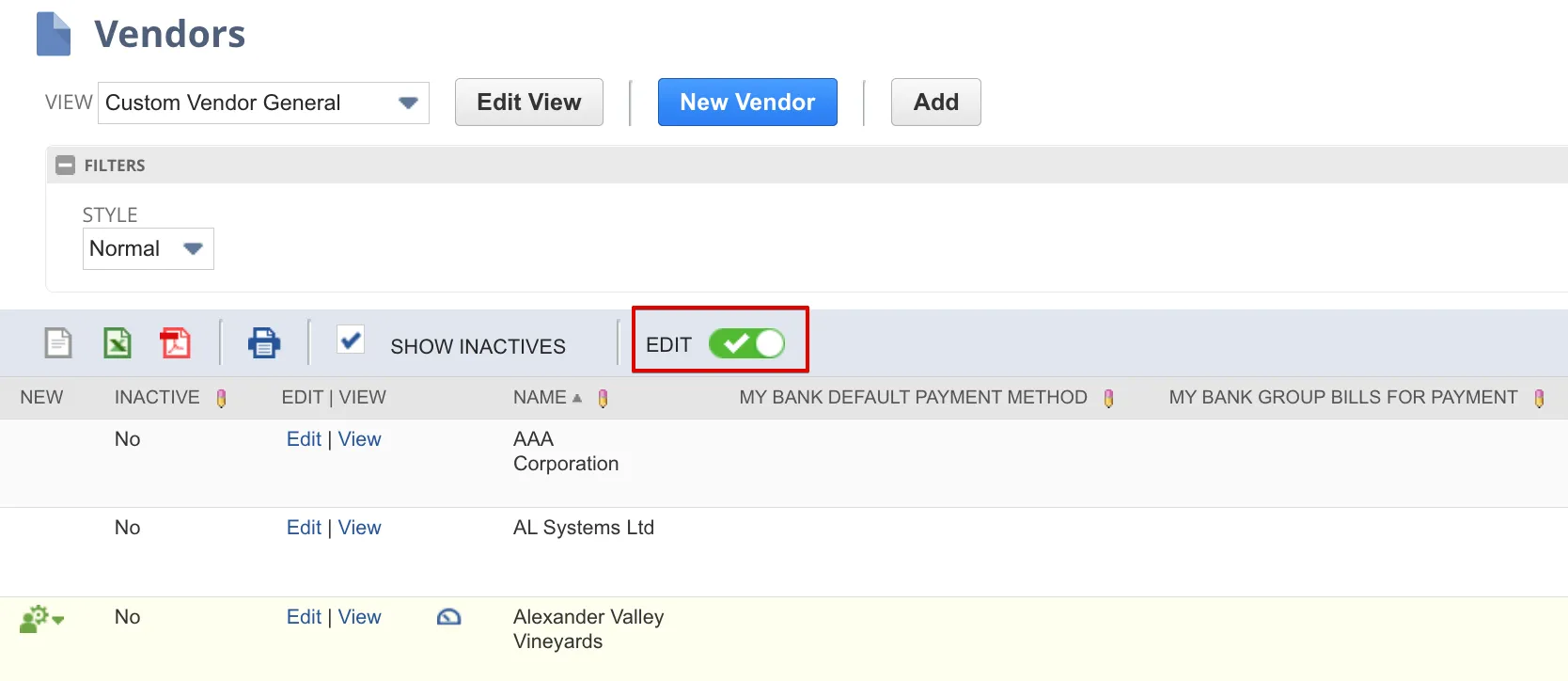
Select the blank area under the appropriate columns and select the Default Payment Method or Bill Grouping option for each vendor. Only the payment methods you have enabled for plugin will be available in the dropdown.
Method 3: CSV Import
This method uses NetSuite's Import CSV functionality to set up default payment information.
Create CSV File
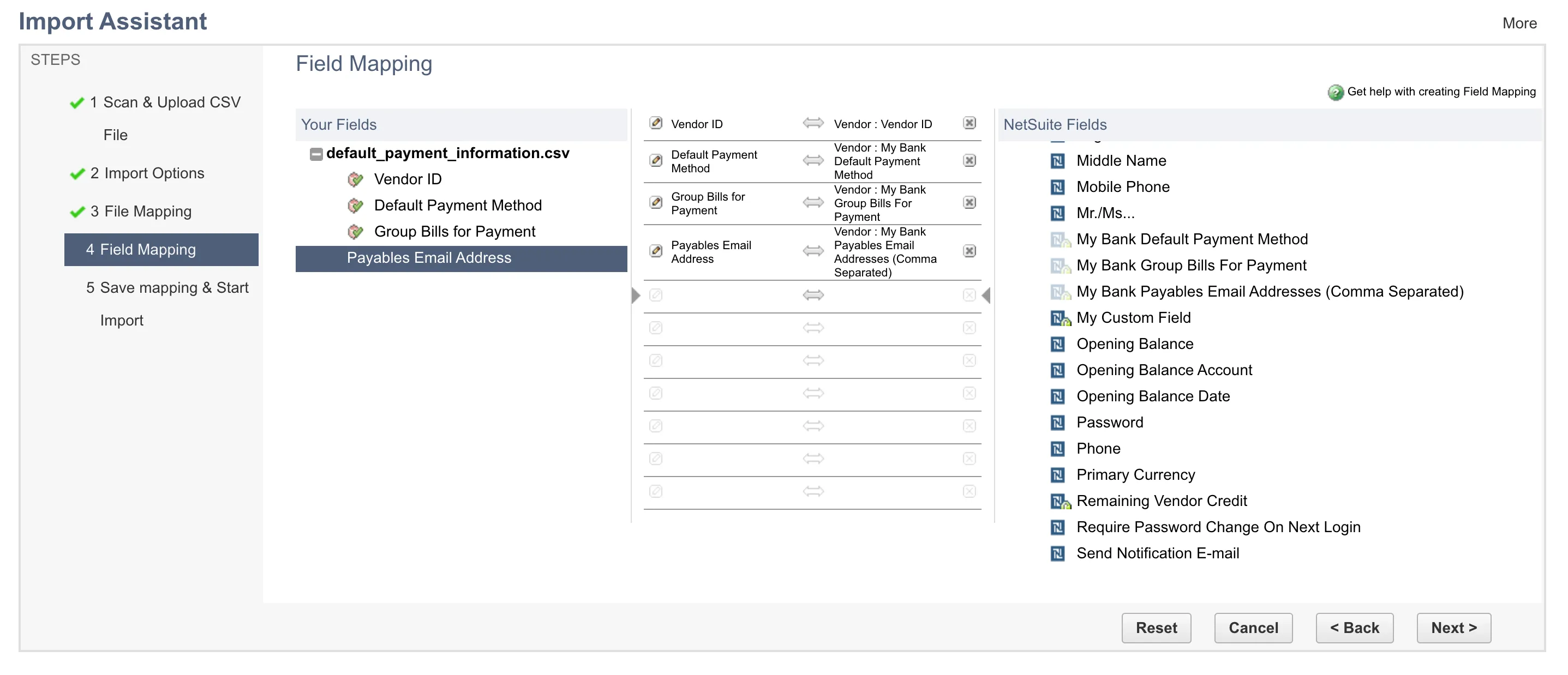
To begin, first manually create a CSV file using any external spreadsheet software with the following column headers:
- Vendor ID
- Default Payment Method
- Group Bills for Payment
- Payables Email Address [OPTIONAL]
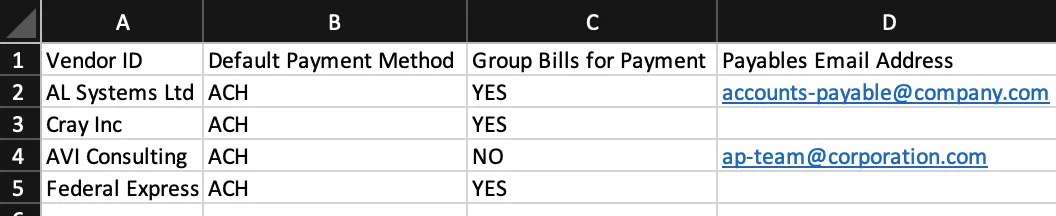
NOTE: The Vendor ID is the field on the vendor record itself, not the internal NetSuite ID.
Populate the CSV file with the relevant Vendor IDs, the desired Default Payment Methods [YES or NO], and an indication of whether or not you wish to Group Bills for Payment [YES or NO].
Once complete, save the file and name it—we suggest using "default_payment_information."
Upload CSV File
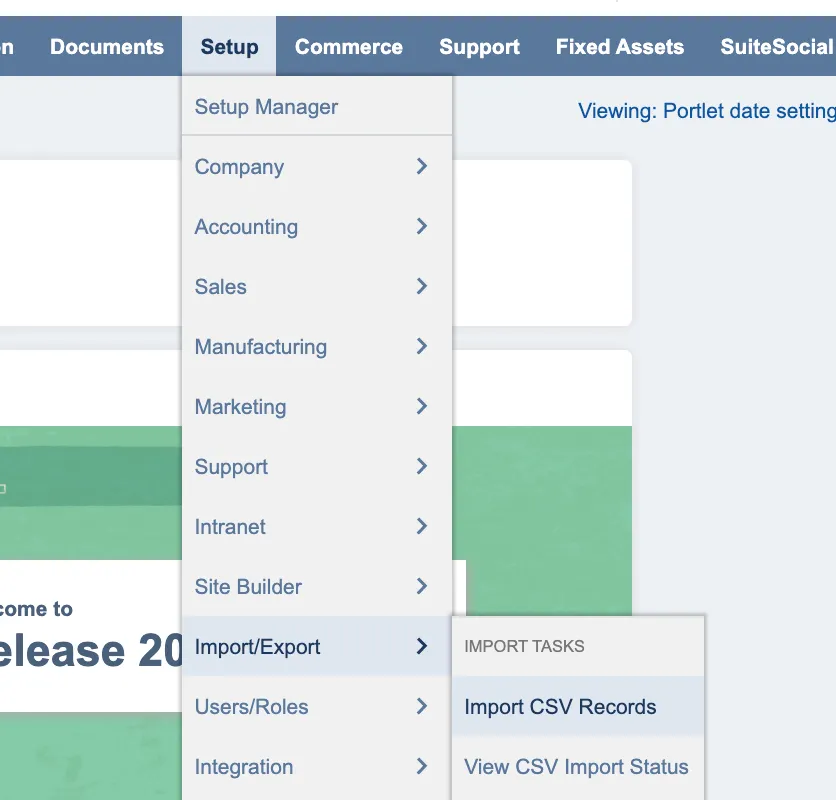
Then, head into NetSuite and navigate to Setup → Import/Export → Import CSV Records.
Set the Import Type to Relationships and the Record Type to Vendors.
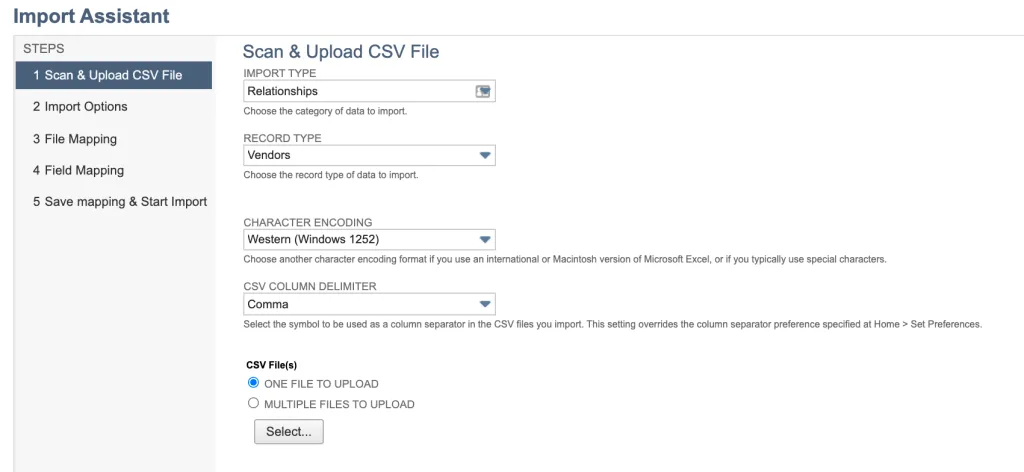
Then select the CSV file you have created and select Next.
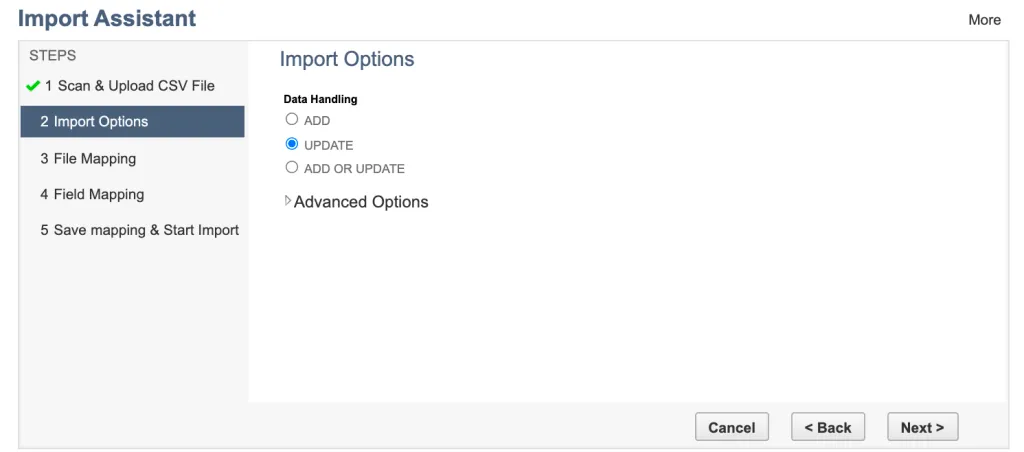
Select Update as the Import Option, then select Next.
Map Fields
Map the fields as per the example below.
Select Next.
Import
Select Save & Run or Run to initiate the import.