Intacct
...
Payables 2.0 - Vendor Bill Pay...
Payables 2.0 - Applying Discounts (Intacct)
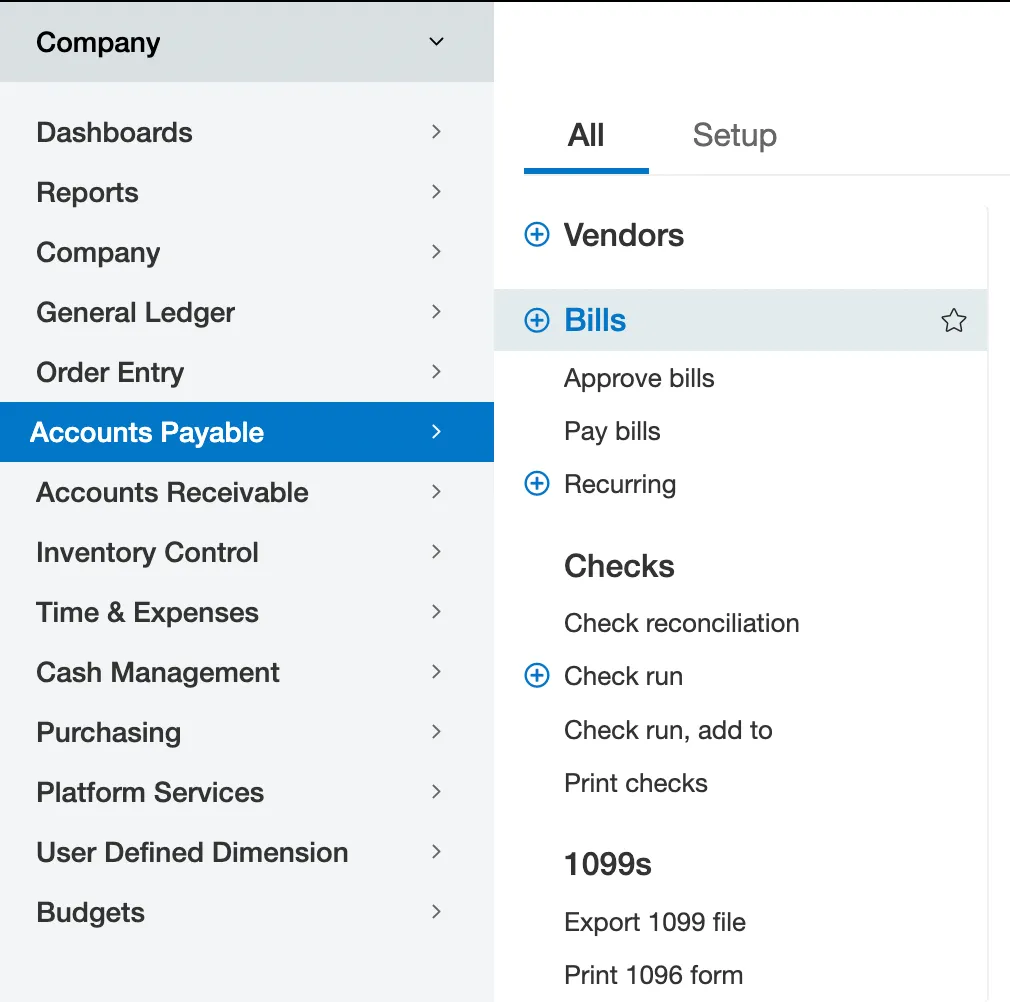
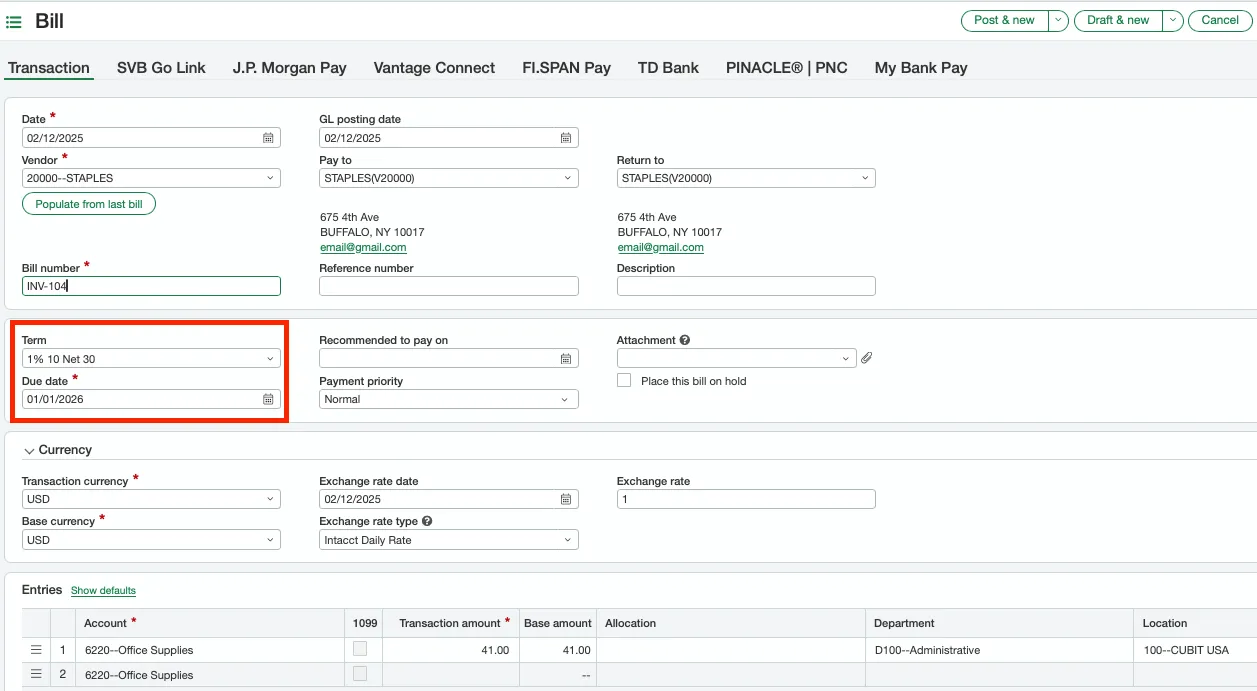
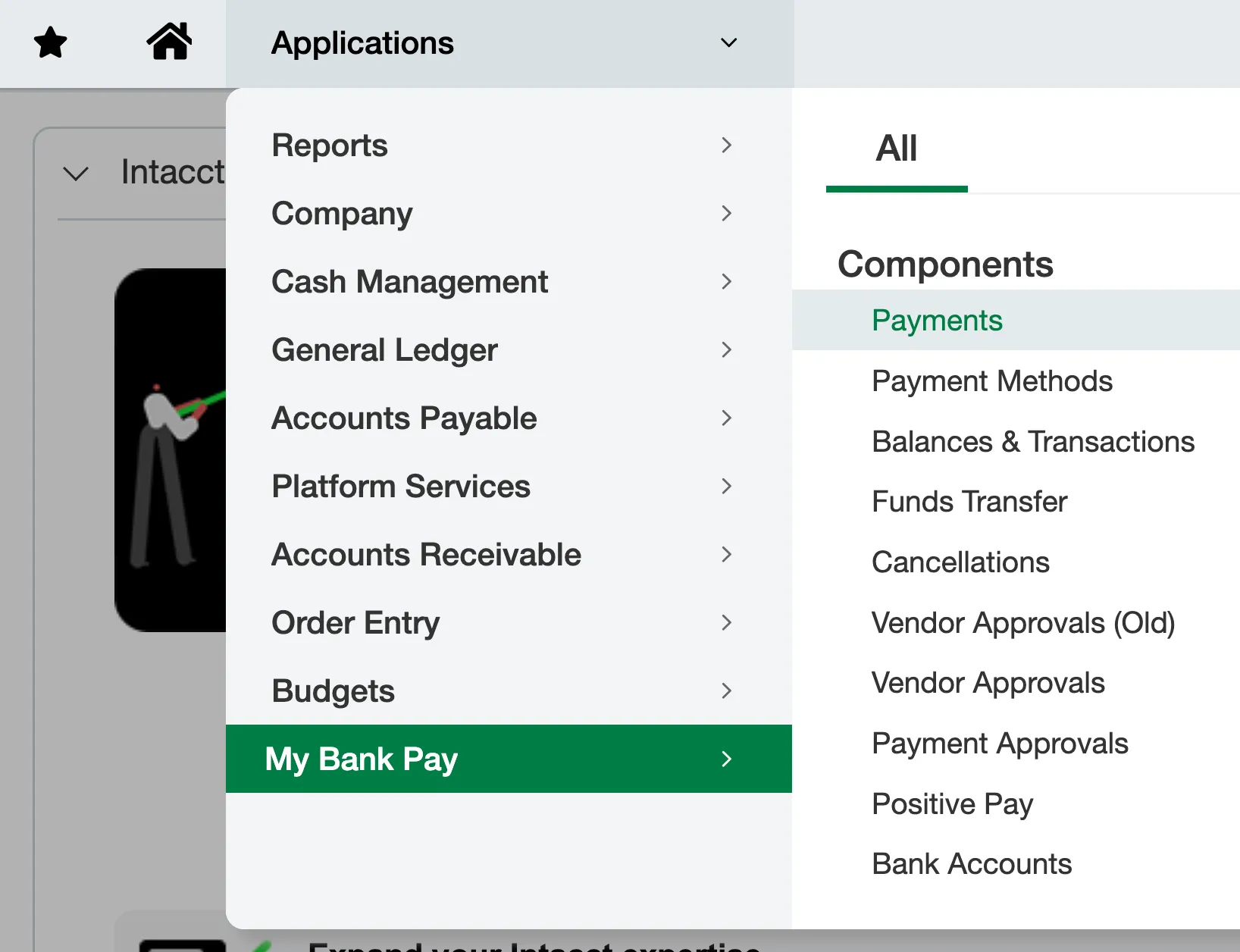
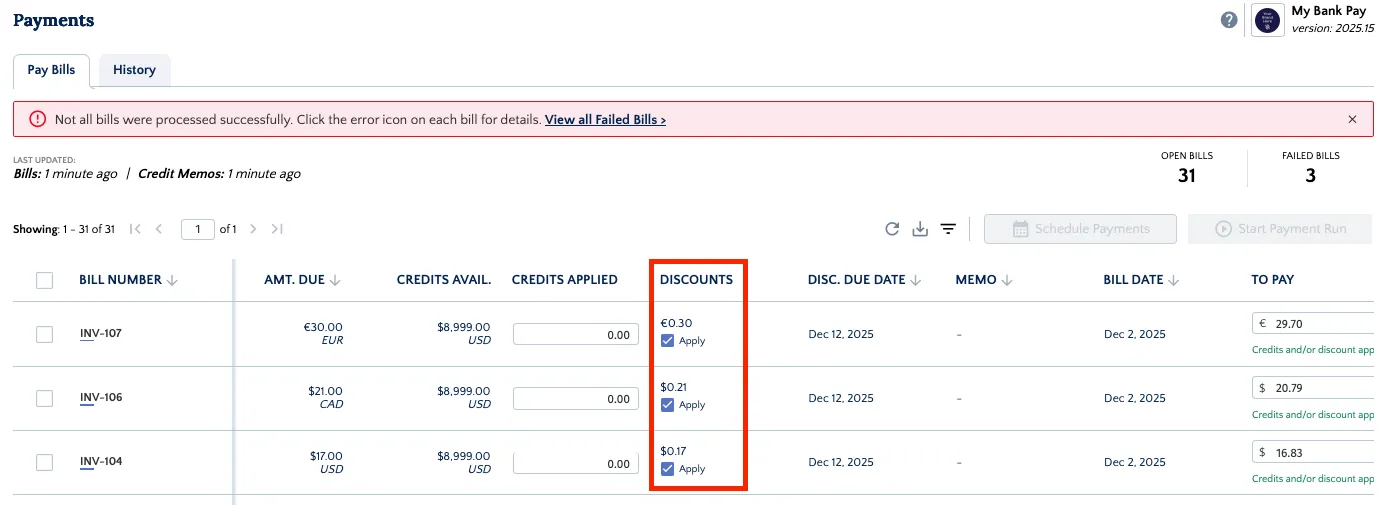
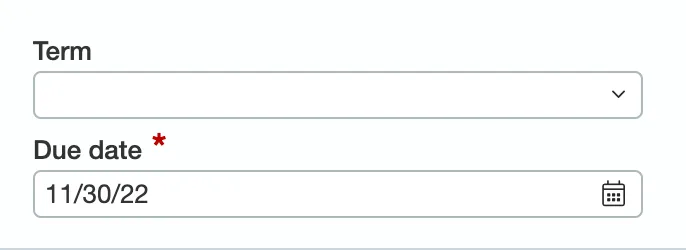
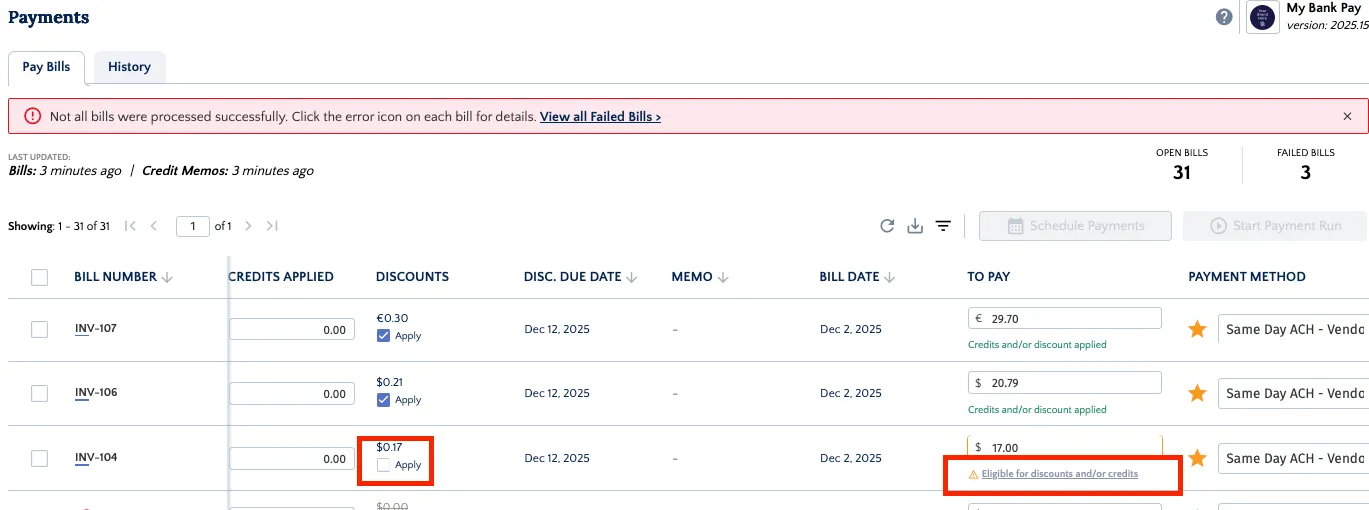
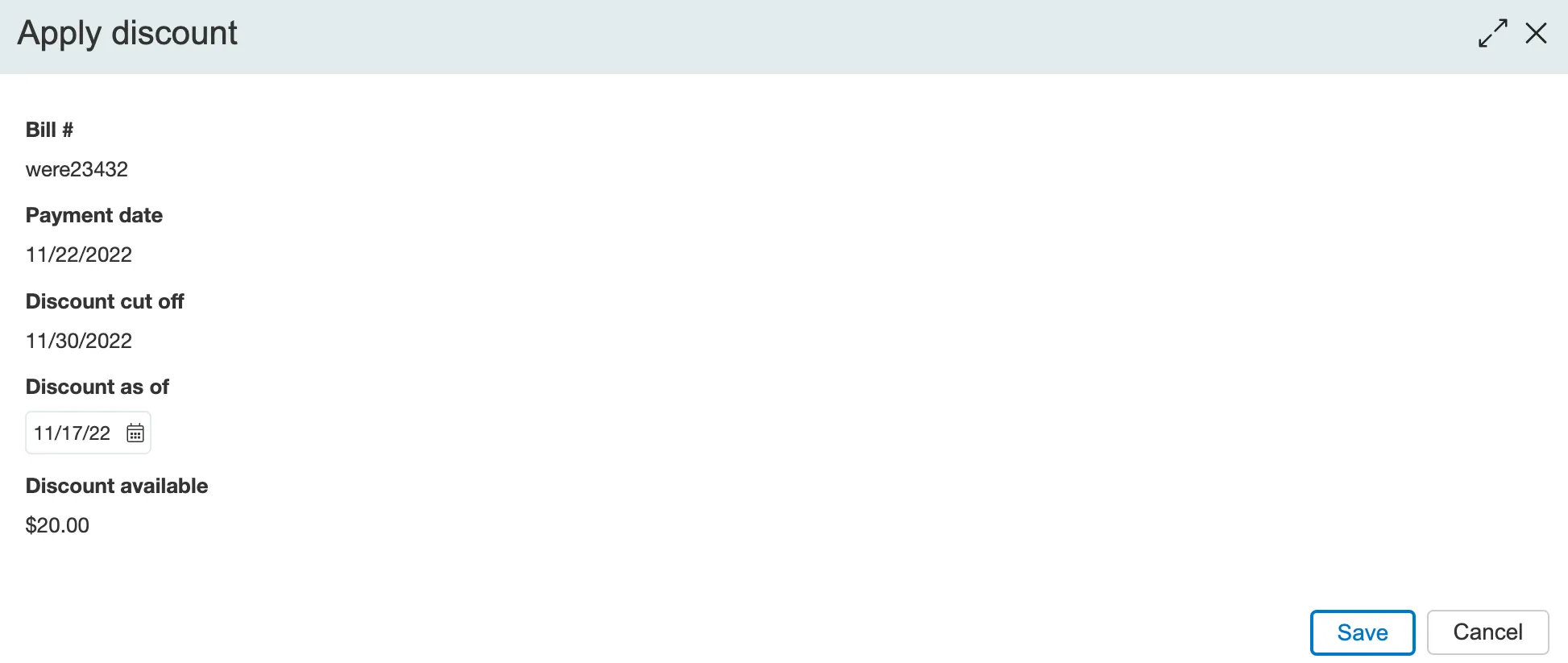
the discount feature allows you to apply available discounts to payments processed through the , and the payment request sent to the bank will automatically reflect the discount amount applying discounts you can apply the discount terms set in native intacct when paying a bill discount terms cannot be applied to bills that are only partially paid to successfully apply a discount, you must meet one of the following two conditions you are paying the bill in full with a single payment you are making the final partial payment on the bill the discount can be applied only if this final payment clears the remaining amount due on the bill follow these steps to apply discounts to a payment set payment terms start by creating the discount terms for the payment within native sage intacct go to accounts payable → bills to create or edit a bill open a bill and select terms enter the discount term you would like to use from the dropdown menu pay with discounts go to payments use the filters to find the bills you would like to pay the discount associated with that bill will auto populate in the discounts column and apply to the bill by default the to pay column is the amount due minus the discounts (calculated based on the terms and dates set on the bill) minus any additional credits applied select the payment method and pay your bill as usual removing a discount if you want to pay a bill that has an applied discount term but choose not to use the discount, you have two options remove the discount from intacct navigate to account payables → bills in native intacct select the bill you wish to modify ensure the term dropdown is left blank this action effectively removes the discount term from the bill record temporarily ignore the discount in the plugin's payables page, simply unselect the apply button next to the bill an orange notification text will appear, explaining that the bill is eligible for a discount note if you navigate away from or refresh the payments page, the apply checkbox will be automatically rechecked update discount as of date modify the discount as of date before making the payment, to ensure discounts are applied appropriately to update the discount as of date , follow these steps locate discount as of date click on the discount amount (in blue) this will open a pop up where the discount as of the date will be modifiable edit discount as of date now, edit the discount as of date and save make sure the apply checkbox is checked and pay your bill as usual please note that if a date after the discount cut off date is selected, the discount will be $0 faqs what if the amount is not right? if the amount auto populated does not match what you would like to have as a discount, you can simply modify the corresponding accounts payable \[ap] term simply head over to account payables > bills and select the bill you would like to modify change the selected ap term, and the auto populated discount in the plugin will be automatically updated this will directly be reflected in the to pay column how can i change the ap term settings? head over to payables > set up > more > terms to edit ap terms are discounts supported in different currencies? yes, discounts are supported in all currencies i changed the ap term in my bill, but it is not reflected in the plugin yet what should i do? the plugin always reflects exactly what is in the bill on native intacct if you have updated the bill, and it is not yet updated in the payables page, wait 30 seconds and refresh the plugin; the bill should then be updated why can i not pay a partial payment with a discount? discount terms cannot be applied to partially paid bills to benefit from discounts, you have to either be paying the bill in full in one payment be paying the last partial payment on the bill if there is no amount due left on the bill (after that last payment), you can apply the discount please refer to the hover "i" in the discounts and to pay columns explaining the expected behavior what is the discount as of date? the discount as of date is the date at which the discount is processed why are grace days not taken into account? grace days is a native sage intacct field that defines the number of days after an invoice's due date before late charges are applied to a vendor grace days are currently not supported i changed the bill, but it is not reflected in the plugin yet what should i do? the plugin always reflects exactly what is on the bill in native intacct if you have updated the bill, and it is not yet updated in the plugin payables page, wait 30 seconds and refresh the plugin; the bill should then be updated if i have multiple line items, where will the discount be applied? if the bill is paid in full, the plugin will apply the discount proportionally, split between each line item if the bill is paid in installments, the discount will be applied to the last line item of the last payment (the discount will not be used before the bill is paid in full) how does the plugin's discount application differ from intacct? intacct uses the payment date to determine discount eligibility if the payment date is after the discount cut off date, the discount will not be applied, regardless of the "discount as of date " the plugin does not follow this behavior example if a vendor bill has a discount deadline of march 10th and the payment is dated march 11th, intacct will not apply the discount however, the plugin would still apply the discount if the "discount as of date" was on or before march 10th furthermore, when processing a partial payment via native intacct, discounts cannot be utilized in contrast, the plugin can send a partial payment with the discount applied