Making Adjustments
The adjustment feature is available to all users using the latest plugin (2022.13). Update the plugin bundle to access the adjustment feature.
Adjustments, such as credit notes, must be defined at the vendor level. Once an adjustment is created for a specific vendor, for example, a $20 credit, it will automatically appear on all future bills for that vendor.
To ensure the credit amounts and references are correctly included in the Remittance Advice email, you must use Account Payables → Adjustments to create credit notes and make adjustments.
When applying a credit amount to a bill, the system follows a rule: the oldest available credit value for that vendor will always be applied to the payment first.
NOTE: Make sure that the adjustment type is a Debit Memo. The plugin does not currently support what native Intacct calls Credit Memos.
Make an Adjustment
To make an adjustment, follow these steps.
Go to Adjustments
Navigate to Account Payables → Adjustments.
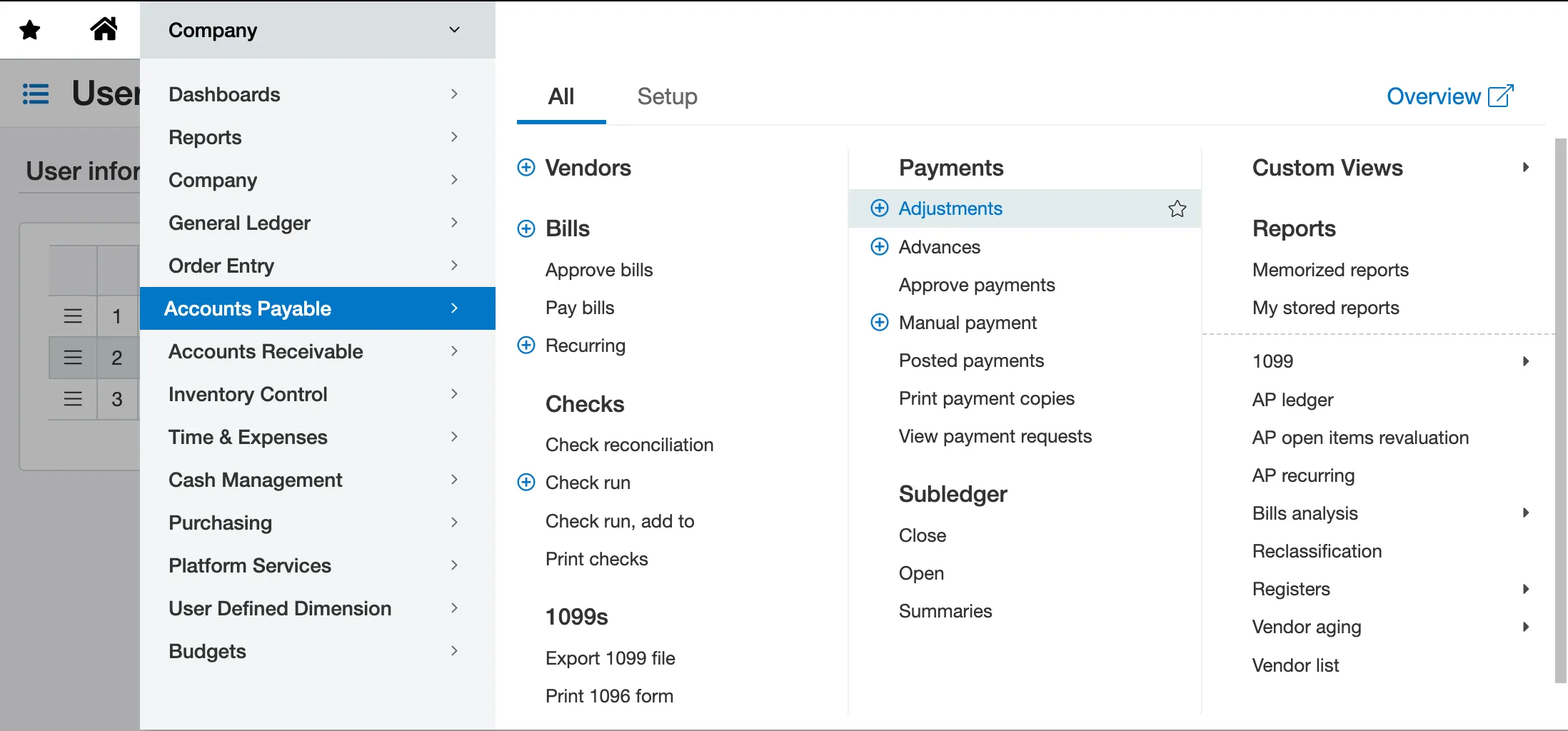
Make Adjustments
Input the amount you would like to apply to the bill in the Credits to Apply field.

The Credits Available column is updated every time the user modifies the adjustment in native Intacct or inputs an amount in Credits to Apply.
Please note that the applied credit cannot reduce the amount in the To Pay column to zero or a negative value.
Select and pay the bill as usual, and the credit will be applied.
IMPORTANT: Using bills with a negative amount (i.e., -$10) as adjustments is currently not supported by the plugin. If you are using bills with negative amounts as part of your AP workflow to create credit memos, we recommend switching to adjustments. This is what Intacct recommends natively.