Check Payments to Alternate Vendor Addresses (Business Central)
This feature is intended for flexibility in payment routing, especially for vendors with multiple remittance addresses. This allows you to ship to different addresses listed on the vendor's invoice record.
Invoice-level changes are treated as vendor record overrides and do not update the vendor record.
Overview
When a check payment is initiated, the plugin will reference the selected address type:
- Pay-to
- Buy-from
- Ship-to
If a default is configured for the vendor, that address will automatically be used. This applies specifically to check print payments.
Set Address at Invoice Level
When creating or editing an invoice, set the address by following these steps.
Go to Address
Locate the address section (Pay-to / Buy-from / Ship-to).
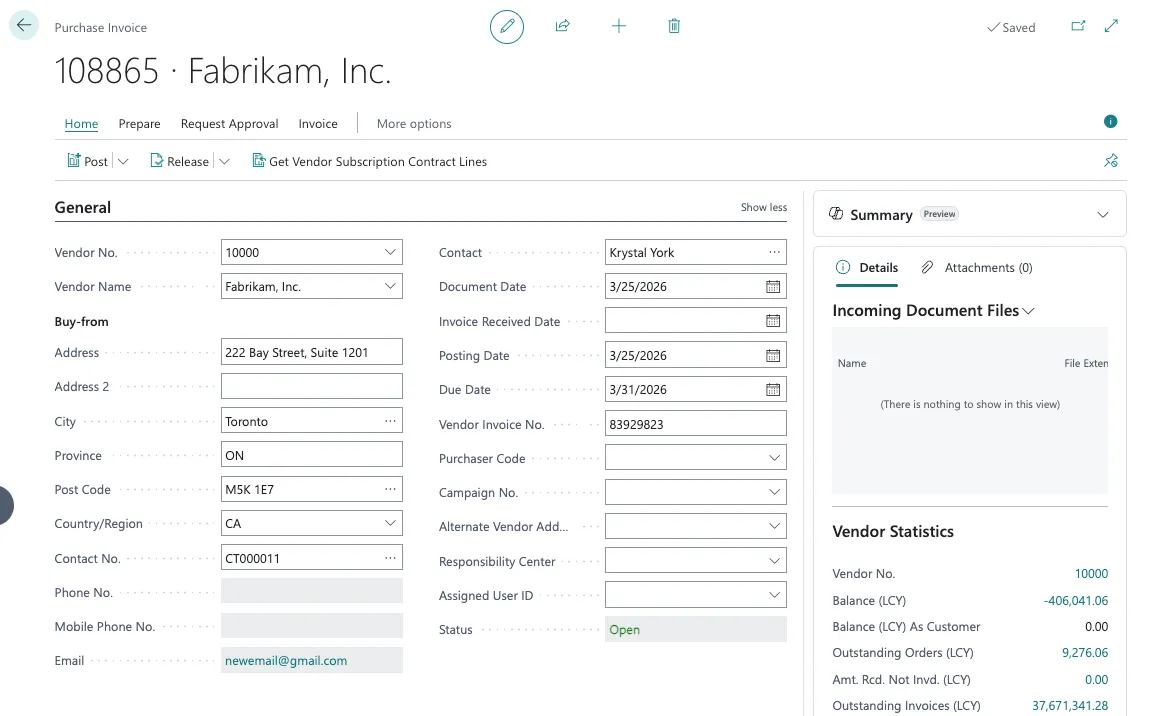
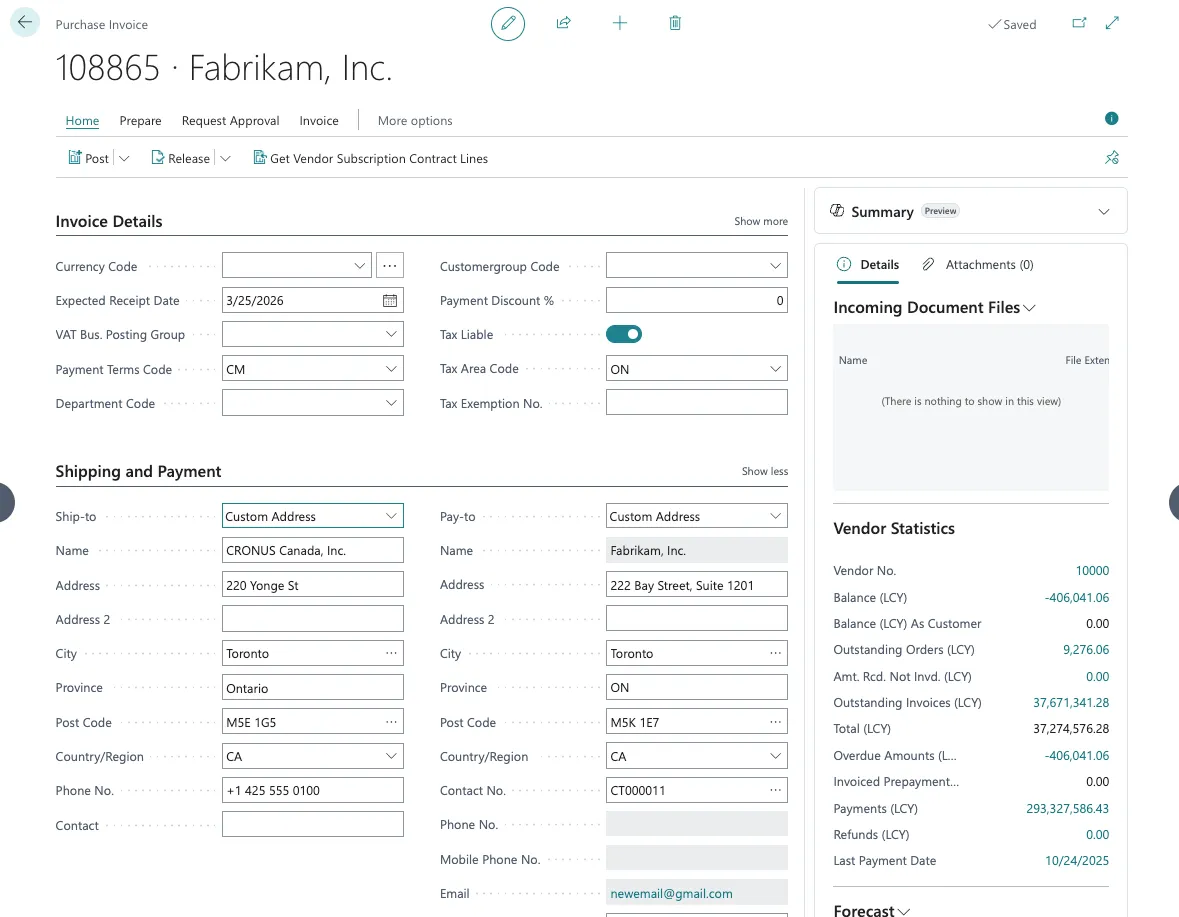
Set Address for Invoice
Modify the address as needed for that specific invoice.
Save the invoice.
Set Default Address for Vendor
Follow these steps to set the vendor's default address.
Go to Payment Methods
Navigate to Payment Methods
Set Default Address
Choose the preferred default address:
- Pay-to, Buy-from, or Ship-to
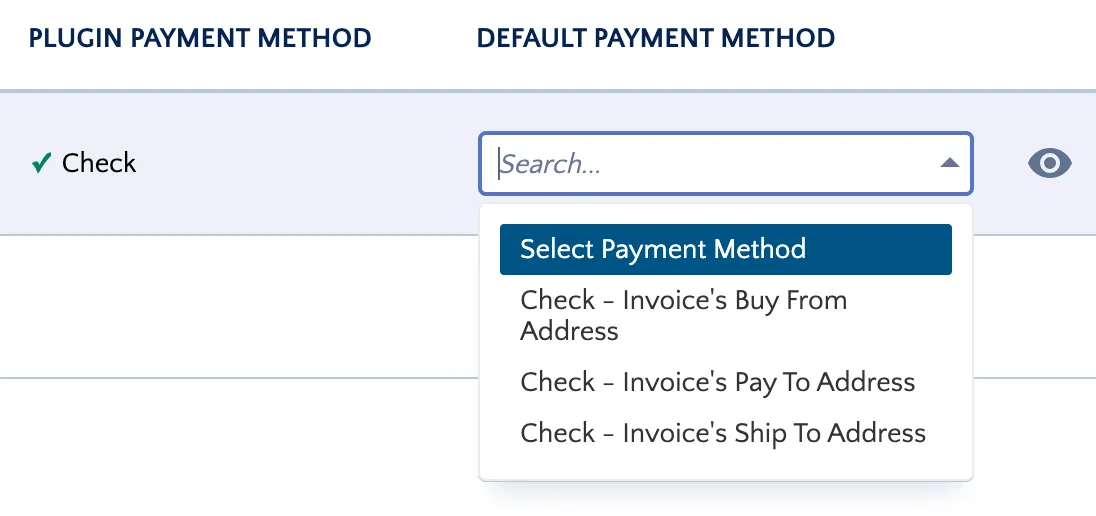
This ensures all future check payments default to this address. You can also use this address to make one-off check payments on the Pay Bills page.
IMPORTANT: This feature is intended for flexibility in payment routing, especially for vendors with multiple remittance addresses.
Invoice-level changes are treated as vendor record overrides and do not update the vendor record.
WARNING: If this functionality is used, check payments cannot be batched and must be processed individually.