Step 12: Plugin Access Management
To give users access to the plugin and its features, follow this guide to NetSuite Script Deployments and Suitelets.
NetSuite Script Deployments
The Administrator has full access to view all plugin pages. In order to allow access to other users and departments, follow these steps:
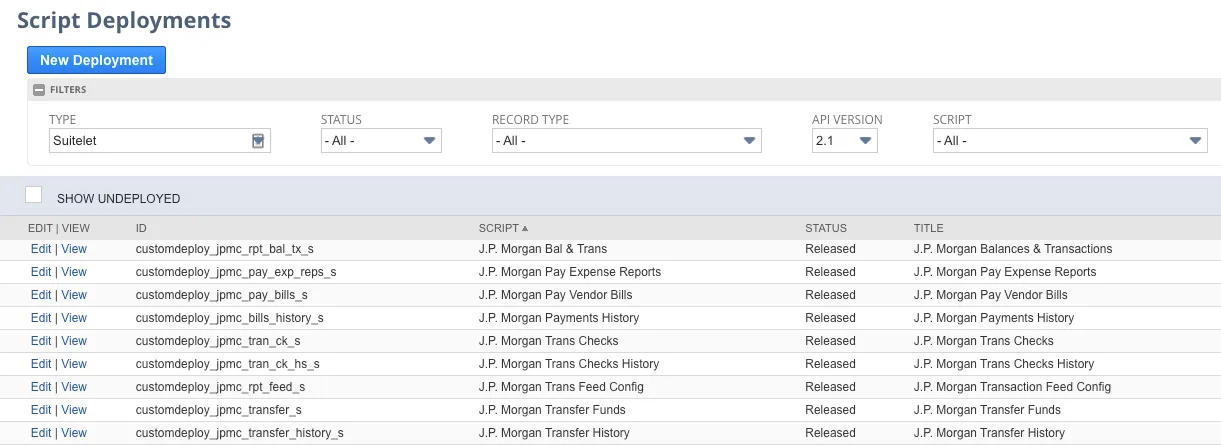
Select Customization → Scripting → Script Deployments. Use the following filters:
- On the Type dropdown select Suitelet
- On the API Version dropdown select 2.1.
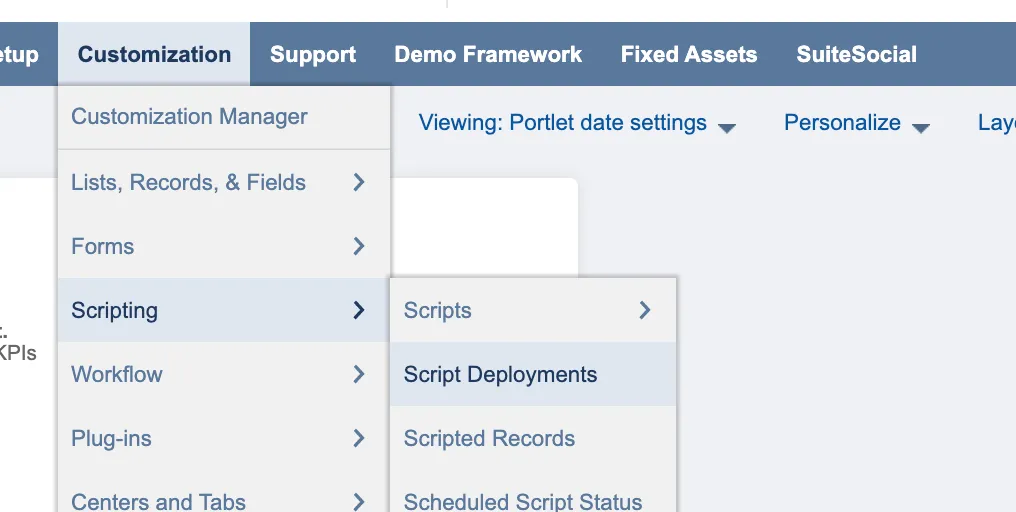
J.P. Morgan NetSuite Suitelets
Each of the Suitelets listed corresponds to a subtab under the J.P.Morgan tab. Click Edit on each of the following script deployment Suitelets you wish to edit:
- J.P. Morgan Payments History
- J.P. Morgan Pay Vendor Bills
- J.P. Morgan Pay Expense Reports
- J.P. Morgan Balances & Transactions
- J.P. Morgan Trans Checks (Positive Pay)
- J.P. Morgan Trans Checks History (Positive Pay History)
- J.P. Morgan Transfer Funds
- J.P. Morgan Transfer History
- J.P. Morgan Transaction Feed Config (Connectivity Method field used in Bank Feeds setup)
- J.P. Morgan User Customization (Customize columns)
Add employee roles by selecting the appropriate employee, department, and role you would like to assign. Then, click Save.
NOTE: If you're using Accounts Payable and adding new users, confirm they have the correct permissions to access the Entity Bank Details tab and its information.
If this is your first time installing the plugin and you've already installed the Entity Bank Details bundle, or if you're adding new users, use the following link to edit role permissions for the associated Entity Bank Details Suitelet, RESTlet, and User Event script deployments:
Or if this is the initial installation, you can wait to install and configure the Entity Bank Details bundle later as described in: