Enable Bank Feeds (Sage 300)
NOTE: Sage 300 is currently in pilot.
Bank Feeds is available for eligible Sage 300 users. This guide covers eligibility requirements, how to install the product, and the steps for retrieving bank transactions.
Eligibility Requirements
To use Sage 300 Bank Feeds, you must have:
- An active subscription to Sage 300.
- Access to the Reconcile E-Statement Module within Sage 300.
Installation Overview
To map your Sage 300 bank accounts to the corresponding accounts at your financial institution, complete the registration process during installation.
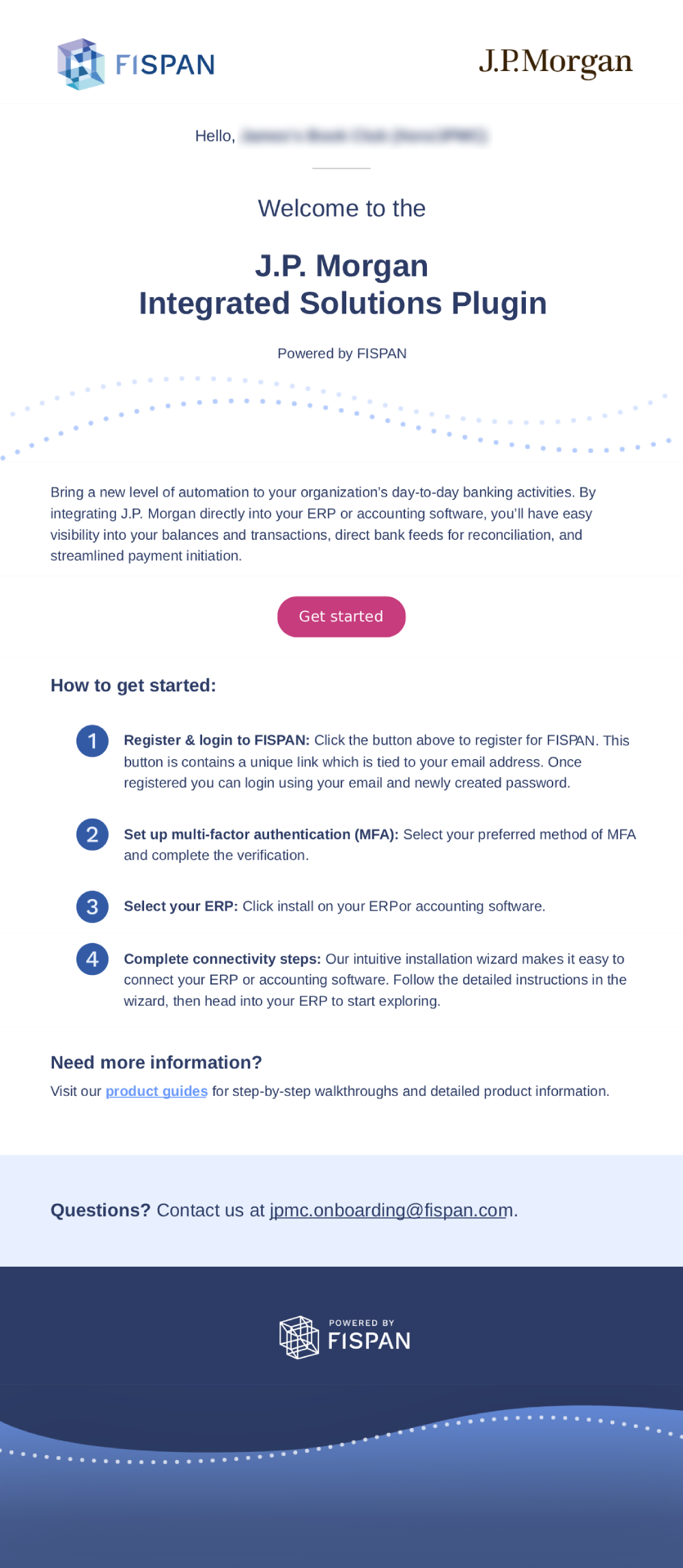
You should have received an invitation email from J.P. Morgan with links to install the J.P. Morgan Pay and easy-to-follow instructions for installation.
The invitation email will arrive with the following subject line:
Welcome to J.P. Morgan Pay - Powered by FISPAN [Production] - [your-name]
Register & Login
Create an Account
In your invitation email, select the Get Started button. You will be brought to the FISPAN Portal. Create your login credentials and select Create Account.
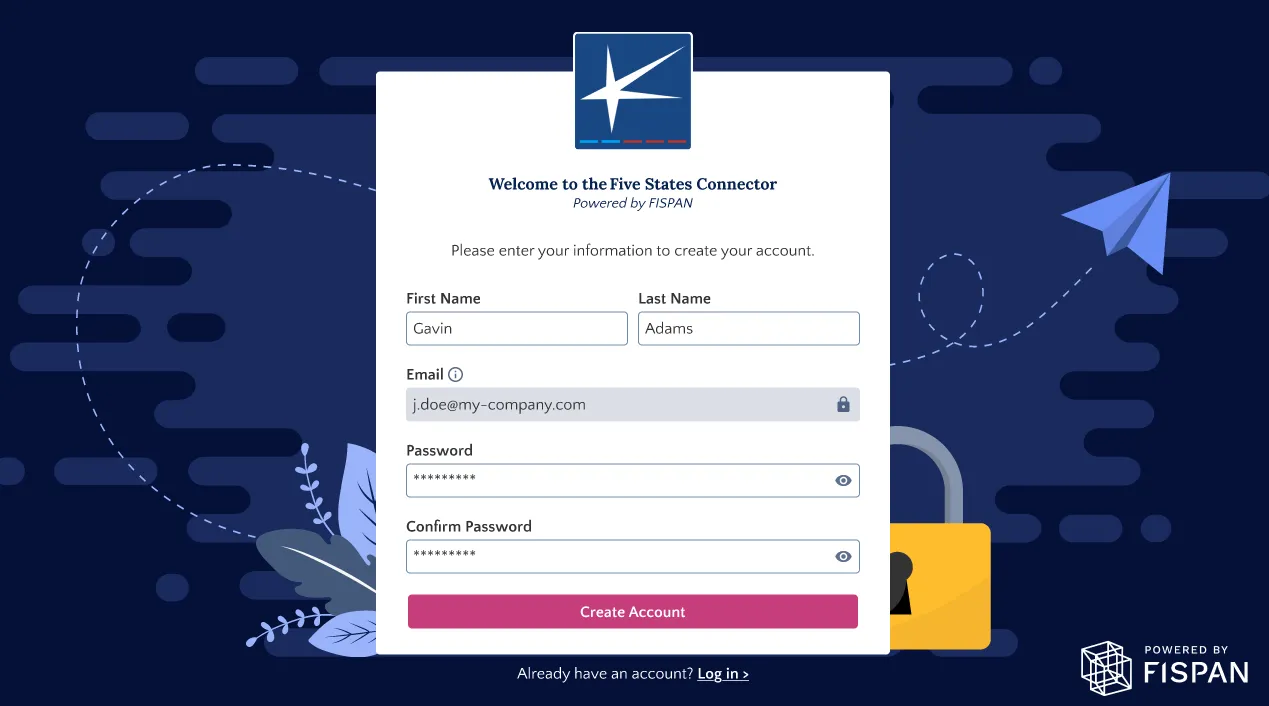
NOTE: The password you create here will be used every time you want to access the FISPAN Portal. If you need to update it later on, you have the option to use the Forgot Password option.
Login to Your Account
Once registered, you will be redirected to the login page. Your username and password are unique per environment, and you will have separate logins between Sandbox and Production.
NOTE: The Sandbox environment is used as a testing or UAT environment. For Sandbox users, please refer to the Sandbox Checklist for test scenarios.
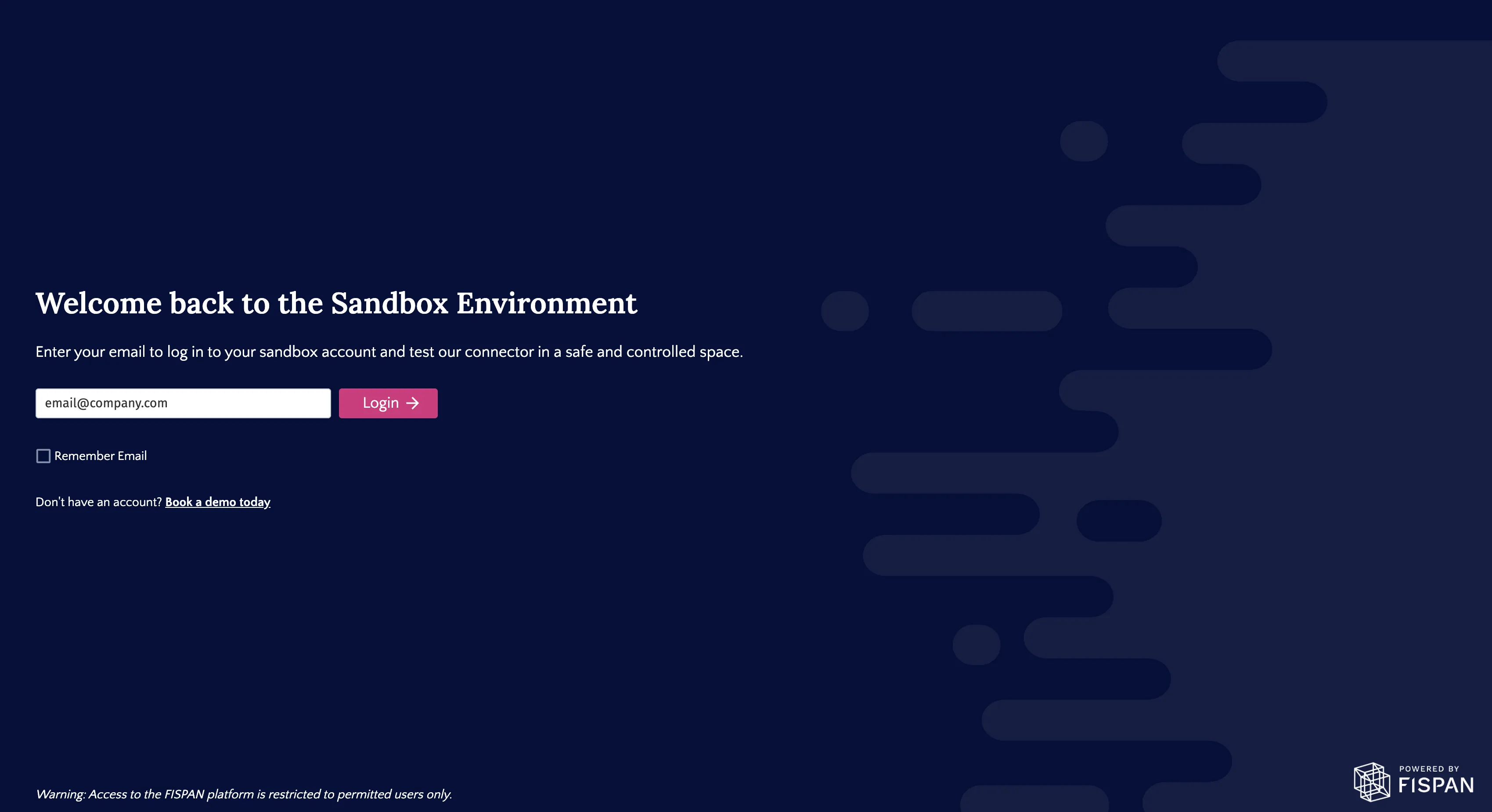
From the welcome page, you'll be taken to the login page. Enter your username and password to proceed.
Setting Up SMS MFA
NOTE: Multi-factor Authentication (MFA) is only required if you are a user in the Production environment. If accessing the Sandbox environment, you may skip this step.
The first time you log in to the Production environment, you will be prompted to establish your Multi-factor Authentication (MFA) setup. You have the option to select various methods of MFA.
Enroll Phone Number
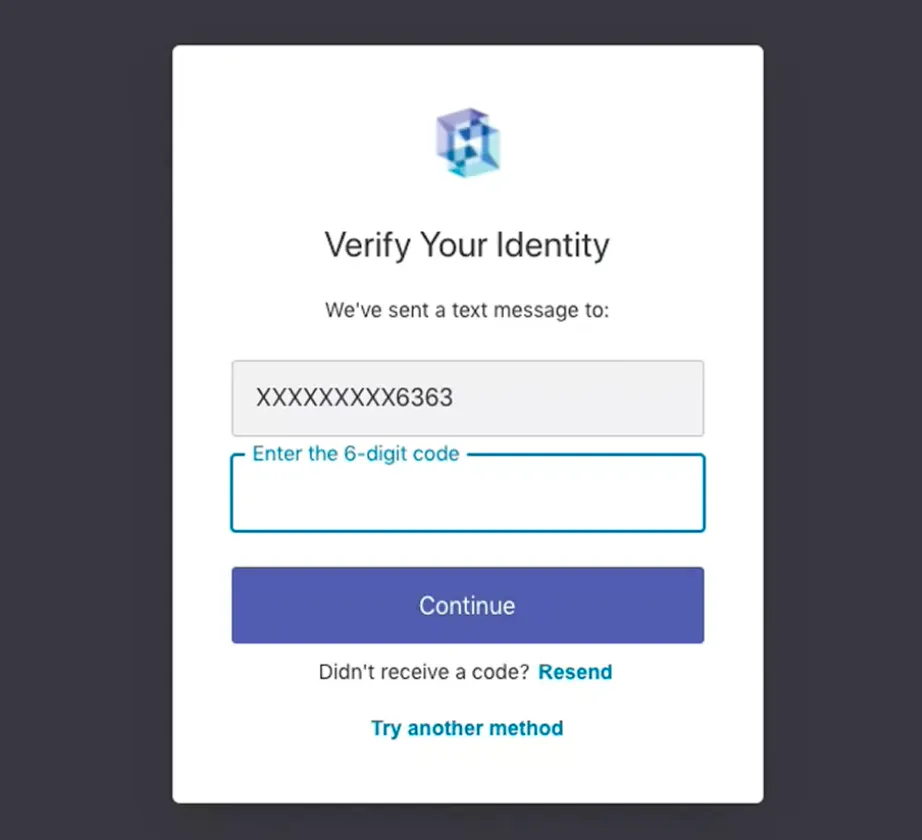
Select your country code then enter your phone number, you will receive a text message with a 6-digit code via SMS to the phone number you provided for enrollment.
If you are unable to receive a text message to this number, or you prefer a different multi-factor authentication method, click Try Another Method.
Enter Code
Enter the 6-digit code you received in the applicable field.
Select Continue.
Save Recovery Code
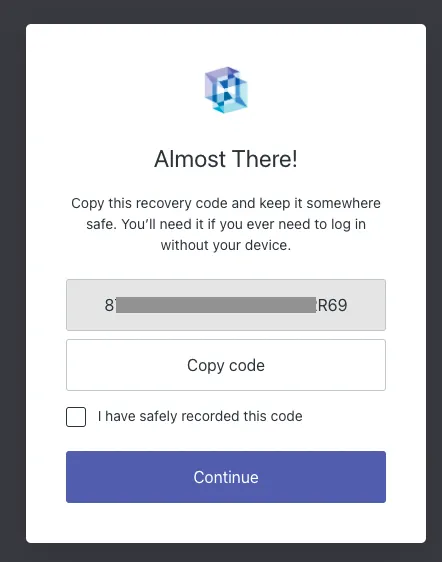
After setting up SMS and inputting the first one-time code, you will be presented with a recovery code that should be stored in a safe location. This code is for resetting the MFA, to switch the MFA type (i.e., Authenticator), or to use a different phone number.
Connect to Sage 300 Bank Feeds
To connect your bank accounts in Sage 300 to the Bank Feeds feature, follow these steps.
Access Bank Reconciliation
Log in to Sage 300.
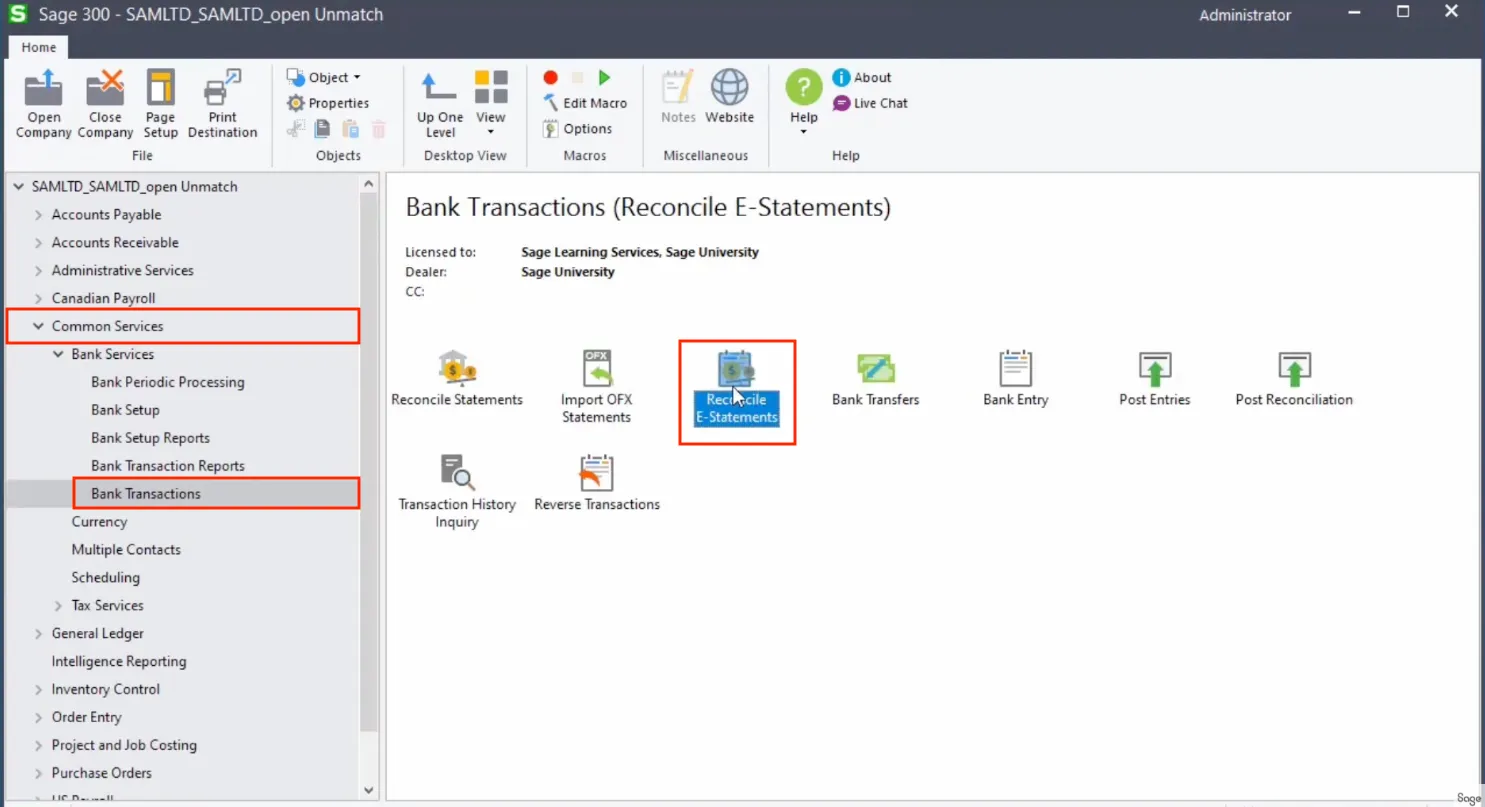
Navigate to Common Services -> Bank Services -> Bank Transactions -> Reconcile E-Statements.
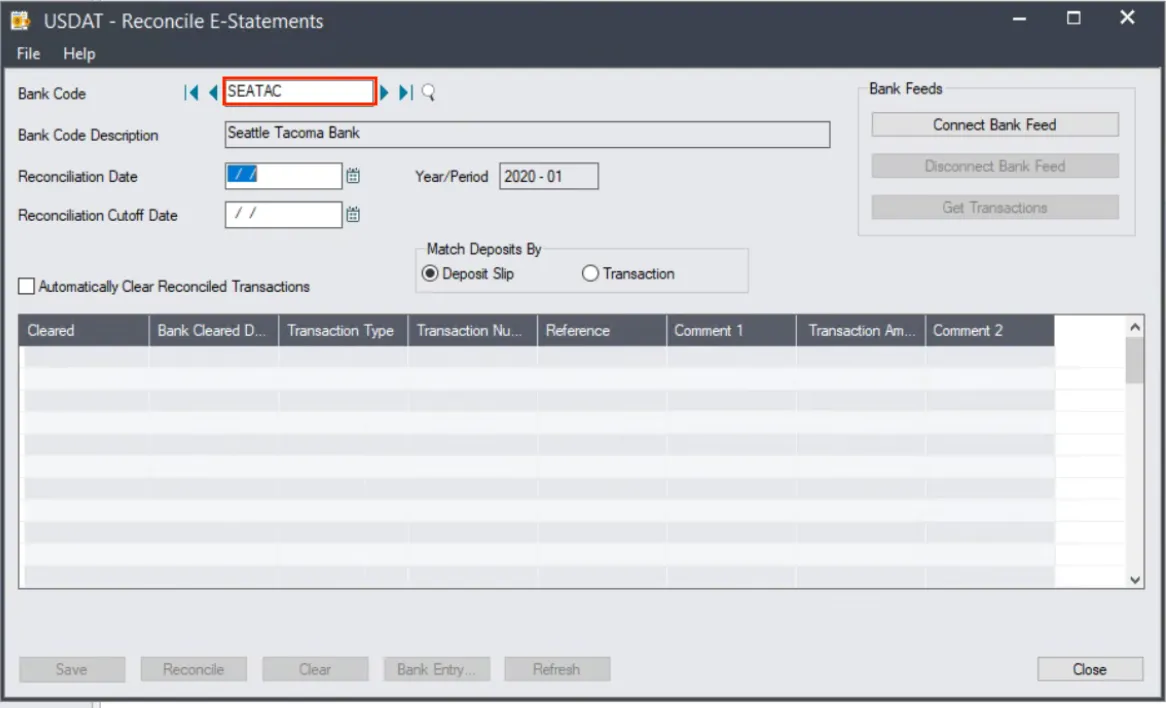
On the Bank Code Maintenance page, enter the Bank Code you want to connect Bank Feeds to.
Connect Bank Feed
After a Bank Code has been defined, select Connect Bank Feed on the right side of the screen.
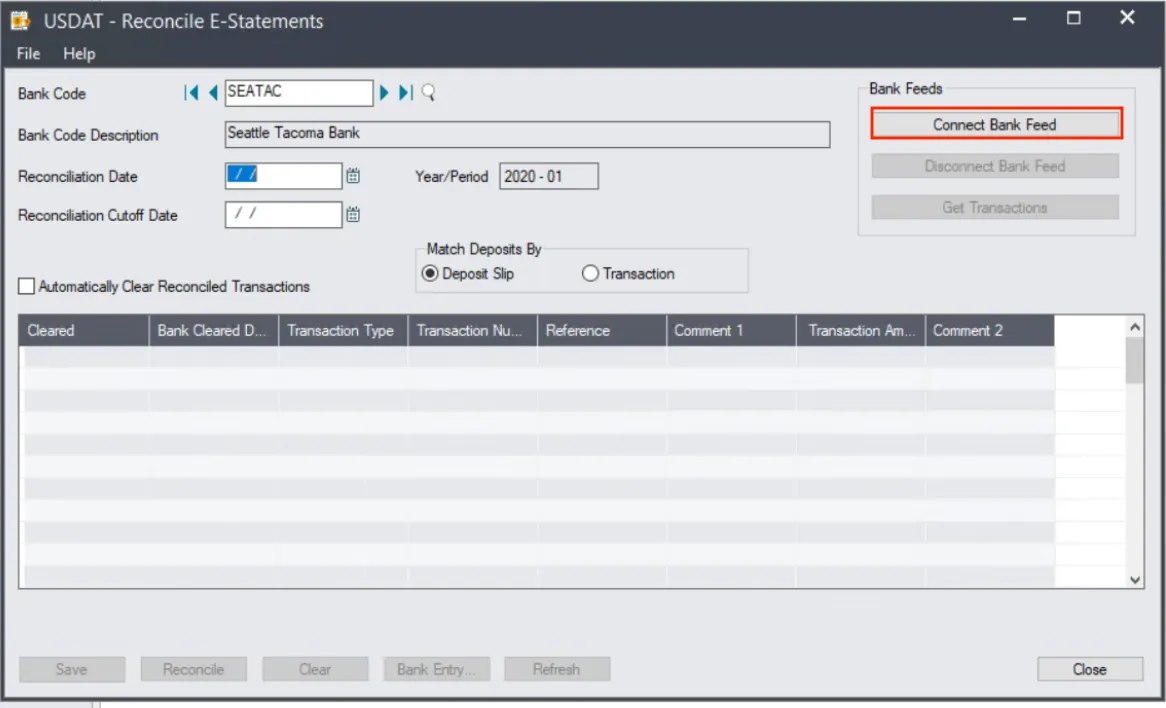
You may be asked to enter an email address (if you didn't do so during initial Sage 300 setup) and/or complete a Captcha.
Connect Your Bank
A new pop-up window should appear, prompting you to Connect your bank.
In the search bar search J.P. Morgan and select "J.P. Morgan Access – Powered by FISPAN".
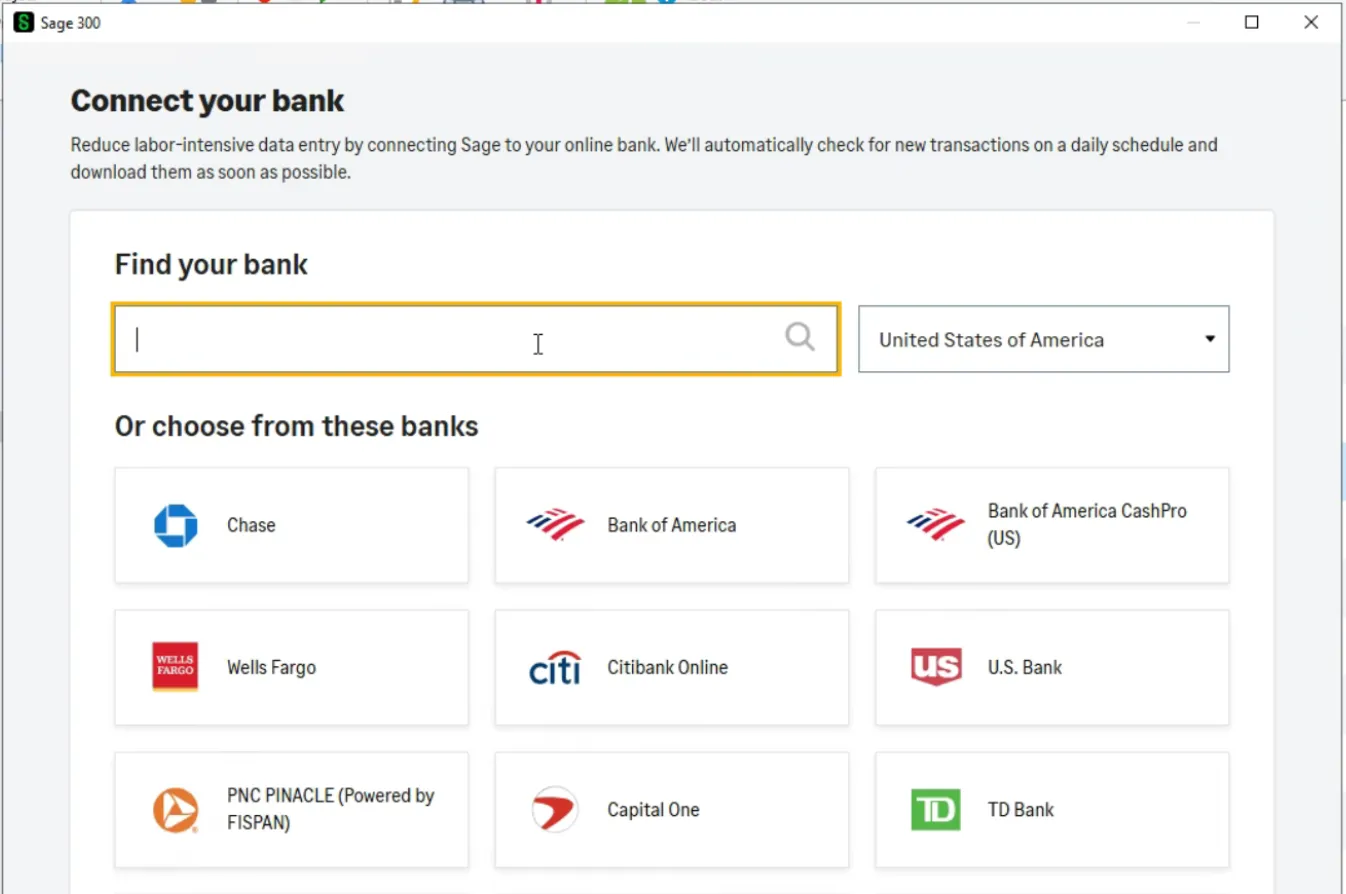
Review the terms and conditions and select Continue.
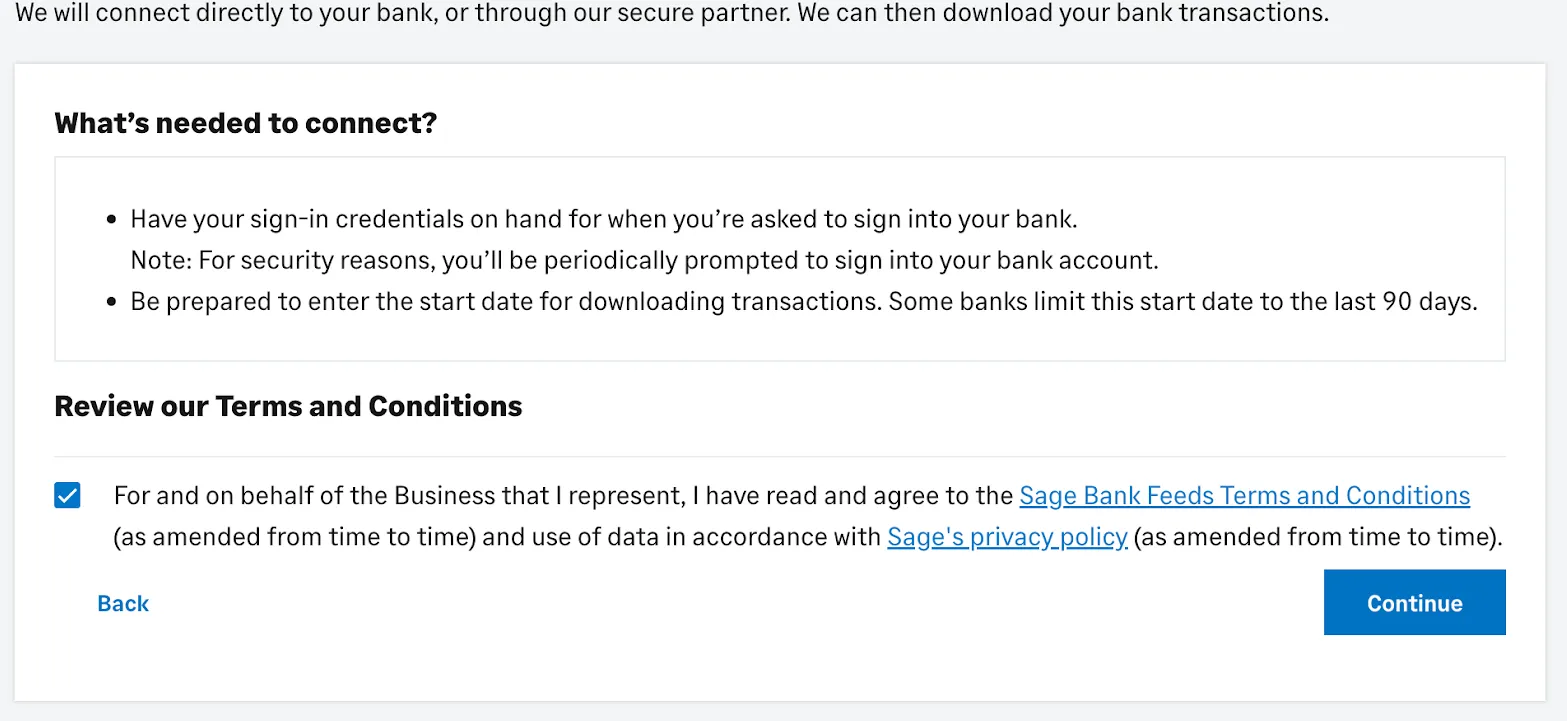
Log in to the FISPAN Portal
Now, you will be redirected to a landing page for the FISPAN Portal.
Select Login Now to proceed with signing into the service that powers the Bank Feed connection.
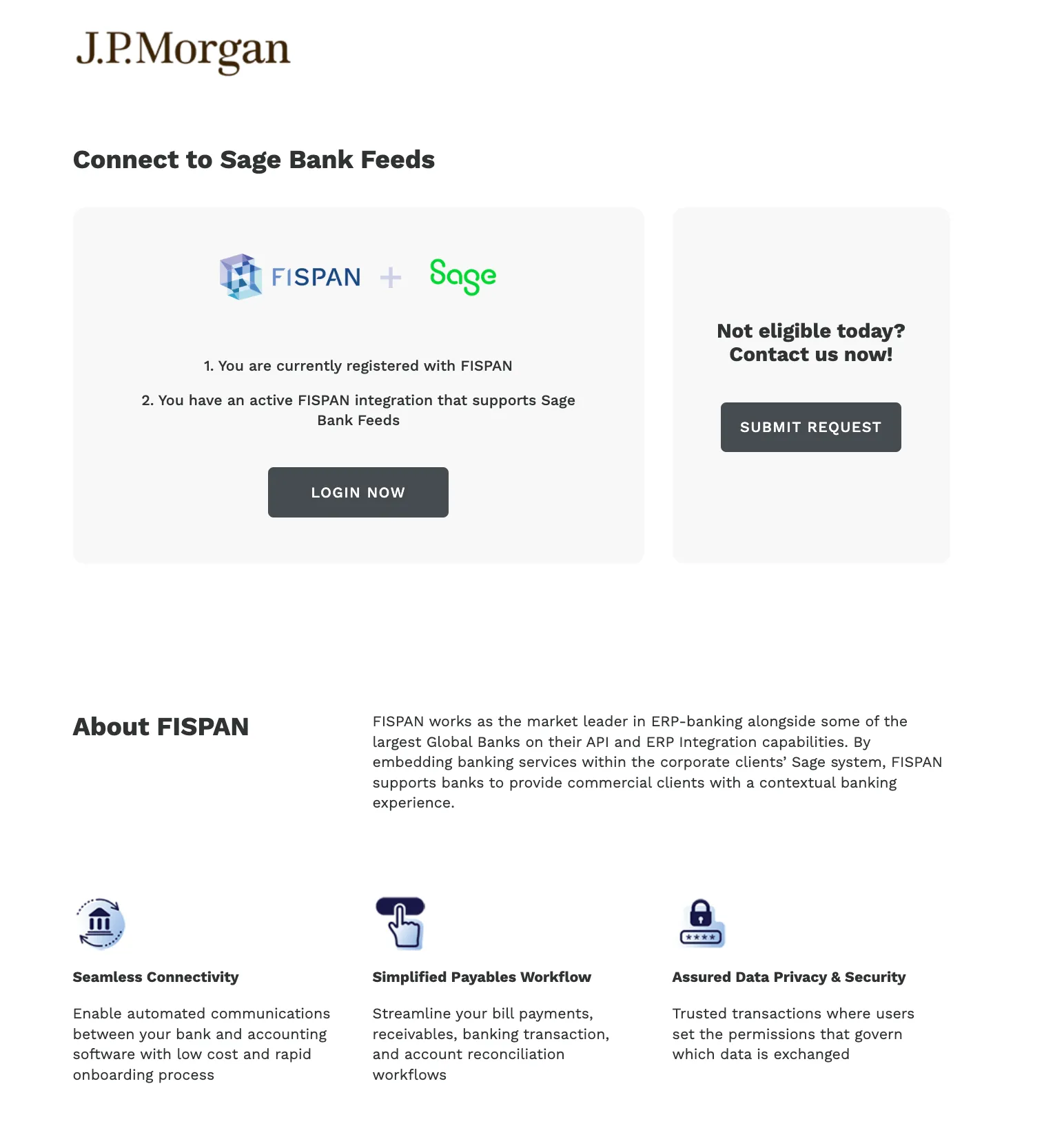
Syncing Bank Feeds
Connect Account
After logging in, you will be directed to the installation wizard. Start by selecting the bank account you chose earlier in Sage 300.
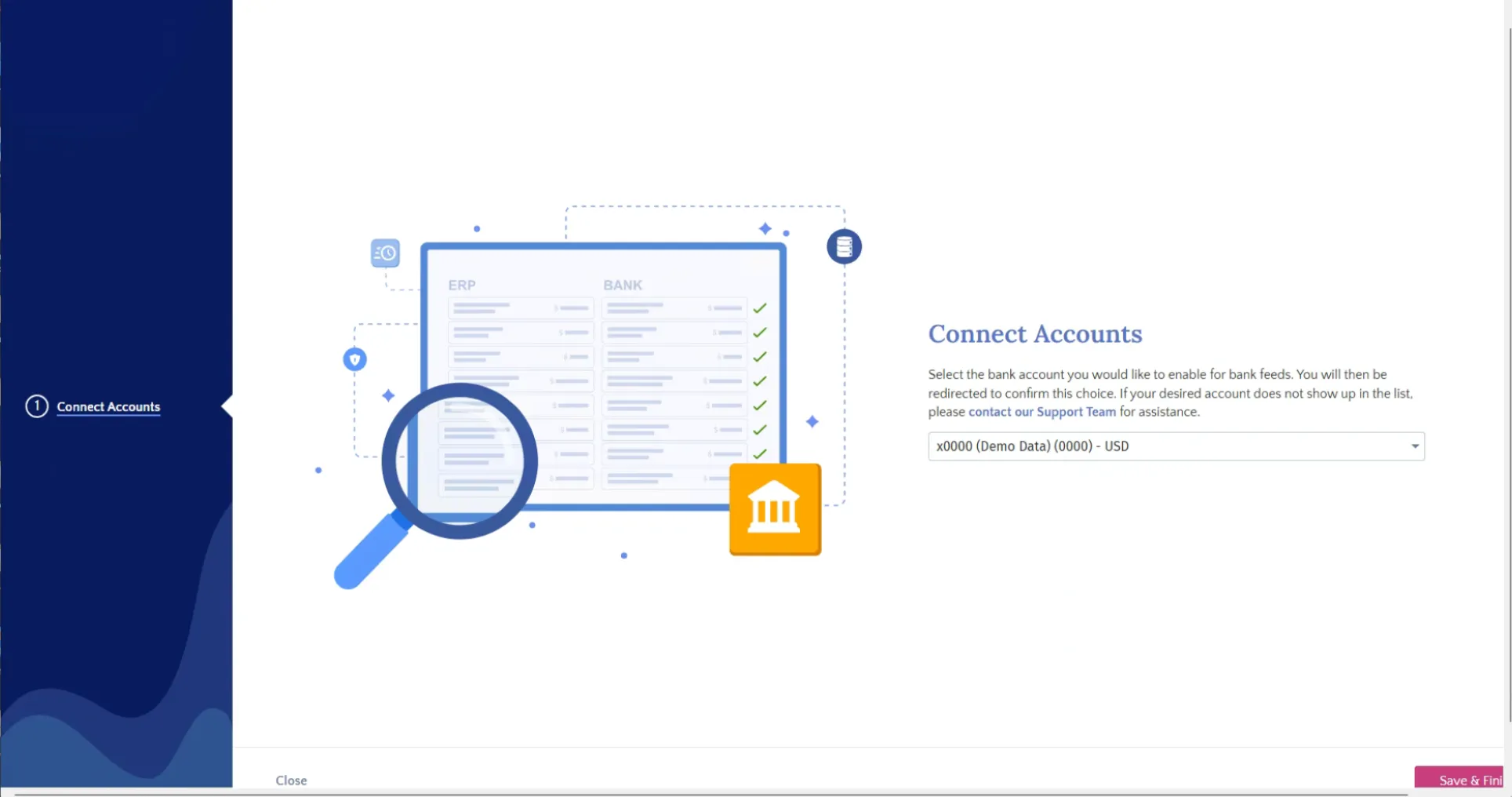
Select Save and Finish. You will automatically be redirected back to the Sage 300 screen.
NOTE: You must complete the account matching flow within 60 minutes, or the installation wizard will time out.
Confirm Account
After being redirected back to Sage, select the same account again.
Select OK.
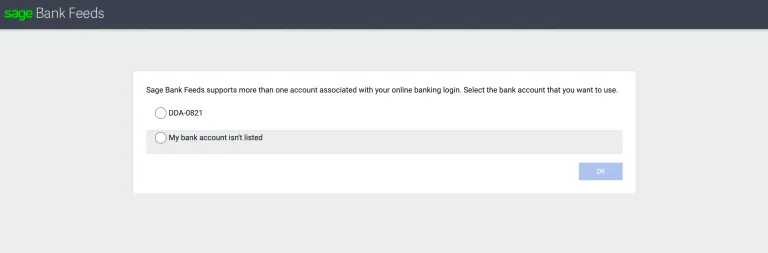
Select Import Start Date
You will be prompted to select a date to begin importing bank transactions from.
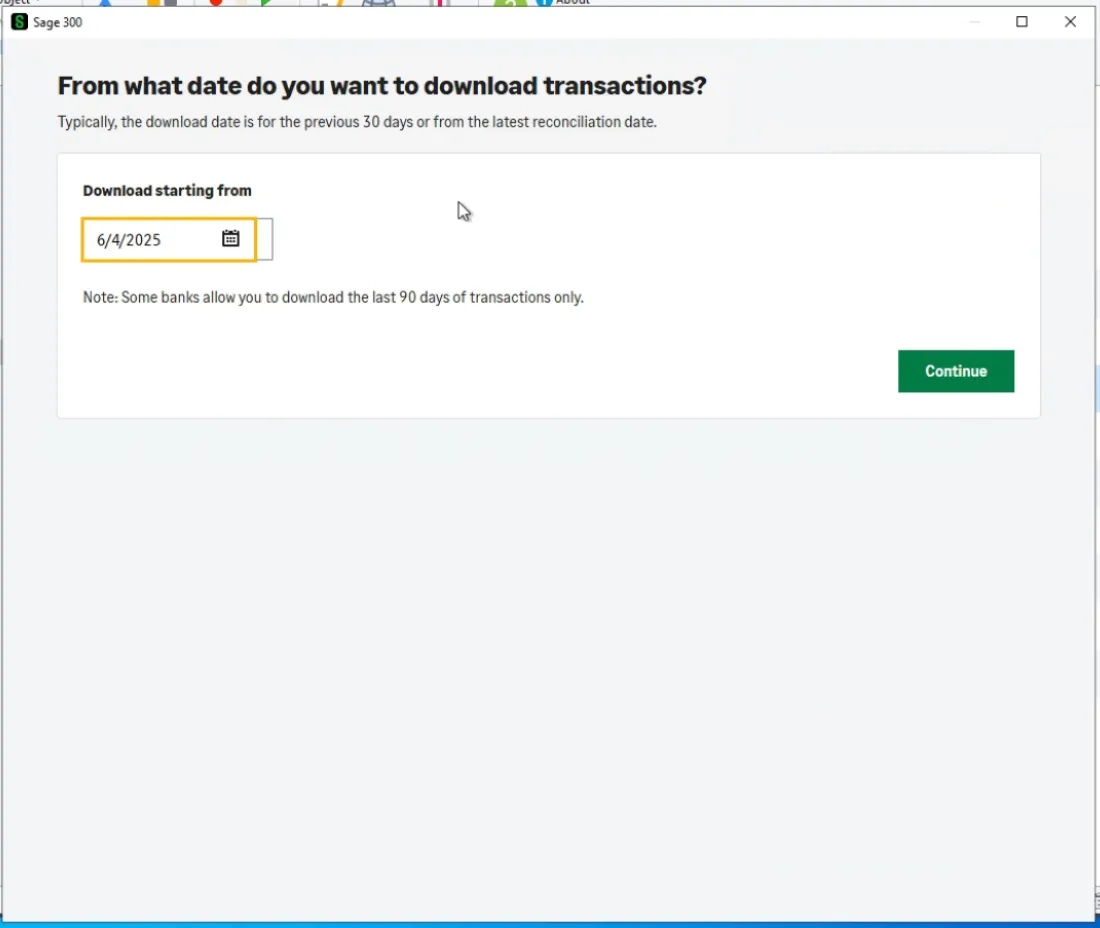
Once the date is selected, click Continue.
Complete the Setup
With the bank account now connected, click on Finish to close the pop-up window.
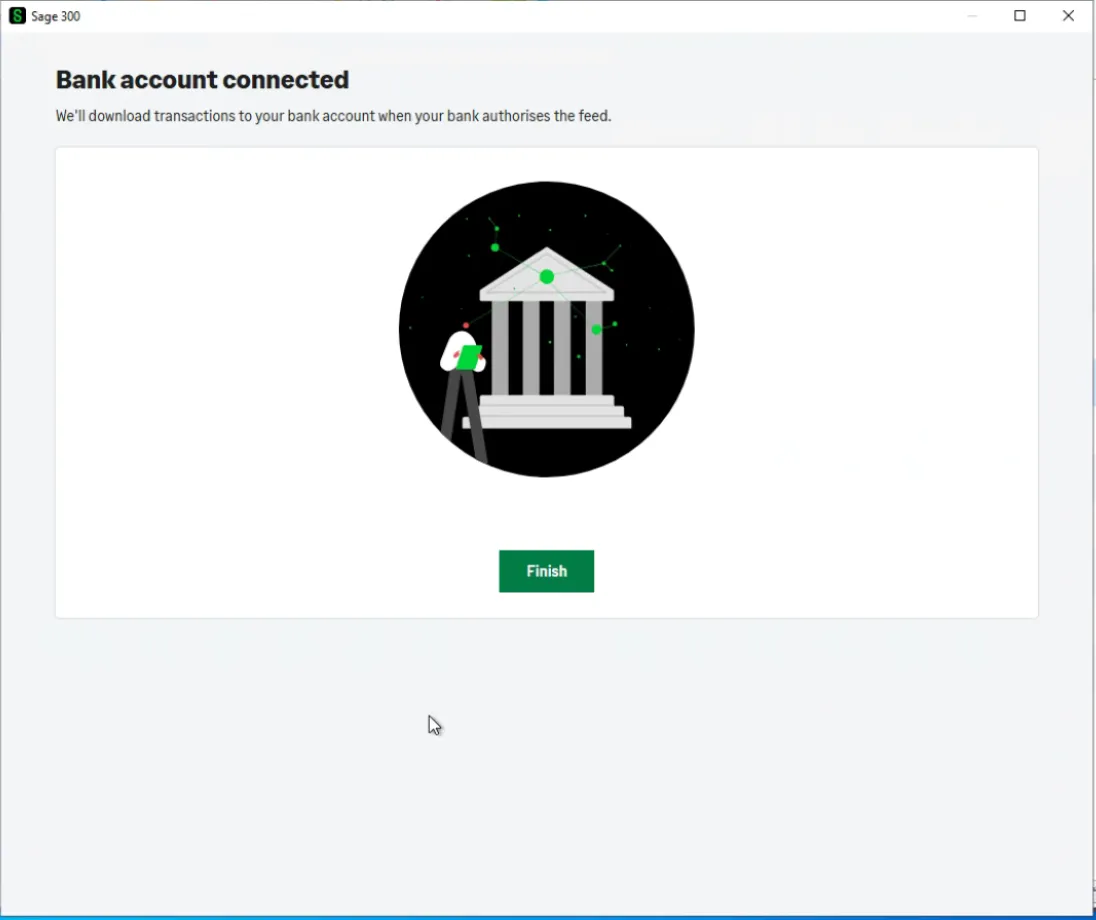
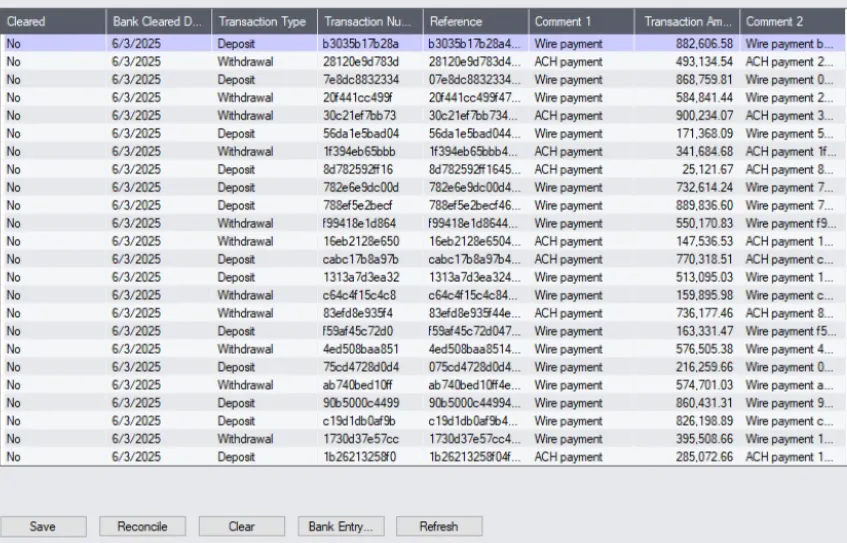
The Sage 300 Reconcile module should now display the newly loaded transactions.
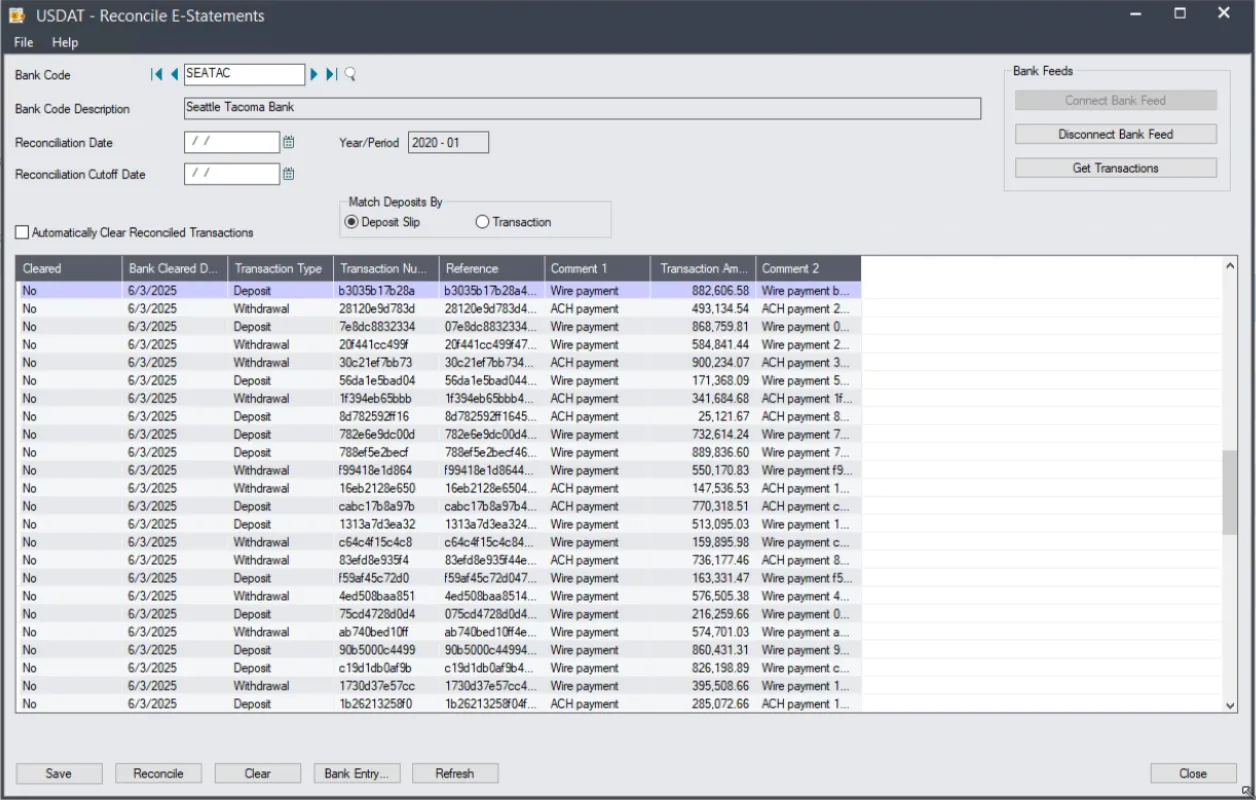
TIP: If the transactions do not load automatically, click the Get Transactions button.
Retrieve Imported Bank Transactions
Settled bank transactions are pushed to the Bank Feeds feature once per day, typically in the morning (Eastern Standard Time/EST).
TIP: We recommend retrieving transactions once a day at most, as there won't be any new settled transactions pushed multiple times throughout the day.
Once your bank accounts are connected via Bank Feeds, your bank transactions will automatically feed into the Bank Reconciliation module in Sage 300.
To manually retrieve the latest daily transactions:
Navigate to Common Services -> Bank Services -> Bank Transactions -> Reconcile E-Statements.
On the Bank Code Maintenance page, input the desired Bank Code.
Click Get Transactions to load the most recent daily feed.