Disable Bank Feeds in Workday
Once you’ve completed the plugin installation and setup, you may want to enable/disable bank feeds connection for bank accounts.
Head to the FISPAN Portal you used to register for an account with FISPAN when you installed the plugin.
Login into the Portal and once logged in, Select the “⋮” that appears on the top right corner of Workday module and select Manage Bank Feeds.
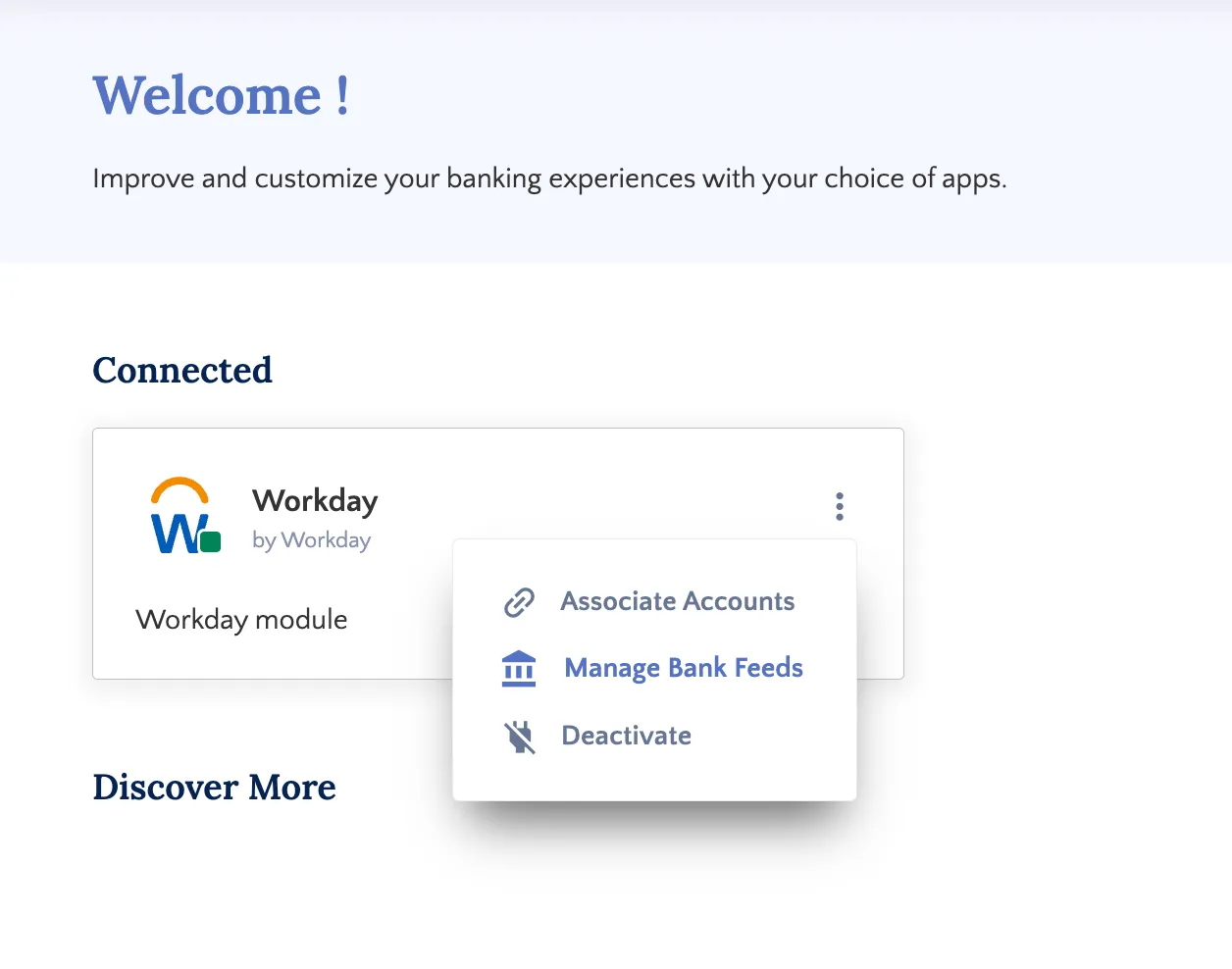
Disable Bank Feeds
Follow these steps to remove an account from Bank Feeds via the Bank Feeds Setup page.
Locate Account to Disconnect
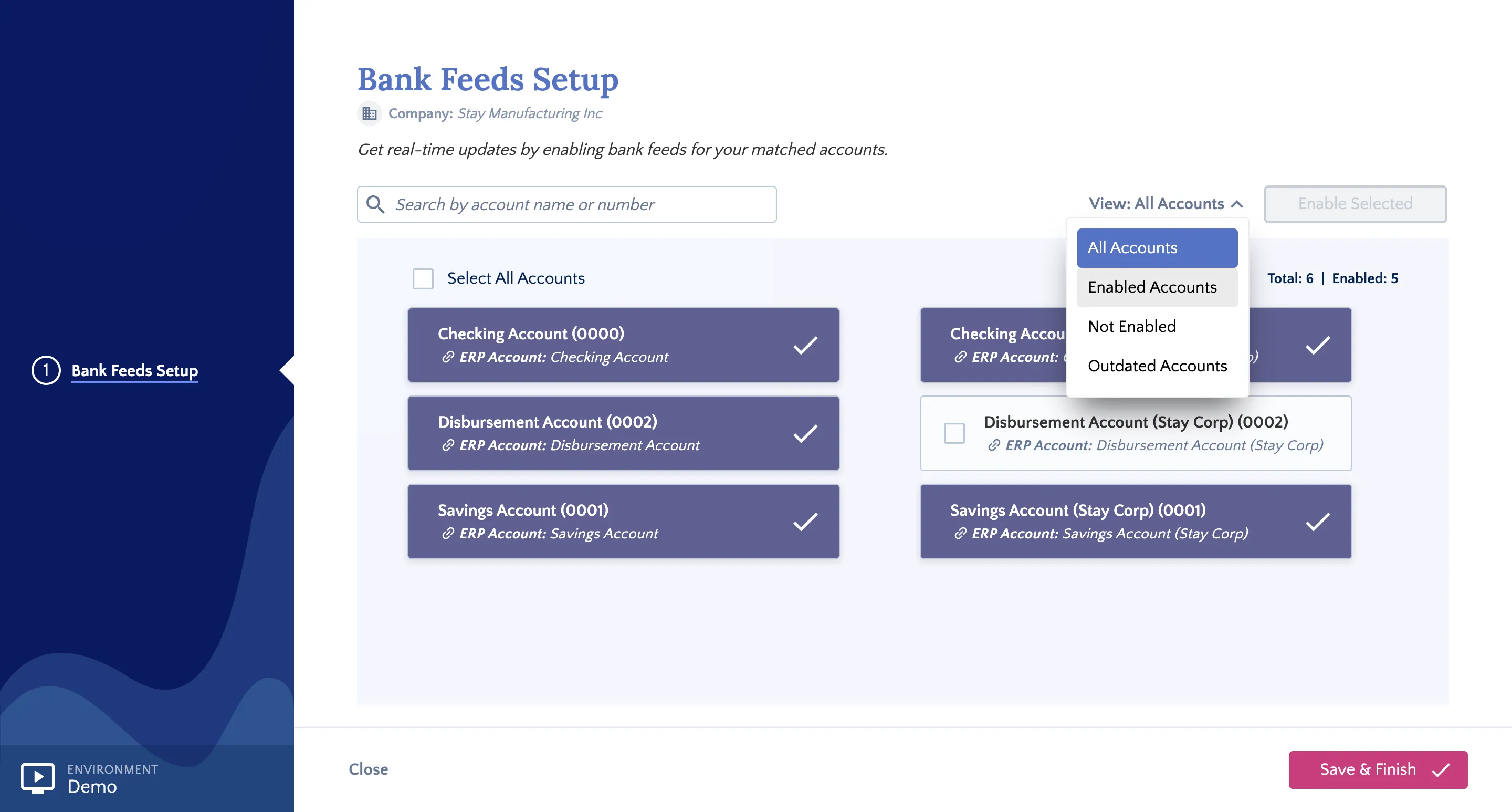
On the Bank Feeds Setup page, active accounts are highlighted in blue and marked with a checkmark.
TIP: Use the Enabled Accounts filter to view only connected accounts.
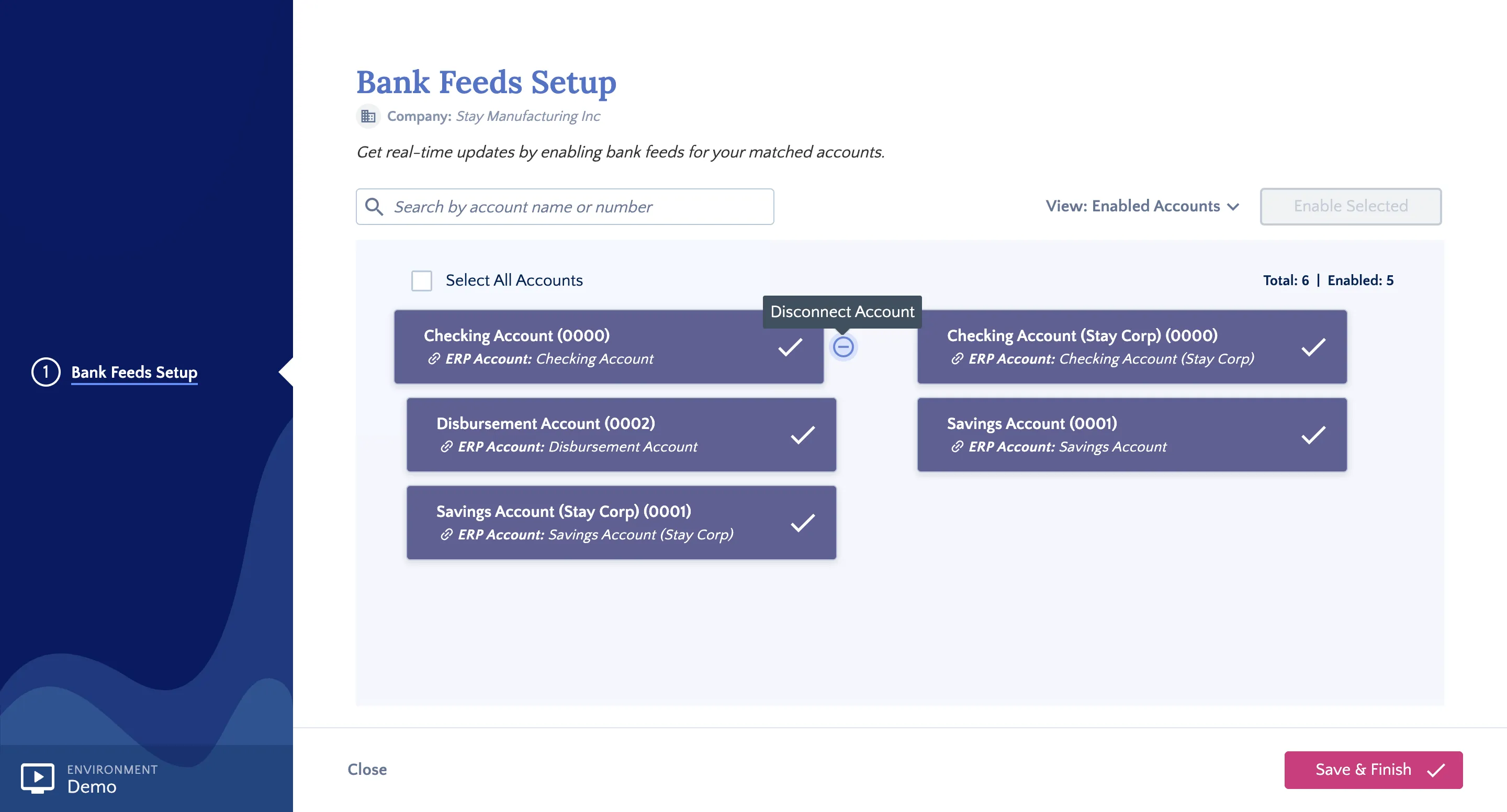
Disconnect Account
Hover over the connected account to reveal the Disconnect Account icon (represented by a 'No Entry' symbol). Click the icon.
A confirmation pop-up will appear. Click Yes, Disconnect Account to proceed.
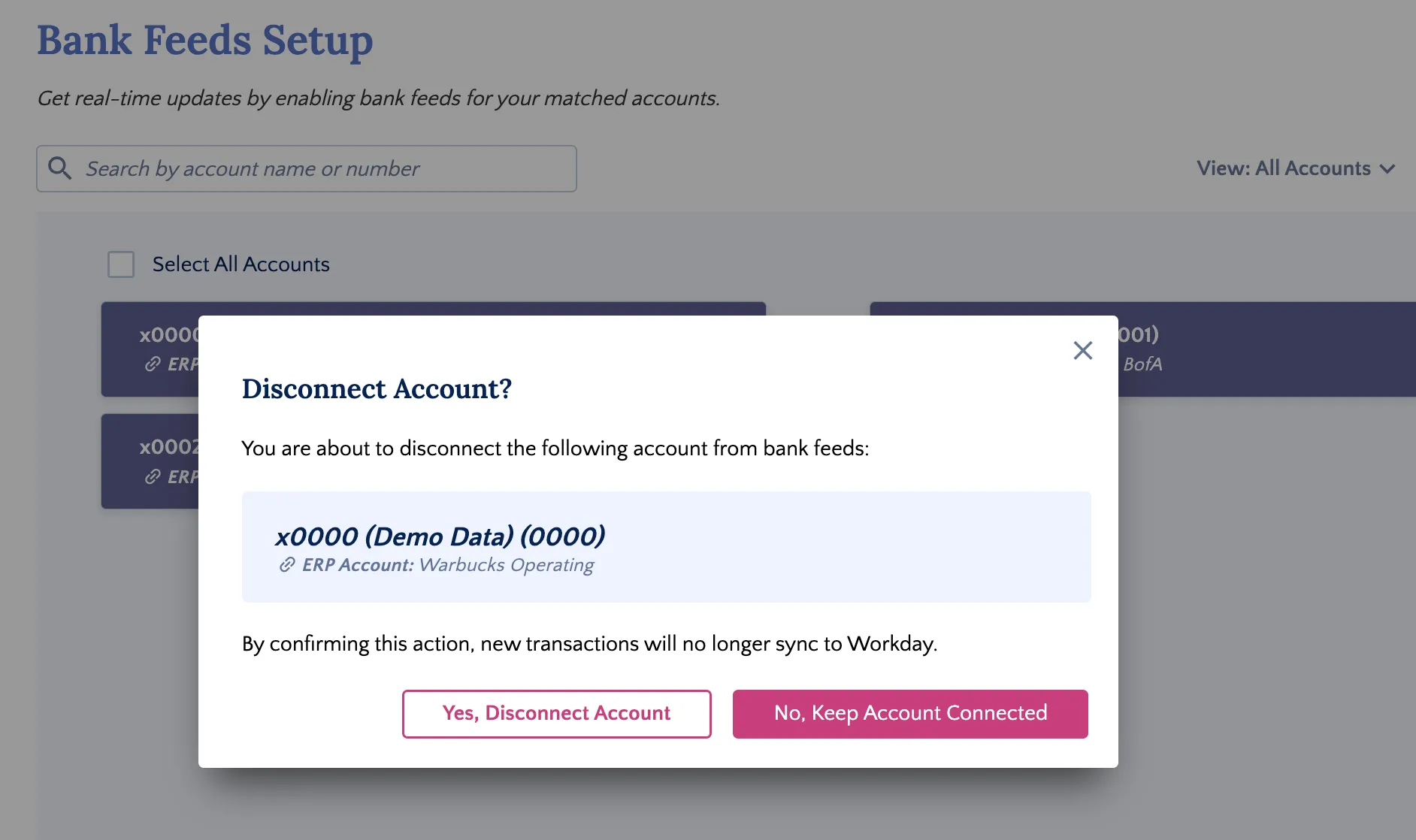
Confirm Account Disconnected
Once successfully disconnected, a confirmation message will appear. This account will no longer receive transaction data in Workday.
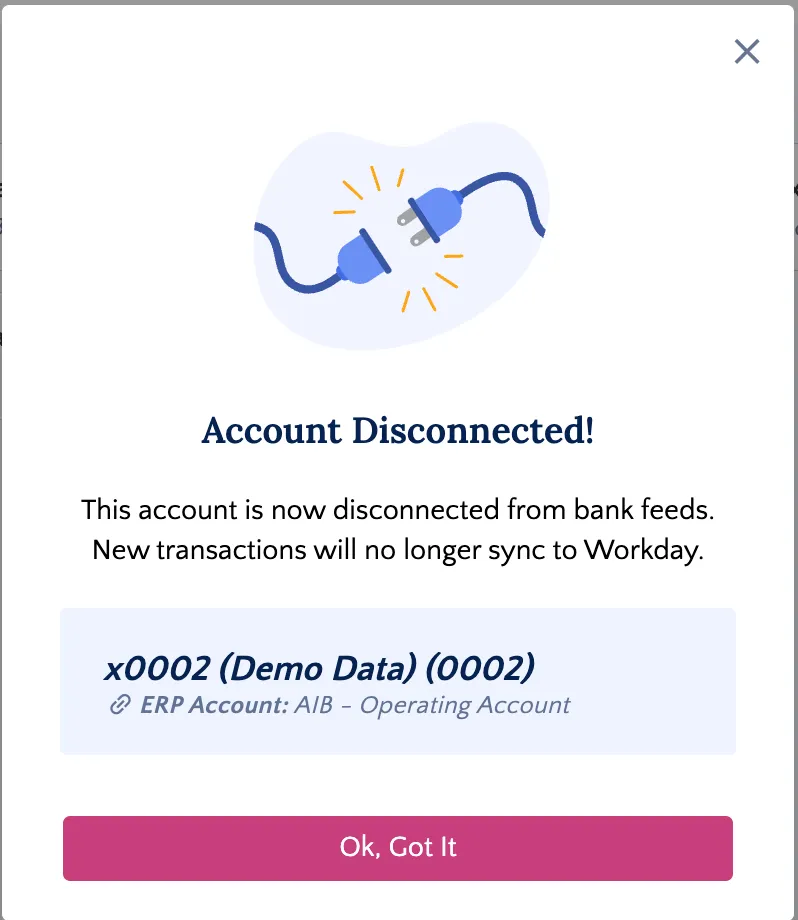
If the disconnection fails, a pop-up will display the reason for the failure. If you are unable to resolve the issue, please contact support.