Bank Feed Requirements (Intacct)
To use Sage Bank Feeds, ensure you have enabled the subscription to Sage Cloud Services as outlined in the Pre-Onboarding Checklist, and have selected the correct permissions. Follow the steps below if there is no Banking Cloud tab available to enable Bank Feeds.
Confirm ISO Country Codes are Enabled
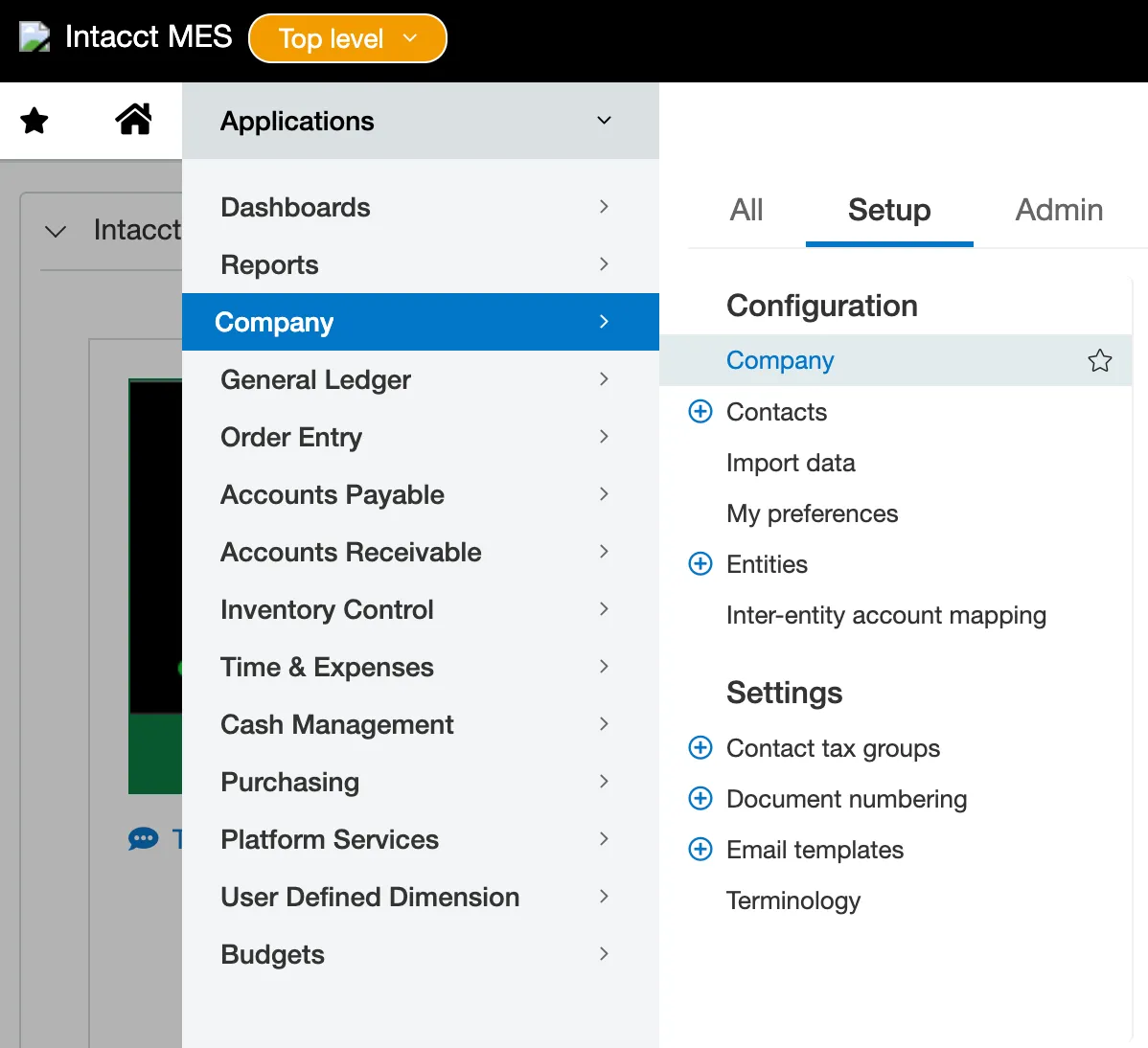
Go to the Company.
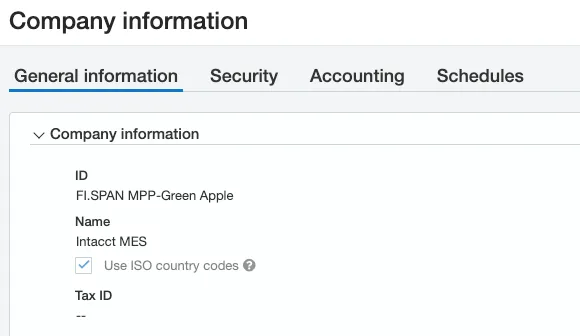
Under the General Information section, confirm that ISO Country Codes is checked, and then select Save.
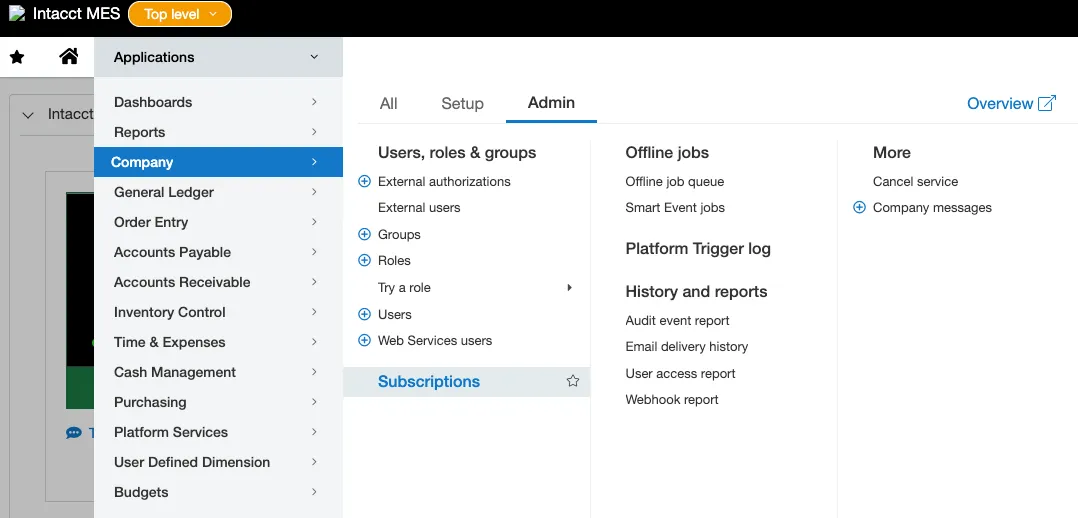
Enable Sage Cloud Services
Go to Company → Admin → Subscriptions.
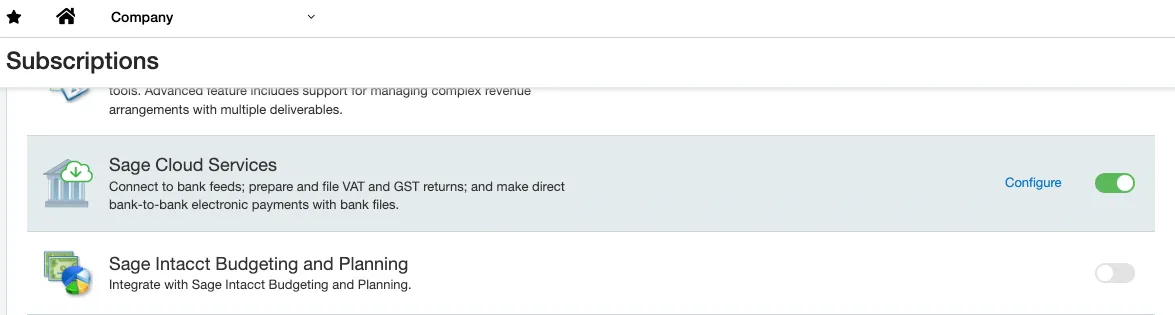
Confirm that Sage Cloud Services are enabled. If they are not, toggle to enable Sage Cloud Services.
After enabling Sage Cloud Services, please confirm that the Enable Bank Feeds functionality is checked in the configurations.
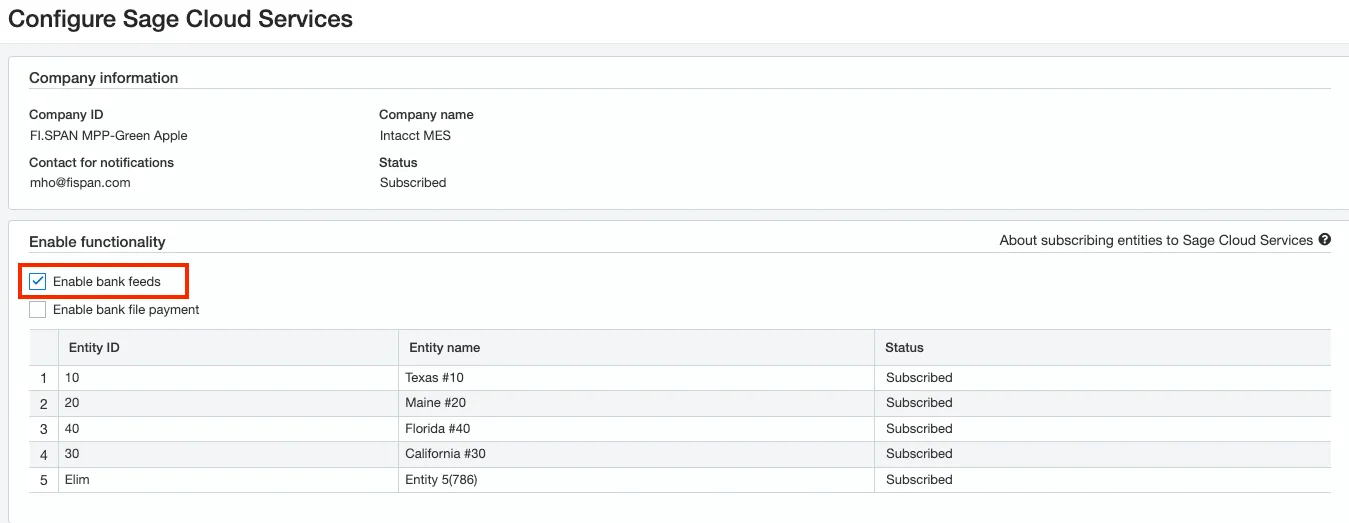
Then select Save.
Confirm Correct Permissions
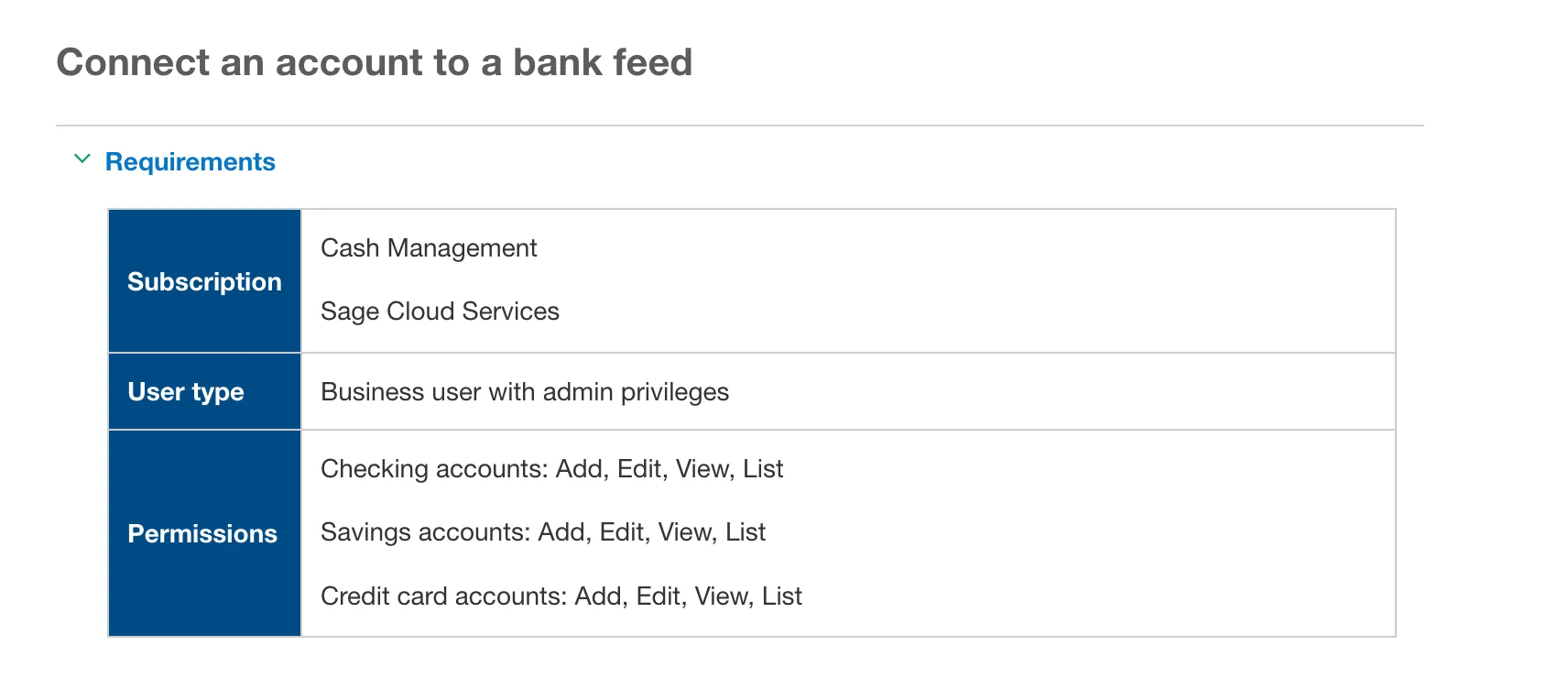
To connect a bank account to bank feeds, you must have the following settings and the permissions below. This can be checked and updated under Company -> Users.
Subscription
- Cash Management
- Sage Cloud Services
User type
- Business user with admin privileges
Permissions
- Checking accounts: Add, Edit, View, List
- Savings accounts: Add, Edit, View, List
- Credit card accounts: Add, Edit, View, List
If you want to find more information about this process, visit the Sage Website:
Once the account has been connected, the user with the permissions to perform the reconciliation will be able to view the incoming transactions. No special permissions are needed to view the transactions.