Step 9: Create Web Service User
To ensure that the plugin is able to communicate with Sage Intacct, a Web Service User needs to be created in Intacct before continuing with the next step.
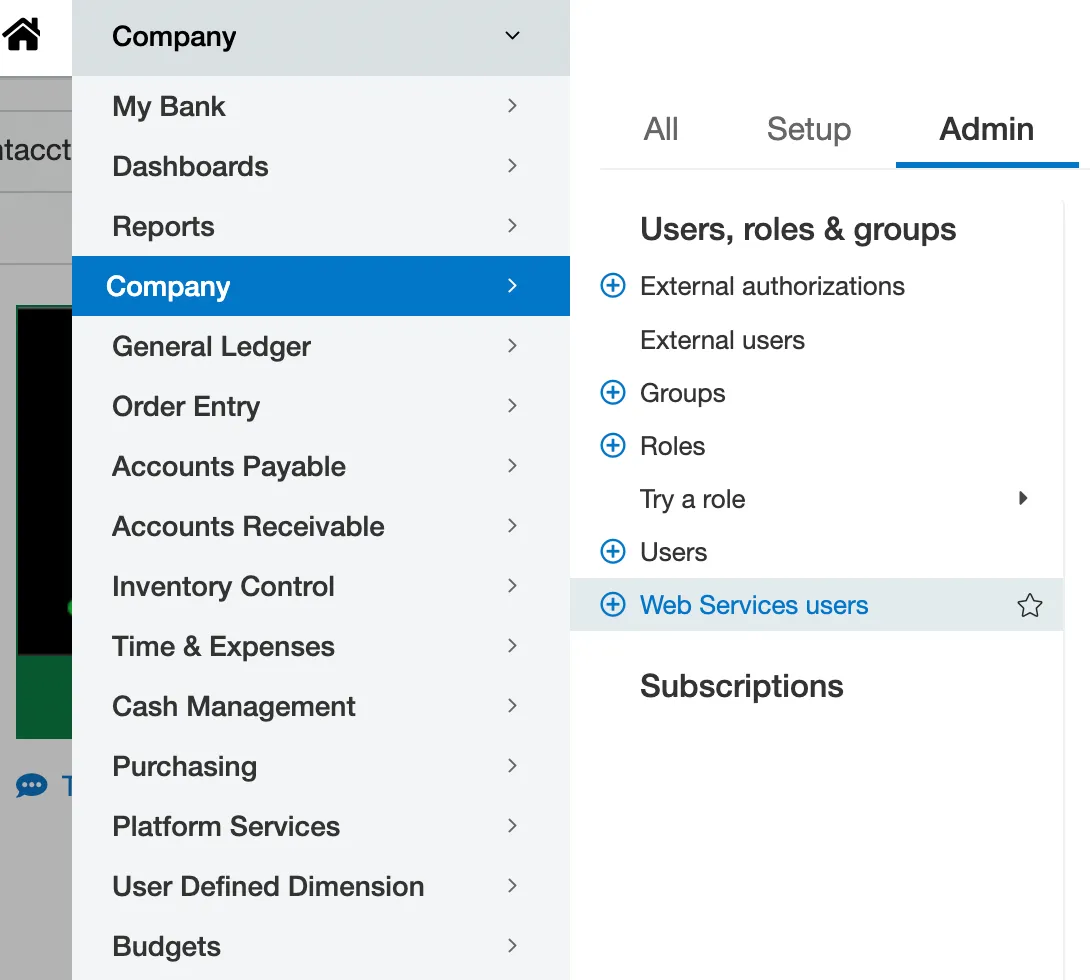
Go to Web Service Users
Go to Company → Admin tab → Web Service Users.
Add New Web Service User
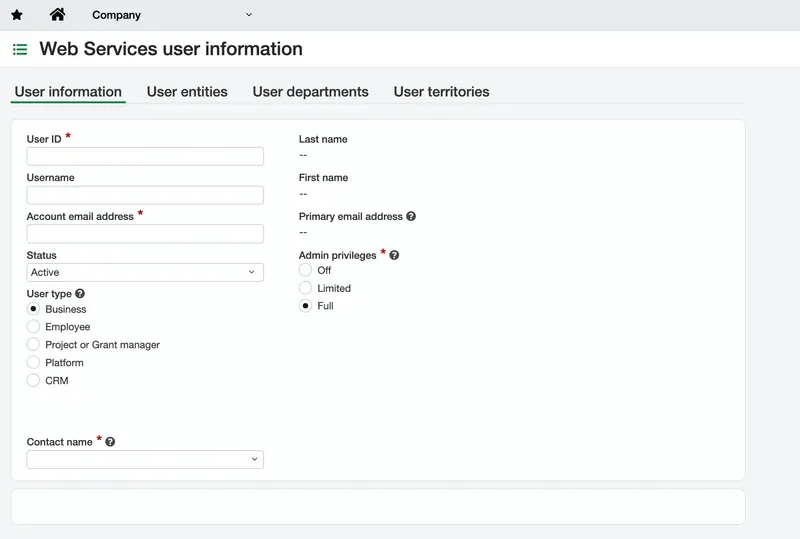
Select Add to create a new Web Service User, then fill in the required fields:
- User ID: Anything that will help you easily identify your users.
- User type: Business
- Admin Privileges: Full
- Contact Name: Associate this Web Services User with a Contact of your choosing
NOTE: An alert will appear, stating: "Check license availability before adding users."
It is recommended to validate this with your Sage Intacct representative.
Please note that the Contact selected within the Contact Name field must have a First and Last Name.
If you do not already have a Contact to choose from, you may create one by clicking on the drop-down, then Add.
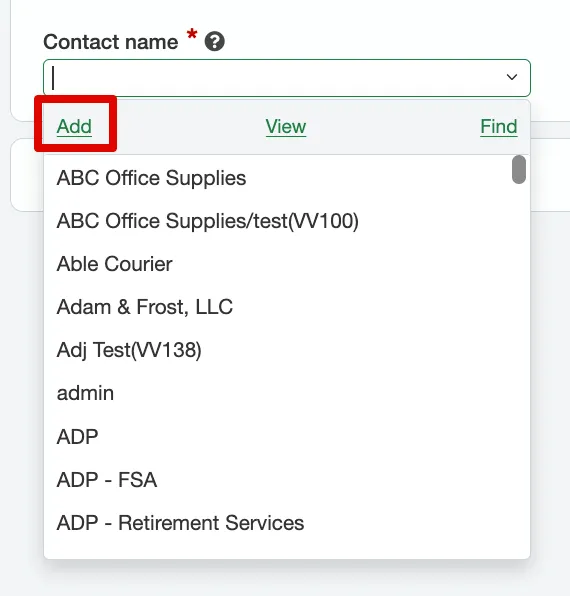
After clicking Add, fill in the following fields on the Contact Information tab of the Contact Information window:
- Last name
- First name
- Primary email address
- Suggested contact name
- Print as
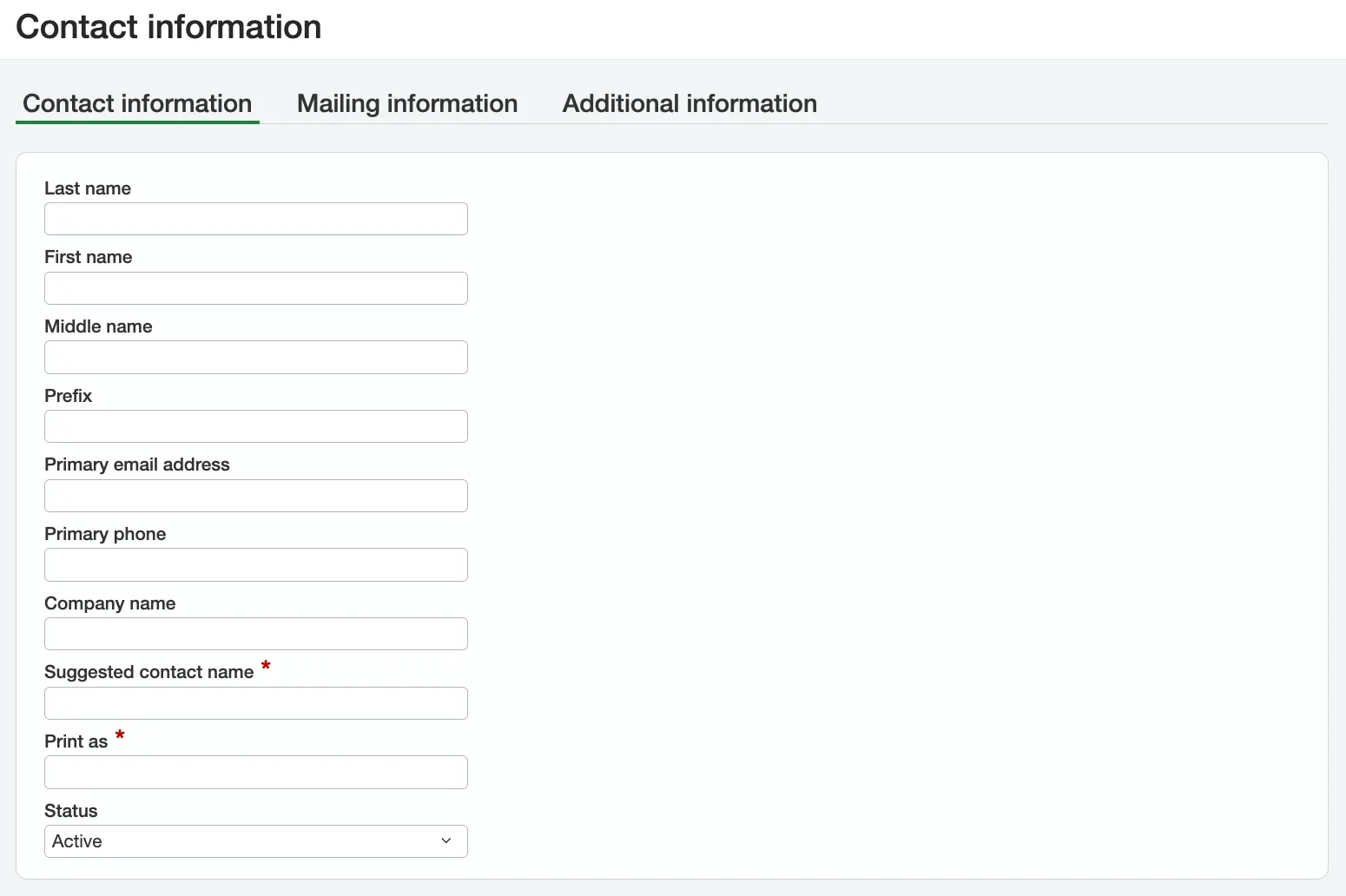
Then, click Save.
Complete Web Service User Form
On the Web Services user information page, the following fields will be auto-populated from the chosen or newly created Contact.
- Last Name
- First Name
- Email Address
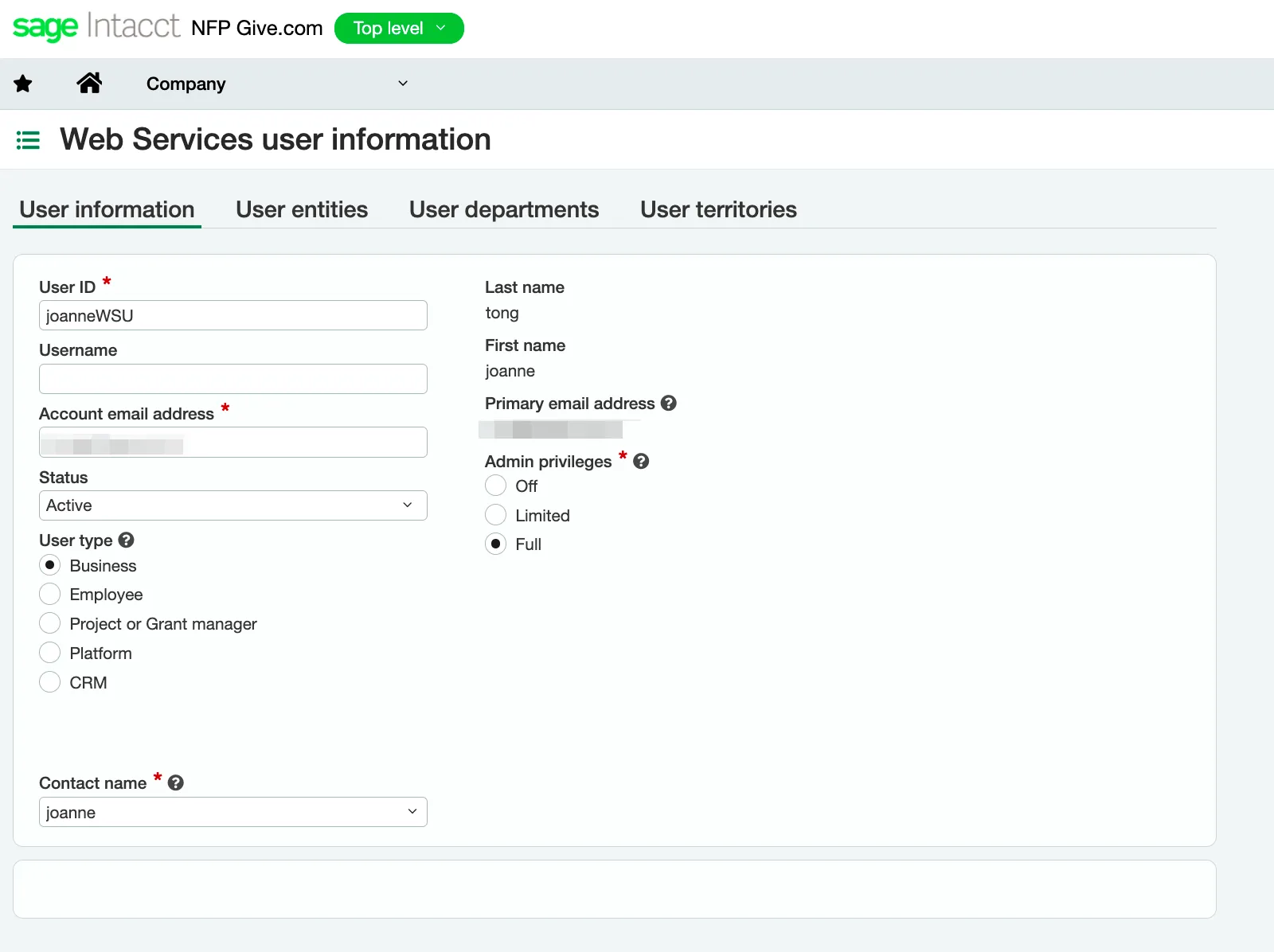
Then, select Save.
NOTE: You will receive an email from Sage Intacct with the credentials. We recommend saving the Web Service User credentials as they are required in the installation wizard.