Step 11: Install Plugin
This next step guides you through installing the plugin with the installation wizard.
Install the Plugin
Select the Start Automatic Install button.
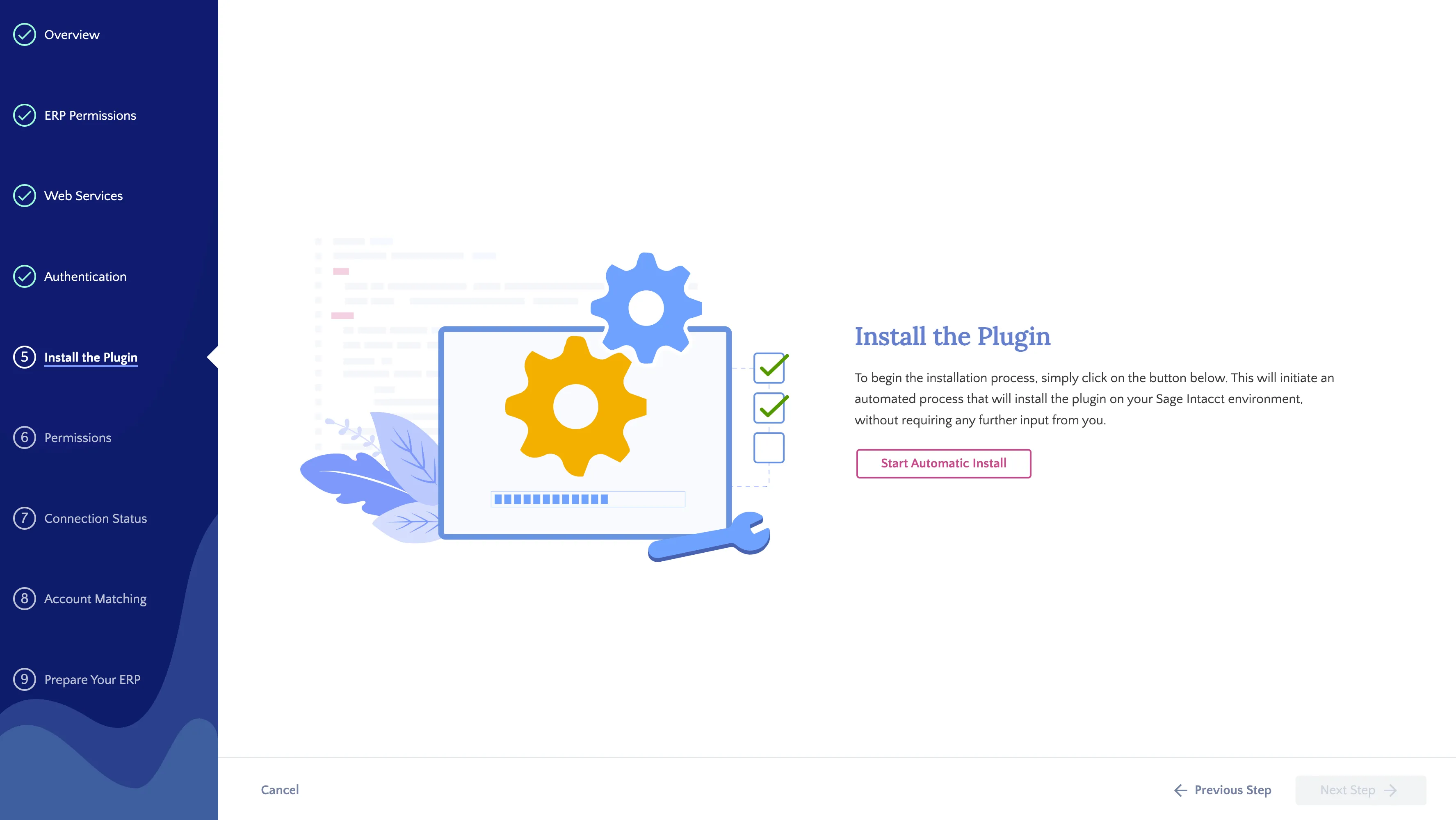
This will automatically install the plugin for you.
If the installation fails, a clear reason for the failure will be provided.
Occasionally, the application may fail to install due to the unavailability of Sage Intacct servers.
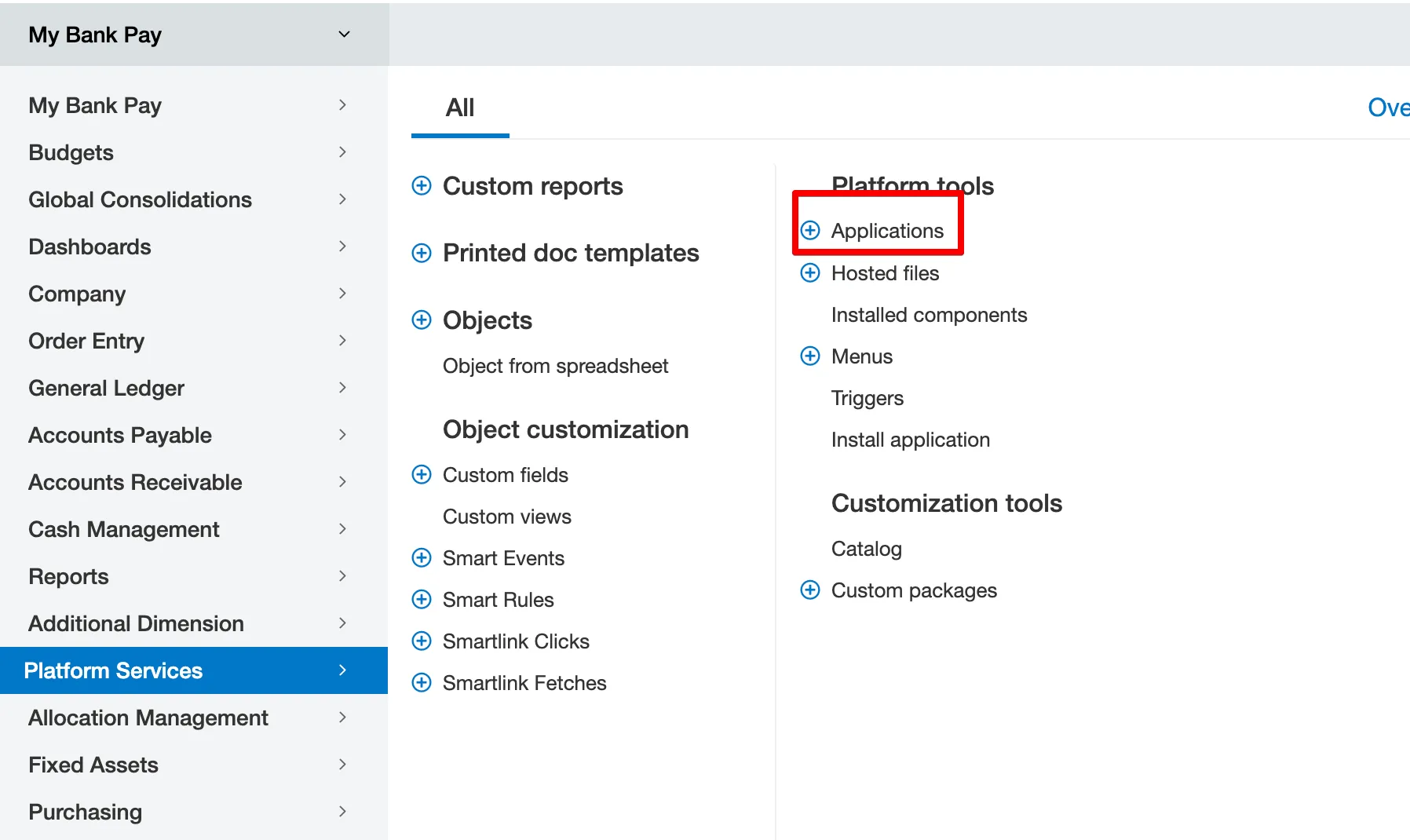
In such cases, we recommend a manual installation by downloading the XML file from the error page and then placing it inside Intacct's Platform Services → Applications → New Application.
Successful Install
After the application has been successfully installed, click on Next Step.
Manual Install
If automatic installation fails, you can manually install the plugin by downloading the plugin XML file using the link in the installation wizard.
Download XML File
From the error page displayed in the installation wizard, select here to download the XML file.
Once the XML file pops up, save it to your computer.
Go to Applications
In Intacct, go to Platform Services → Applications.
Install From XML
Then, select Install from XML.

Upload the application XML file by selecting Choose File.

Select the XML you just downloaded from the installation wizard, and click Install.