Entity Bank Details SuiteApp Installation & Setup (NetSuite)
NOTE: If you do not have Accounts Payable installed, please skip this step.
The Entity Bank Details (EBD) SuiteApp, combined with the standard NetSuite vendor and employee records, will store all the information needed to submit payments.
You can add or view this vendor payment information after installation by going to Setup --> Entity Bank Details -> Overview.
Entity Bank Details (EBD) Installation Instructions
Install Entity Bank Details SuiteApp
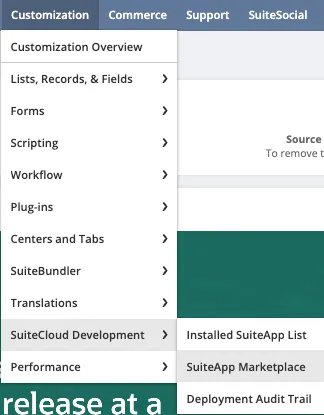
From the homepage, go to Customization → SuiteCloud Development → SuiteApp Marketplace.
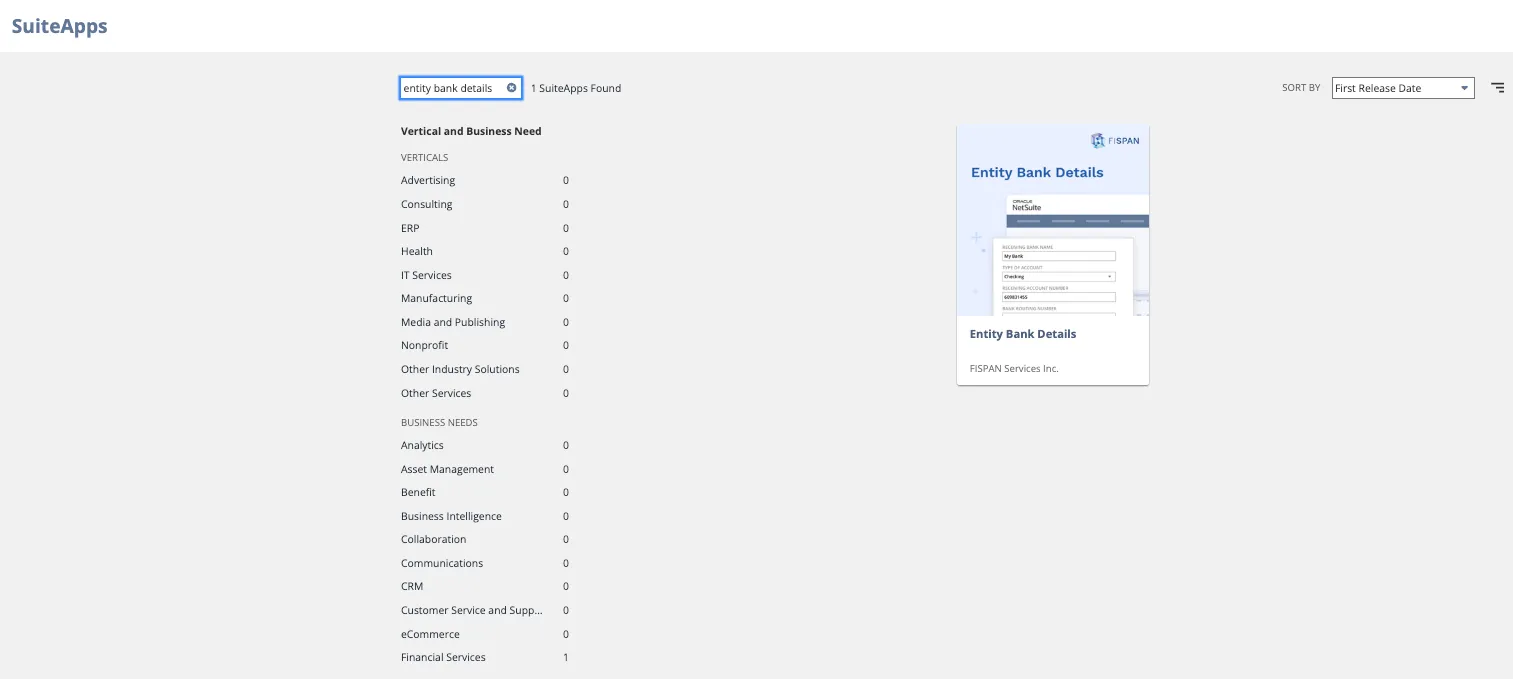
Search for Entity Bank Details. Select the SuiteApp tile named, Entity Bank Details.
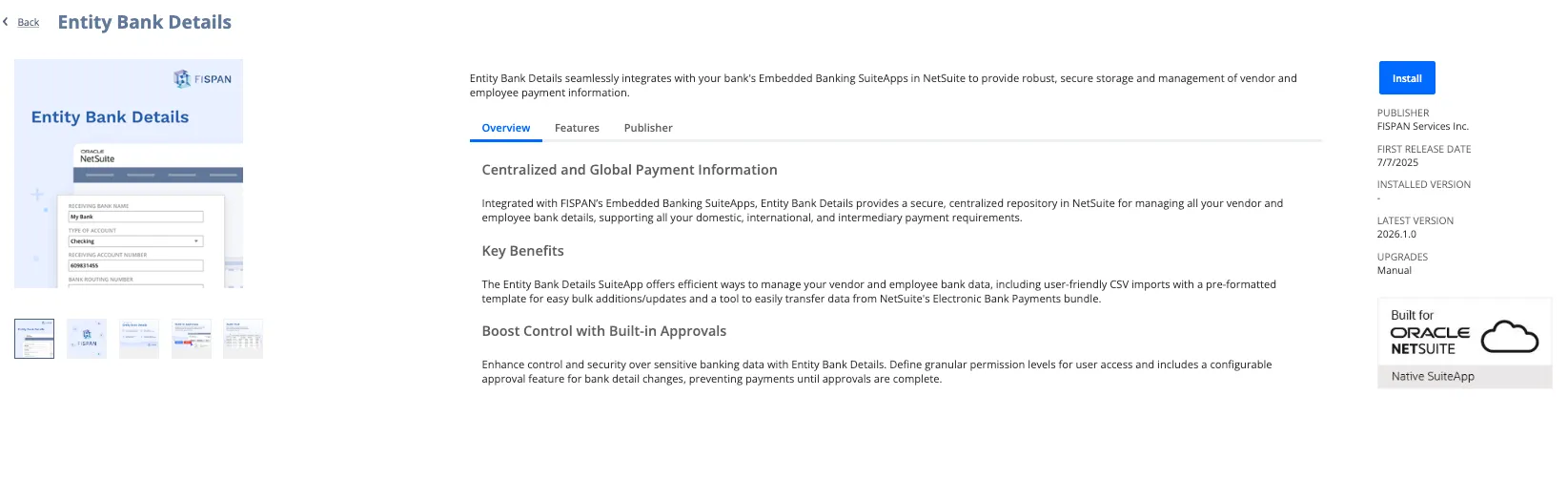
Click Install to review the SuiteApp, then select Install again to confirm.
Manage SuiteApp Access - Suitelets
The administrator has full access to the Entity Bank Details SuiteApp. To allow access to other users and departments, follow these steps:
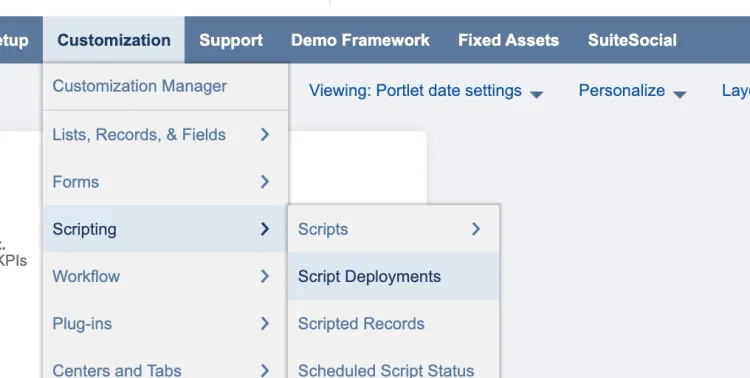
Go to Customization → Scripting → Script Deployments.
On the Script Deployments page, apply the following filters:
- In the Type dropdown, select Suitelet
- In the API Version dropdown, select 2.1
A Suitelet is a custom front-end NetSuite page. Each of the Suitelets listed corresponds to a page in the Entity Bank Details SuiteApp.
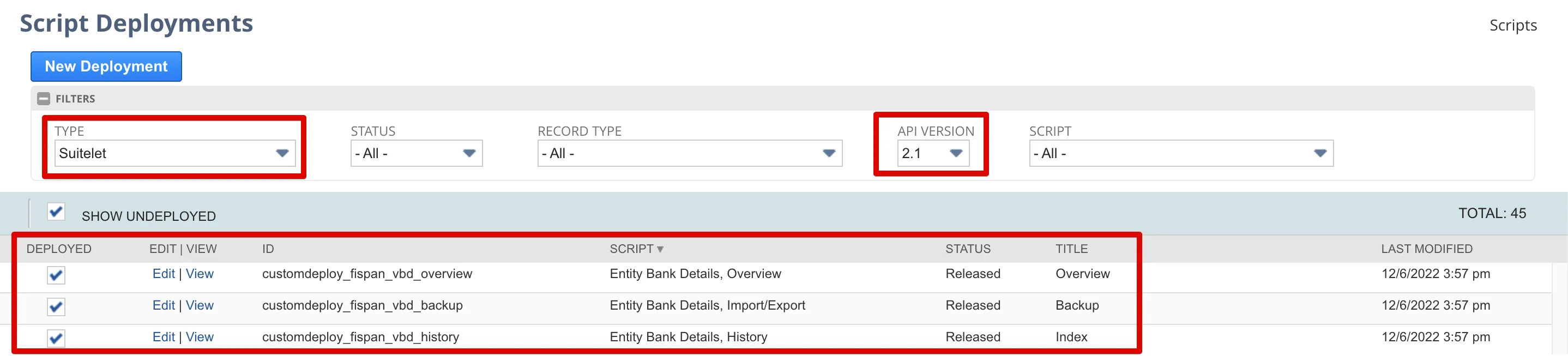
Select Edit on each of the following Suitelets you wish to edit:
Suitelet | Description |
|---|---|
Entity Bank Details, Overview | Granting users access to this script allows them to view the Overview page. This permission, along with the Entity Bank Details, Settings RESTlet, is required to access the Overview page. |
Entity Bank Details, Import/Export | Granting users access to this script will allow them to view the Import/Export page. |
Entity Bank Details, History | Granting users access to this script will allow them to view the History page. |
Entity Bank Details, Settings | Granting users access to this script will allow them to view the Settings page to enable and disable approvals. |
Entity Bank Details, Approvals | Granting users access to this script will allow them to view the Approvals page to approve record changes. |
Add employee roles by selecting the appropriate employee, department, and/or role you would like to assign.
Then, select Save.
Stay on this page for the next steps.
Manage SuiteApp Access - RESTlets
On the Script Deployments page, apply the following filters:
- In the Type dropdown, select RESTlet.
- In the API Version dropdown, select 2.1.
A RESTlet is used to define custom RESTful integrations to NetSuite, and in the context of the Entity Bank Details SuiteApp, is mainly used for handling the import and export processes.
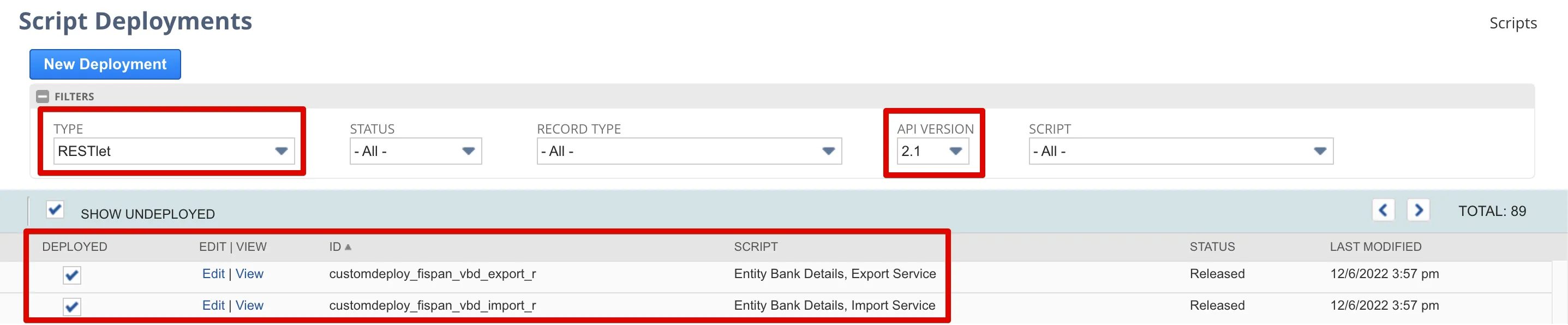
Select Edit on each of the following script deployment RESTlets you wish to edit:
RESTlet | Description |
|---|---|
Entity Bank Details, Import Service | Granting users access to this script will allow them to import a CSV of bank account information into the Entity Bank Details SuiteApp. |
Entity Bank Details, Export Service | Granting users access to this script will allow them to export a CSV of bank account information from the Entity Bank Details SuiteApp. |
Entity Bank Details, History Log Export | Granting users access to this script will allow them to export a CSV History Log of all changes made to any records stored within the Entity Bank Details SuiteApp. This history log tracks any edits, additions, or deletions, as well as who initiated the change and when. |
Entity Bank Details, Settings | This RESTlet should come with pre-enabled access for all roles. Granting users access to this script will allow them to view the Overview page. This permission, alongside the Entity Bank Details, Overview Suitelet, is required to access the Overview page. |
Entity Bank Details, Analytics | This RESTlet should also come with pre-enabled access for all roles. |
Add employee roles by selecting the appropriate employee, department, and/or role you would like to assign.
Then, select Save.
Manage SuiteApp Access - User Events
On the Script Deployments page, apply the following filters:
- On the Type dropdown, select User Event.
- On the API Version dropdown, select 2.1.
A User Event is a type of script that is executed when someone performs certain actions on records, such as create, load, update, copy, delete, or submit.
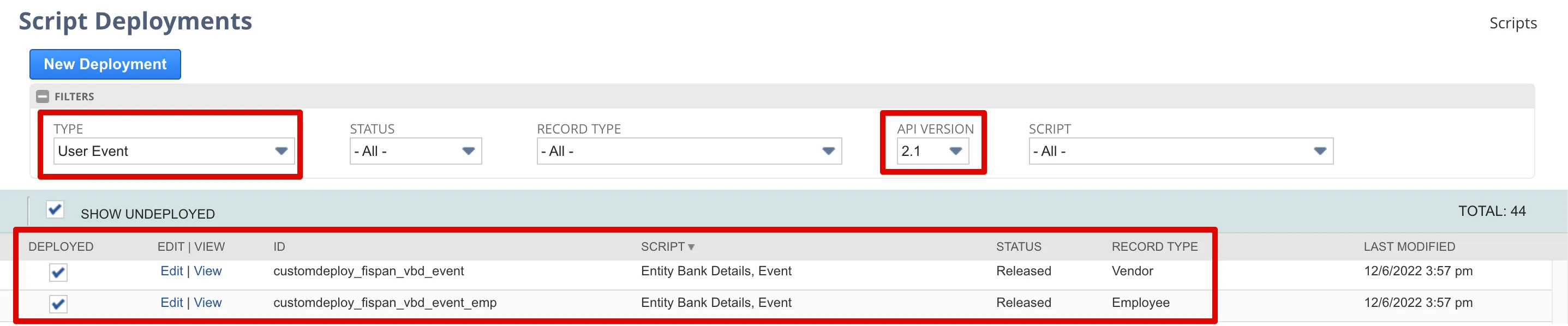
Select Edit next to the Script Deployment User Event:
User Event | Description |
|---|---|
Entity Bank Details, Event (Record Type = Vendor) | This User Event script allows users/roles to add or update Vendor Bank Account information. |
Entity Bank Details, Event (Record Type = Employee) | This User Event script allows users/roles to add or update Employee Bank Account information. |
Add employee roles by selecting the appropriate employee, department, and/or role you would like to assign.
Then, select Save.
Manage SuiteApp Access - Custom Records
Go to Setup → Users/Roles → Manage Roles.
Then, select Edit for the role for which you would like to grant access to the Entity Bank Details SuiteApp records.
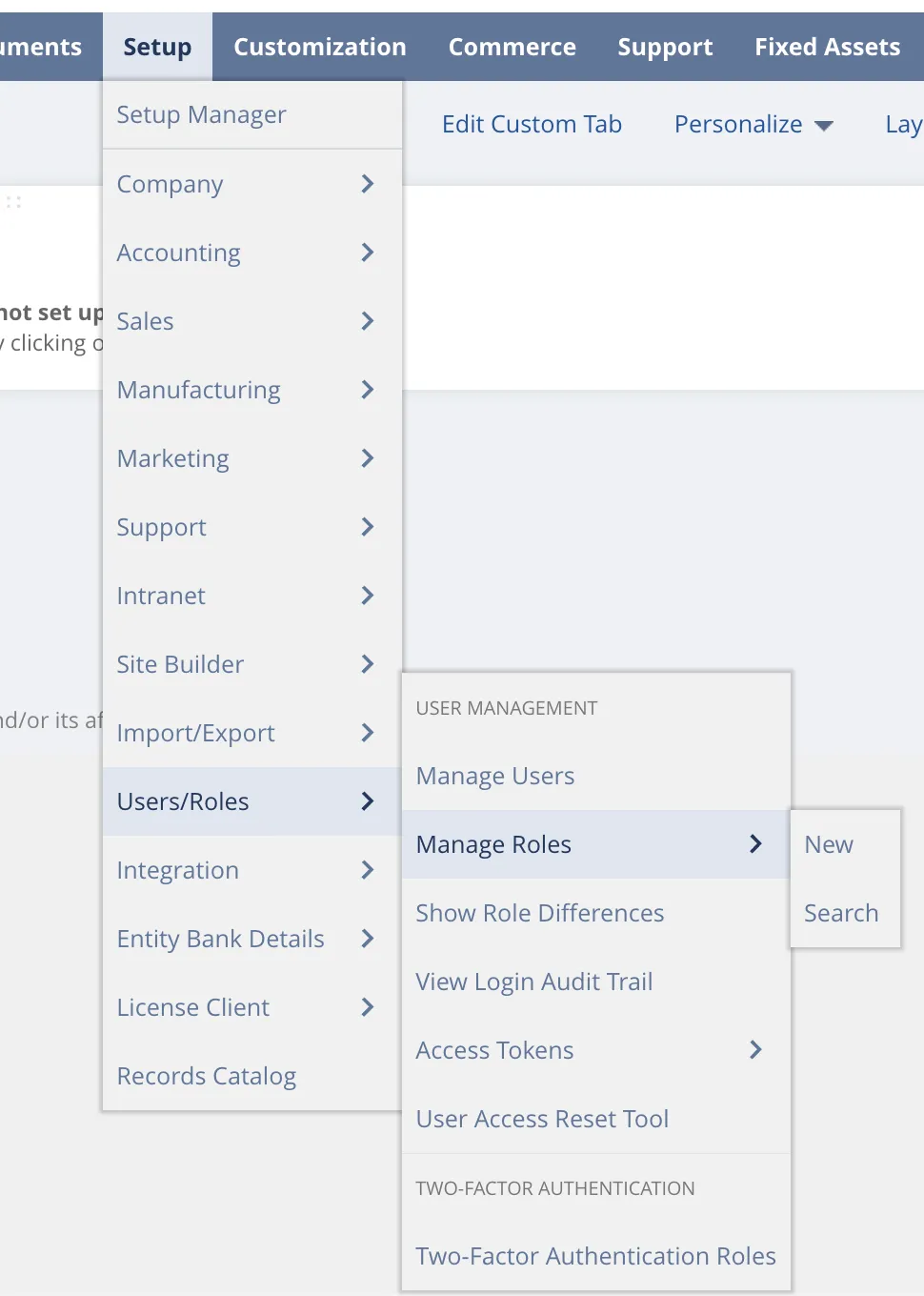
NOTE: The owner of the custom record, which defaults to the user who installed the Entity Bank Details SuiteApp, will always have full access to the record regardless of the Entity Bank Details permission level assigned to the role being used.
After selecting Edit, go to the Permissions tab → Custom Record → Locate the search box in the bottom row.
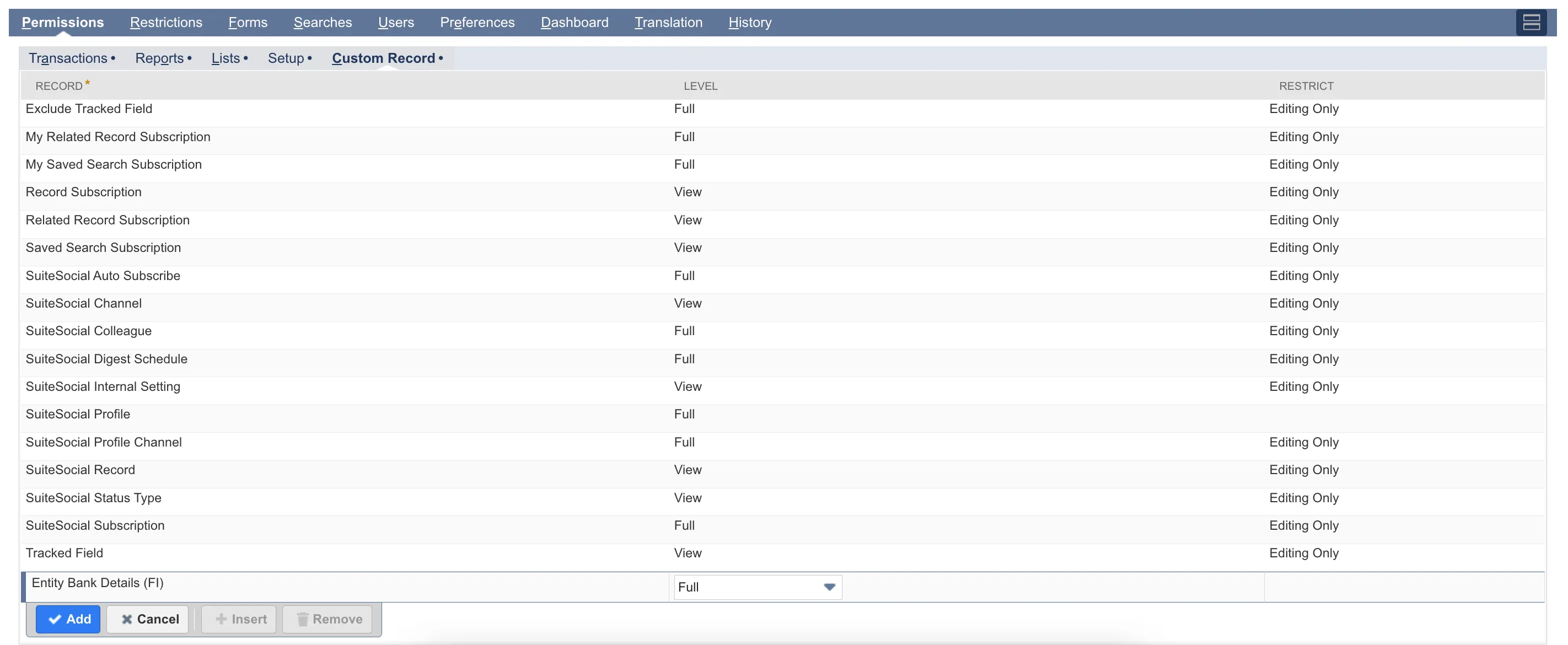
Use the search box to find and set the correct permission level for Entity Bank Details (FI) (Level: View):
- View: Allows a user to view records.
- Create: Allows a user to view and create records.
- Edit: Allows a user to view, create, and edit records.
- Full: Allows a user to view, create, edit, approve, and delete records. This permission level is required to approve any changes made to vendor or employee records.
Next, navigate to the Permissions tab → Setup → Locate the search box in the bottom row.
Use the search box to find and set the permission:
- Set Up Company (Level: View): Required for the Overview page and is used for the EBD Settings RESTlet to access the Company Information page.
Within the Permissions tab, select Lists --> Locate the search box in the bottom row.
Use the search box to find the following permission:
- Employees (Level: View): Required to approve or view the History page for employee records.
Then, select Save.
Storing Bank Information
Using the main navigation, go to Setup → Entity Bank Details → Overview.
Select between viewing Vendors or Employees by selecting the tabs above the table. By default, this page opens up to show Vendors first.
Select View for the desired Vendor or Employee.

Select Add.

Create an optional label and select the appropriate payment method, country, and currency. Then, fill out the required fields for the specified payment method and mark the record as Primary.
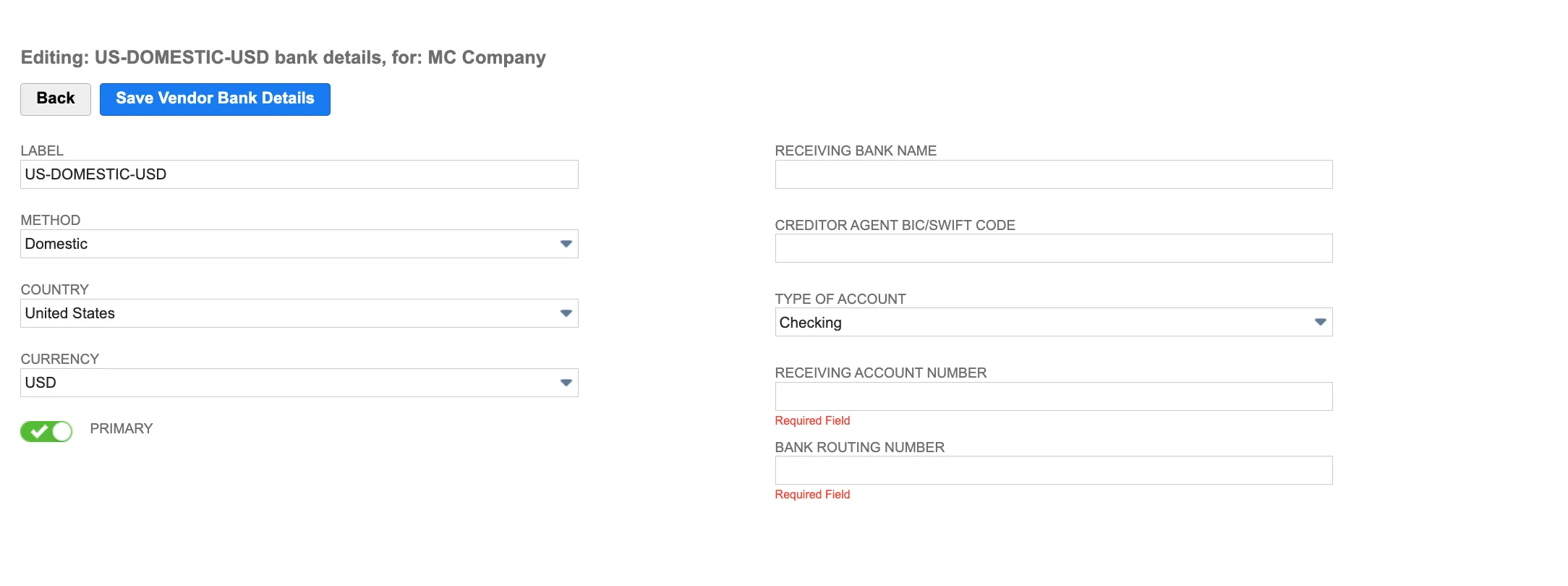
Then, select Save.
NOTE: The fields that appear on this page are dependent on the method, country, and currency selected.
WARNING: All vendor and employee bank details, along with all history logs, are stored within the Entity Bank Details SuiteApp in your NetSuite environment. If this SuiteApp is uninstalled, all of this data will be permanently deleted.
To prevent data loss, you must export your data before uninstalling. Please use the Export feature on the Import/Export page to save all your records and history logs. This is outlined in the Entity Bank Details SuiteApp Import/Export (NetSuite) page.
Visit Payment Rail RequirementsPayment Rail Requirements for the corresponding payment requirements.
Defining View-only Access to EBD
Following the steps below will provide users with view-only access to Entity Bank Detail records with no ability to add, edit, or delete.
User Permissions Setup
Go to Setup → Users/Roles → Manage Roles.
Select Edit for the role for which you would like to grant access to the Entity Bank Details SuiteApp records.
Go to the Permissions tab → Setup → Locate the search box in the bottom row. Use the search box to find the following permission:
- Set Up Company (Level: View): Required for the Overview page and is used for the EBD Settings RESTlet to access the Company Information page.
Select Save.
Assign EBD Record Type
Navigate to Customization → Lists, Records, & Fields → Record Types
Under the EDIT column, select Entity Bank Details (FI) (custom_record_vendor_bank_details)

On the Custom Record Type page that opens up, select the Permissions tab. Here, you can define which roles can have Full or View access.
Select the role of your choice, and then assign View as the access level on the Level column.
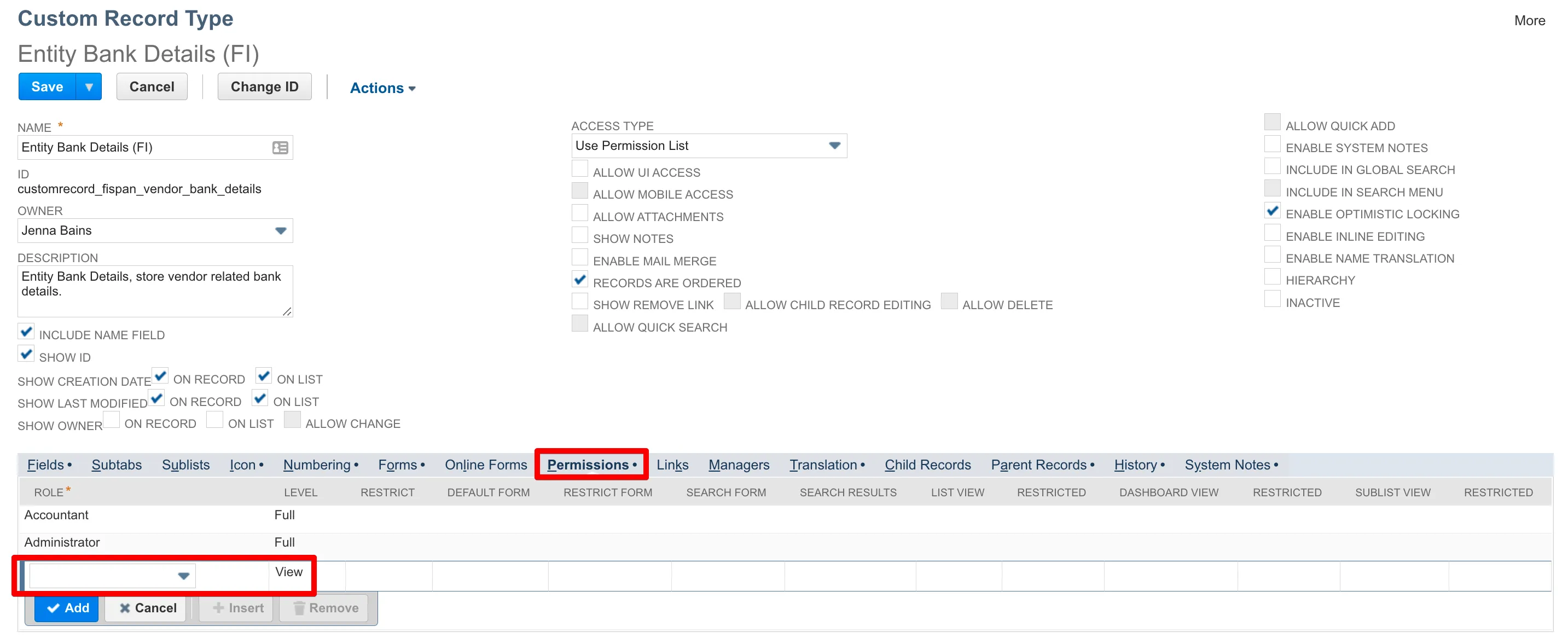
Select Save.
Assign EBD Overview Script
Next, navigate to Customization → Scripting → Script Deployments.
Apply the following filters and parameters:
- On the Type drop-down, select Suitelet
- On the API Version drop-down, select 2.1.
Select Edit beside Entity Bank Details, Overview (customdeploy_fispan_vbd_overview)
Under the Audience tab, select any number of roles, subsidiaries, employees, departments, groups, or partners that require access
Select Save, and return to the Script Deployments page.
Locate EBD Event Scripts
Navigate to Customization → Scripting → Script Deployments
Apply the following filters and parameters:
- On the Type drop-down, select User Event
- On the API Version drop-down, select 2.1.
Assign Access to Vendor Bank Details
Limit a user's access to only view the Vendor's bank details with the Entity Bank Details, Event (customdeploy_fispan_vbd_event) script.
Select Edit beside Entity Bank Details, Event (customdeploy_fispan_vbd_event).
Under the Audience tab, select any number of roles, subsidiaries, employees, departments, groups, or partners that require access.
Select Save.
Assign Access to Employee Bank Details
Limit a user's access to only view an Employee's bank details with the Entity Bank Details, Event (customdeploy_fispan_vbd_event_emp) script.
Select “Edit” beside Entity Bank Details, Event (customdeploy_fispan_vbd_event_emp).
Under the Audience tab, select any number of roles, subsidiaries, employees, departments, groups, or partners that require access.
Select Save.
IMPORTANT: View-only access is not available for NetSuite users who have more than one role defined, like a user with both the Administrator and AP Clerk roles.
This is a limitation within NetSuite itself.