Viewing Bill History (Intacct)
All Vendor Bill Payment History is readily available in the Payments page. Follow the steps below to view your Vendor Bill Payment History.
Go to Payments
In your ERP, go to Goldman Sachs -> Payments

Click on the History tab.
View Payment History
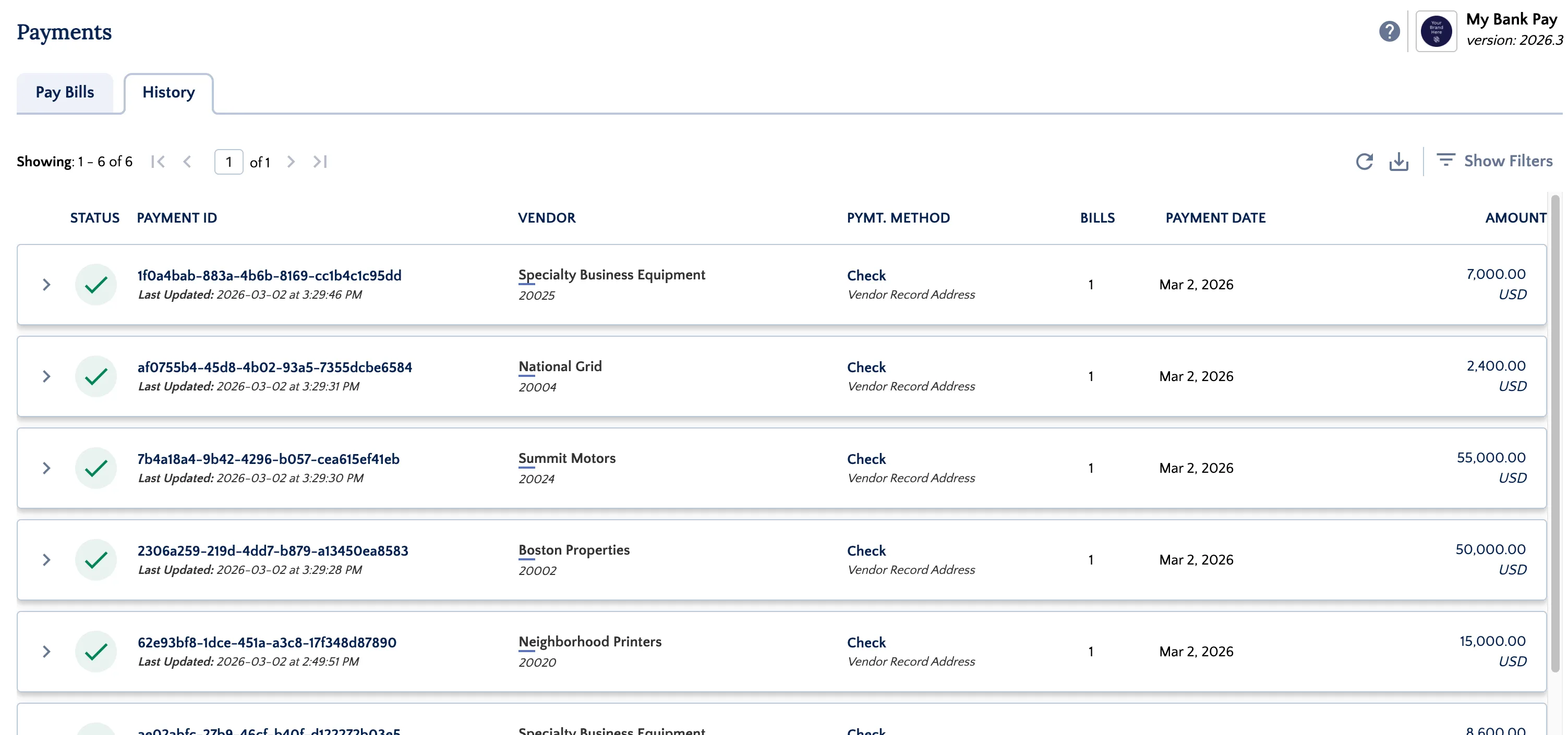
The History tab provides a snapshot of all payments that have been made via the plugin.
Vendor payments that are processed through the plugin will first appear Pending. Depending on the payment method, payments may remain pending for up to several business days after submission, after which the payment will automatically be moved to a Completed state.
NOTE: The Sage Intacct bill payment General Ledger entry will be created at the time of payment submission, not when the payment is marked as Completed. If your bank reports a payment failure, we will update the status in the History page to Failed and attempt to reverse the initial Vendor Bill Payment accounting entry.
Pending Statuses for payments:
- SENT FOR PROCESSING: This status indicates that the payment has been processed through the plugin but has not yet reached the bank.
- PROCESSING: This status indicates that the payment has been approved (if using the Payment Approval product) and has reached the bank.
A terminal payment status is a final status. In most scenarios, payments will not automatically change from this status without intervention. Contact TxB Representative if you need assistance.
Terminal Payment Statuses:
- COMPLETED: Some payments are marked as autocomplete, based on the way the payment network handles them. Completed is considered a terminal status and should not change.
- FAILED: Payments that fail to be processed will enter this status. Payments can fail for a variety of reasons: initial validation as a result of missing or inappropriate information, or if the payment fails in the payment network (e.g., the destination bank account is closed).
- CANCELLED: This status will indicate that the payment was rejected in the bank approval portal or cancelled in the platform.
View Bill Information
By default, the History page shows the payment-related information first.
Every row contains one payment request, with all the payment-related information: Payment Status, PaymentID (referenceID), Payment Date, Vendor Name, Number of Bills in the payment request, Total Amount, Currency, Payment Method, and Last Updated.
A payment request can contain multiple bills. To see that information, click the arrow on the left side. This brings down the bill-focused tab, which includes: Bill Number, Due Date, Bill Amount, Amount Due, Credit Used, Discount Used, and Amount Paid.
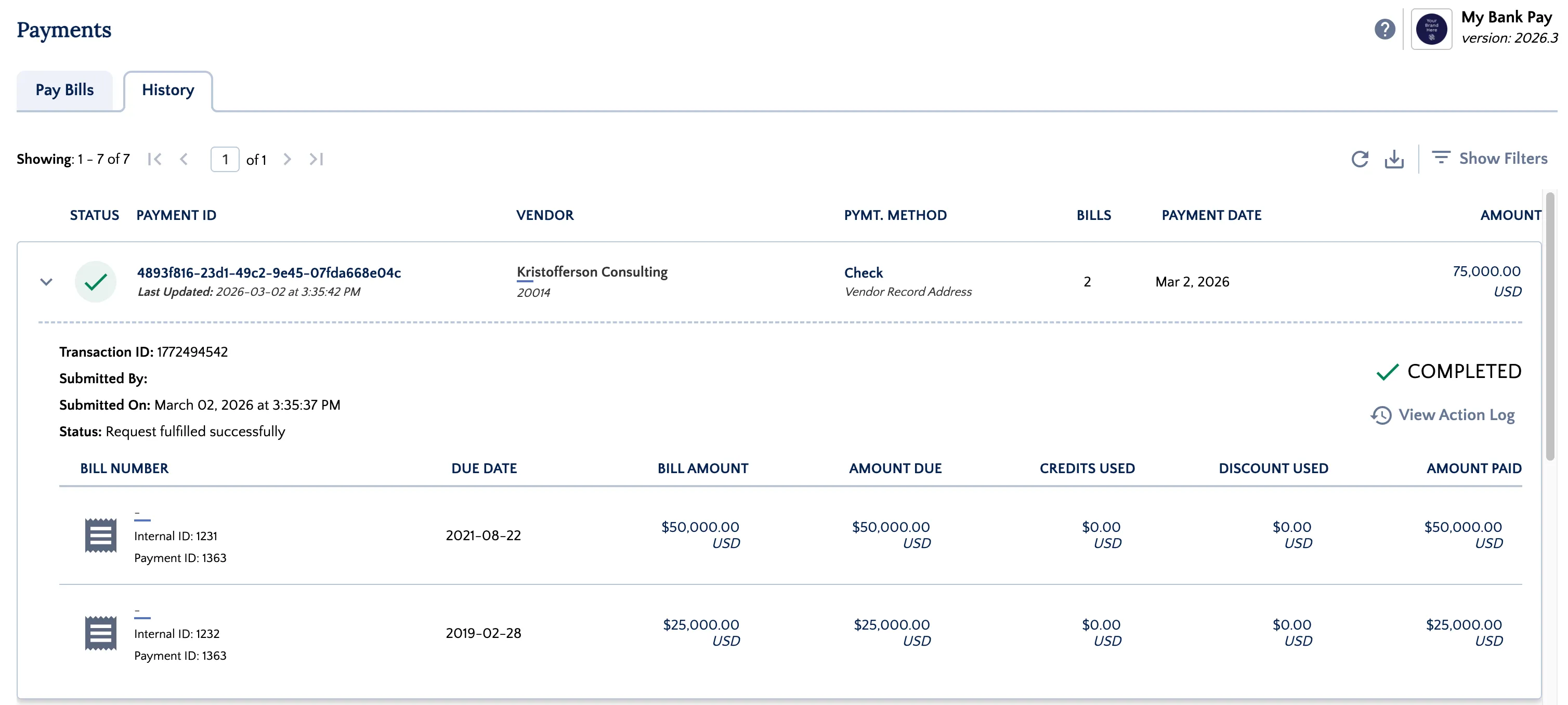
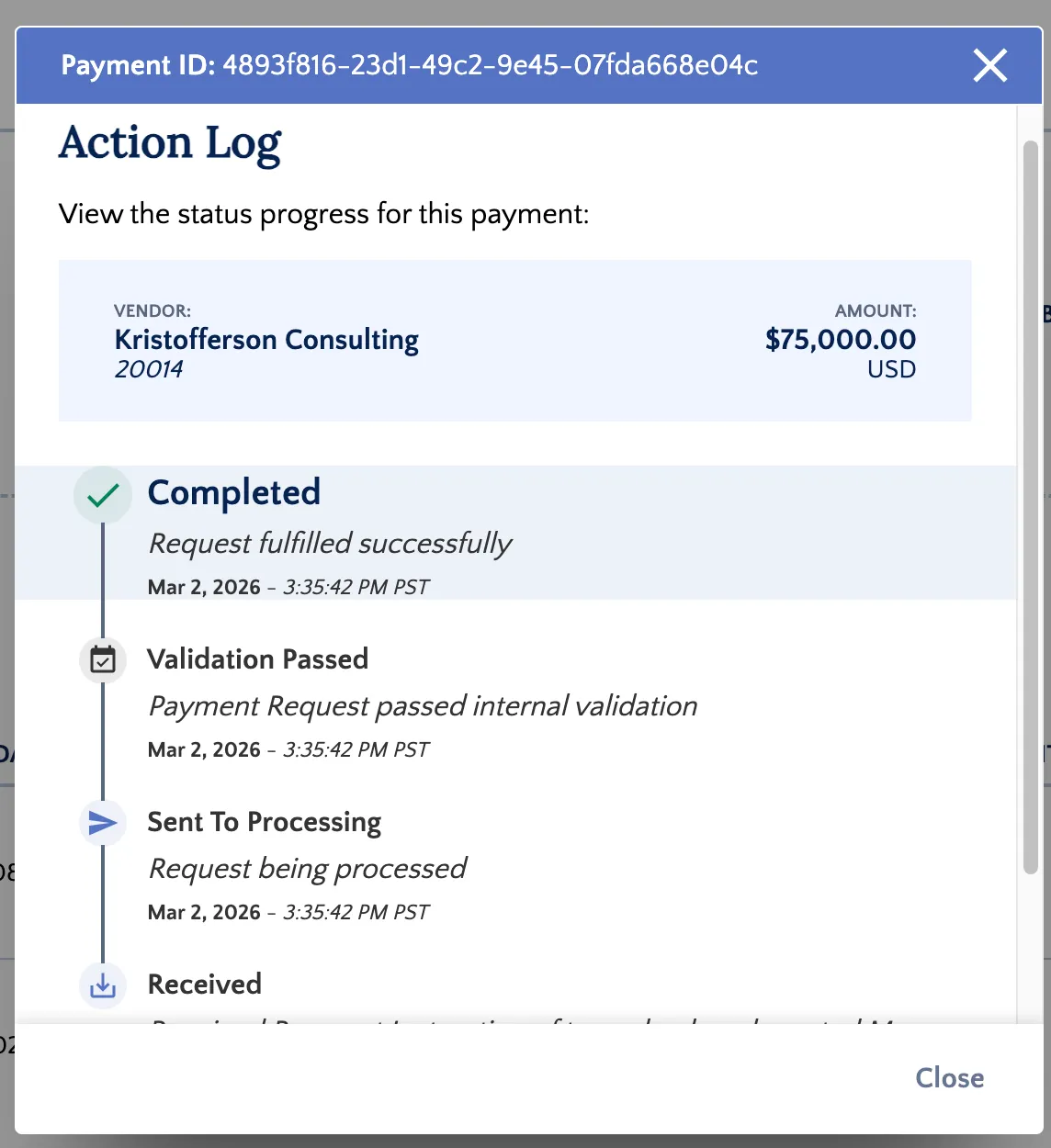
At the top right of the listed bills, click the View Action Log button to view the progress of the payment and related actions.
TIP: If you are looking for a specific bill, you can enter its Bill Number in the Payment ID/Bill Number filter. This will bring all the payments related to that specific bill.