Updating Vendors via CSV (Intacct)
The plugin allows you to update their vendor payment information in bulk through CSV files, eliminating the need for manual changes to each individual record.
You can use this process to edit existing vendor records, to add additional line items to existing vendors, and to create new vendor records.
Keep in mind that information stored inside native Intacct cannot be updated in the plugin.
Export and Import Functionality
This functionality allows you to manage your vendor records through a two-part process: Export and Import.
- Export creates a file containing all your current vendor records.
- Import allows you to update existing records by applying changes to your vendor data.
Always export first before you begin an import. This is the best way to ensure the CSV file is structured correctly, as the row format changes depending on the type of data you are working with.
You can re-import the same data multiple times to update existing rows, provided the ID fields in the file have not been modified or changed.
Follow these steps to begin the export and import process.
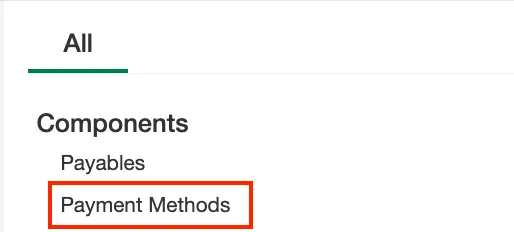
Navigate to Payment Methods
From anywhere in Intacct, you can navigate to the Payment Methods page. Click on the Customers Bank button and then Payment Methods.
Export CSV
Click Export CSV. A CSV file containing all previously saved vendors is generated.

IMPORTANT: The CSV is pre-structured for import functionality; do not modfiy the column structures.
The import from Intacct triggers a minimum of one row of data. There are three different data types:
- BANK ACCOUNT: Each vendor with a bank account creates a row with a data_type of BANK ACCOUNT, allowing you to modify the vendor’s bank account.
- ADDRESS: Each vendor with an address record creates a row with a data_type of ADDRESS, allowing you to modify the vendor’s address.
- EMAIL: Each vendor with an address record creates a row with a data_type of EMAIL, allowing you to modify the vendor’s email.
NOTE: Save a copy of this file for your records so you can easily re-import the original if necessary.
Prepare the File for Import
Once you have exported the existing vendor information, create the import file containing your revised vendor information by editing the data and adding new rows if you are incorporating new vendors.
Do not remove any of the column headers or add additional columns; otherwise, the import will fail.
Each of the three data types requires specific data fields. Use the existing records as a guide to which columns require data, and be sure to follow the general rules to avoid errors that prevent a successful import.
- BANK ACCOUNT: To add a new bank account, add a row and enter BANK ACCOUNT in the data_type column.
- ADDRESS: To add a new address, add a row and enter ADDRESS in the data_type column.
- EMAIL: To add a new email, add a row and enter EMAIL in the data_type column.
Please do not fill in the email or address fields for these columns, and ensure that the other columns are completed according to the guidance provided in the table below.
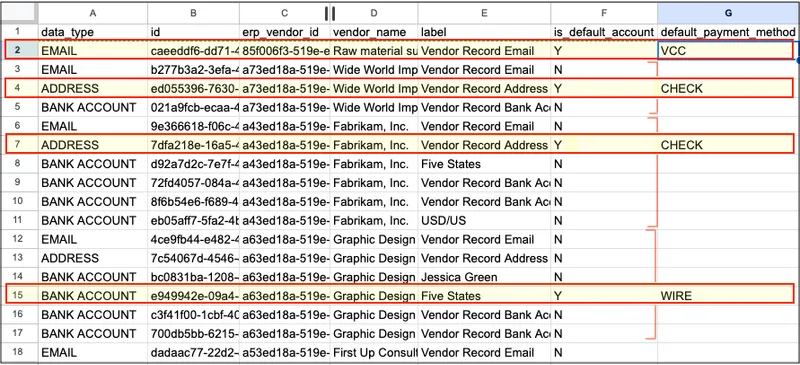
NOTE: Only one line entry per vendor can have the is_default_account set to Y. Enter the default_payment_method for the default account address record.
Fill the CSV Table
You need to use specific default_payment_method code values that correspond to your payment rail types.
Since a vendor can only have one default account with a default_payment_method, you must ensure the payment method you choose is compatible with the corresponding data type.
Navigate to Payment Methods and check in the table which payment methods are listed for a vendor.
Here is a complete list showing which payment rail types are supported by each data type. Use only the payment rails supported by your plugin for this specific vendor.
CSV file - table rows
data_type | Compatible default payment_method(s) for this data type | Other rules |
|---|---|---|
BANK ACCOUNT | ACH ACH_NEXT_DAY CPA BACS SEPA WIRE EFT_AU WIRE_AU EFT_SG WIRE_SG WIRE_NZ EFT_NZ WIRE_ZA EFT_ZA INTERNATIONAL_WIRE INTERNATIONAL_ACH UK_FPS | Leave the email and address fields empty. |
ADDRESS | CHECK | Leave the bank account and email fields empty. |
VCC | Leave the bank account and address fields empty |
CSV file - table columns
Column Name | Allowable Values (CASE SENSITIVE) | Notes |
|---|---|---|
data_type | Either: ADDRESS, BANK ACCOUNT, EMAIL | Required Field For BANK ACCOUNT, leave the email and address fields empty. For ADDRESS, leave the bank account and email fields empty. For EMAIL, leave the email and address fields empty. |
id | Internal ID | Leave empty if adding a new payment method. Do not modify the value if modifying existing payment information. |
erp_vendor_id | Intacct vendor ID | Required Field Do not modify. This field protects against duplicate records. |
vendor_name | Intacct vendor name |
|
is_default_account | Y/N | Required Field Can only have one default Y per vendor. All others must be N. |
default_payment_method | Please confirm that they are in capital letters (e.g., ACH, ACH NEXT DAY, CHECK, INTERNATIONAL ACH, INTERNATIONAL WIRE, SEPA, VCC) | Anything from the list of available payment methods. To see what is enabled on the vendor, navigate to Plugin → Payment Methods and check in the table which payment methods are listed for that vendor. Any unsupported payment type will result in the line failing to import. If you would like to add some payment methods to the plugin, please contact your bank. |
is_editable | Y/N | Required Field For any new lines, please enter "Y". Do not modify an "N" and change it to a "Y"; doing this may break the import. |
email_addresses | Any email addresses, up to 5 | Separate each email address with “,” |
country | Required Field For Bank Accounts This field accepts upper, lower, and mixed case values. Please enter the ISO alpha-2 country codes format. The import will error if the user enters the full country name (i.e., New Zealand). | |
currency | Required Field For Bank Accounts Please enter the currency following the currency code list. This field accepts upper, lower, and mixed case values. | |
account_type | CHECKING or SAVINGS | Required Field For Bank Accounts This field accepts upper, lower, and mixed case values |
account_number | Vendor's account number | |
institution_number | Vendor's institution number | |
transit_number | Vendor's transit number | |
routing_number | Vendor's routing number | |
bank_code | | |
iban | Two letter country code, followed by two check digits, and up to 35 alphanumeric characters | |
bic | Vendor's BIC or SWIFT code for the country and bank | |
bank_name | Anything | |
address_line | Anything |
|
address_line_2 | Anything | |
address_city | Anything |
|
address_state_province | Anything |
|
address_postal_Code | Anything |
|
local_branch_code | Valid branch code for this bank | Use this field for BSB codes if the country requires it |
payment_purpose_message | Anything |
|
payment_purpose_code | Valid purpose code |
|
payment_payment_iso_code | Valid sender country code |
|
payment_payment_codeword | Valid receiving entity codeword |
|
payment_payment_party_type | P, T, G, N | P = Parent, T = Subsidiary, G = Group, N = Non-related |
payment_residential_status | resident, nonresident |
|
sort_code | Valid sort code for this bank | |
Import CSV
Once the file is ready, select the Import CSV button.
Attach the file that is ready to import and enter one valid email address to receive a status update.
NOTE: You are not able to modify this email address after clicking Import. If the email is incorrect, you will not get the status email, but the import will complete.
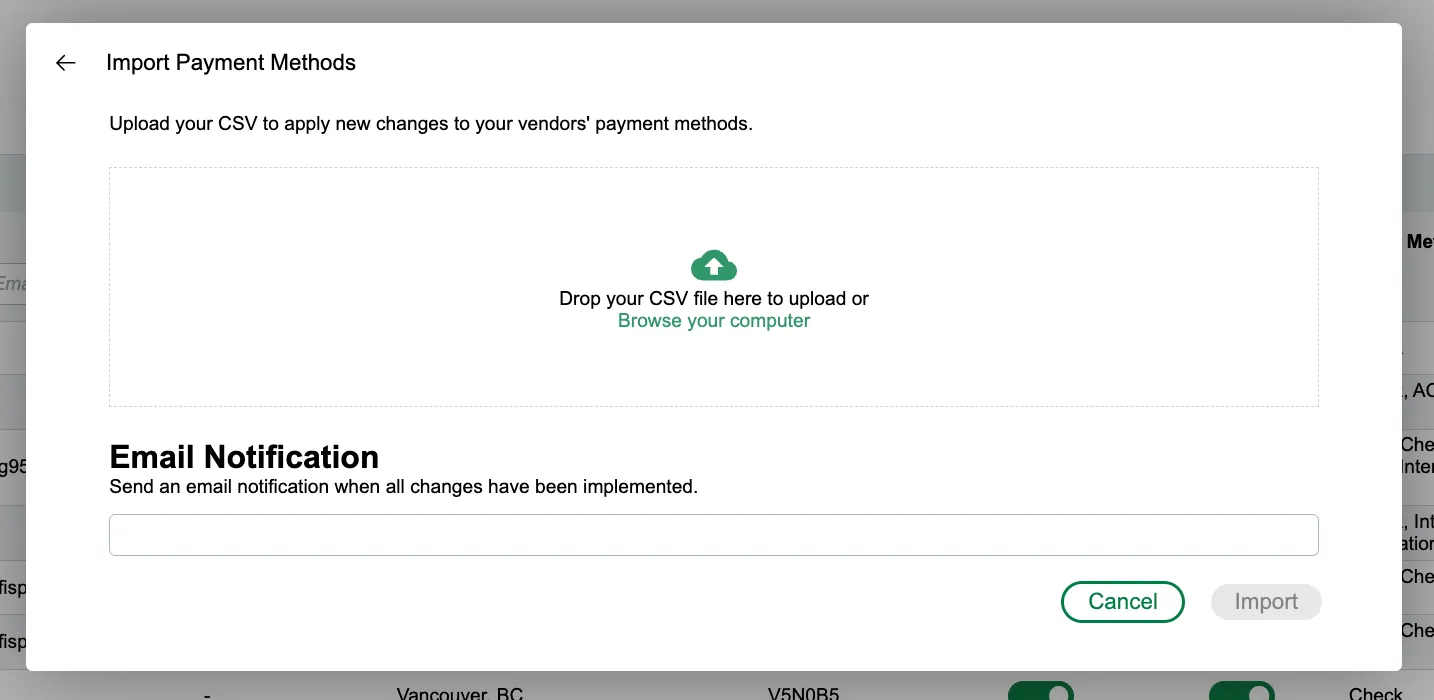
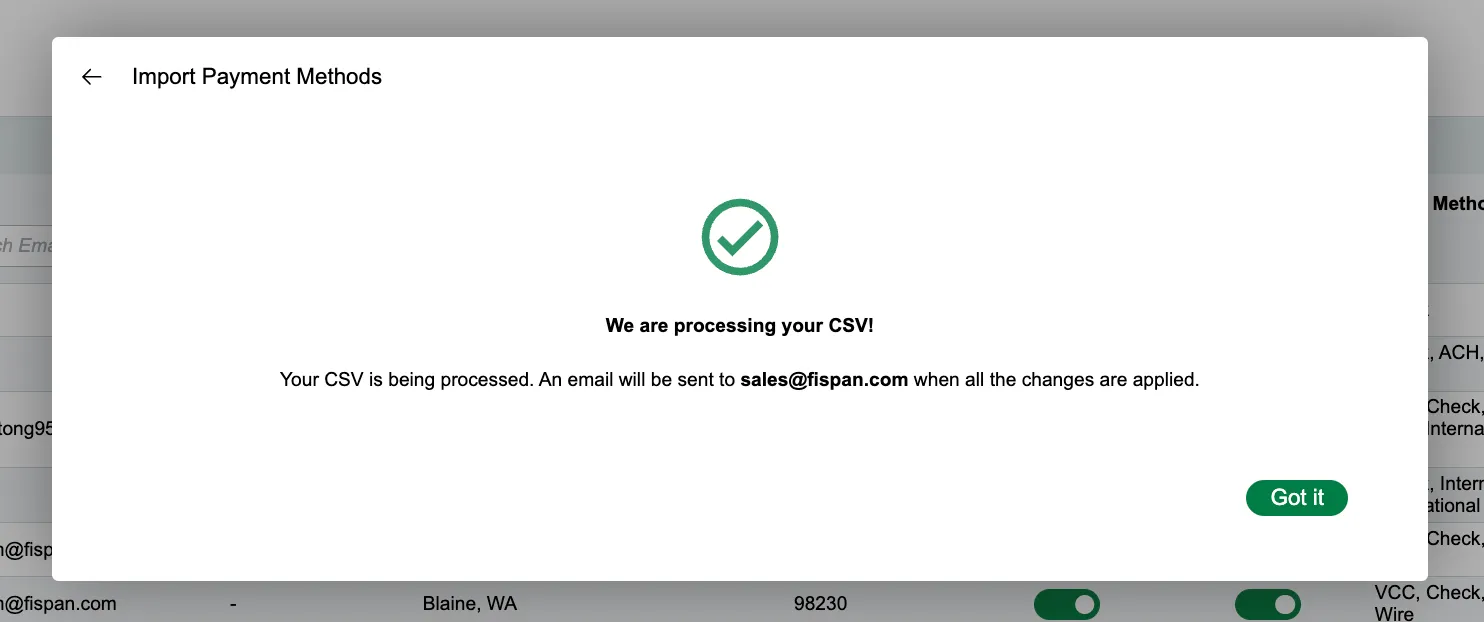
Once the file has been uploaded, a checkmark will appear. You can expect an email with a status update within a few minutes.
Import Confirmation Email
Once the import status changes, you will receive an email notification.
This email notification will let you know if the import has been successful. There are 3 options:
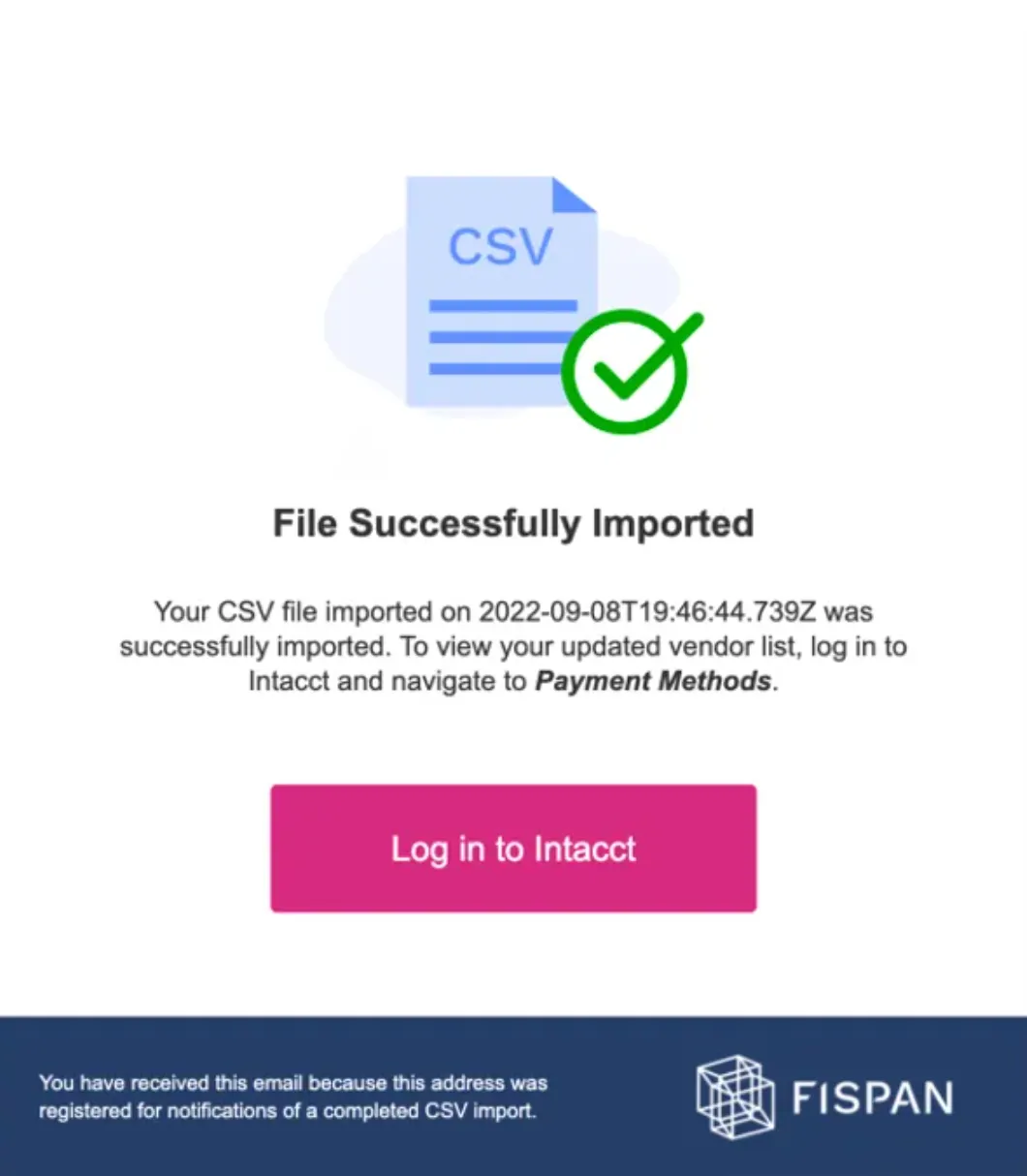
File Successfully Imported
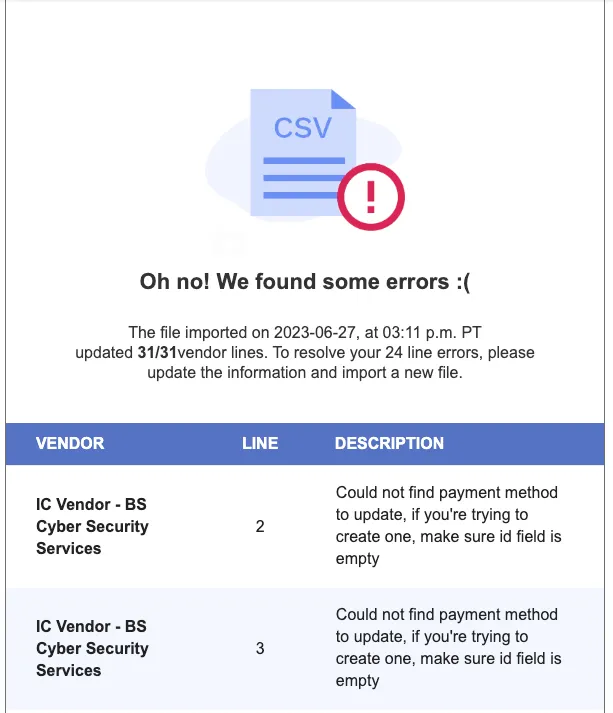
Import is successful, but there are line errors.
- In that case, please download the CSV attached to the email that lists those errors and submit the file again. You may leave the error column in the newly uploaded CSV. Please note that if an error is found in one of the rows, none of the information present in that row will be updated.
Import was not successful.
- This issue may be caused by internet connectivity problems or unsupported file formats. Please verify your internet connection, refresh the page to attempt again, or contact support if the problem persists.
Import CSV Example
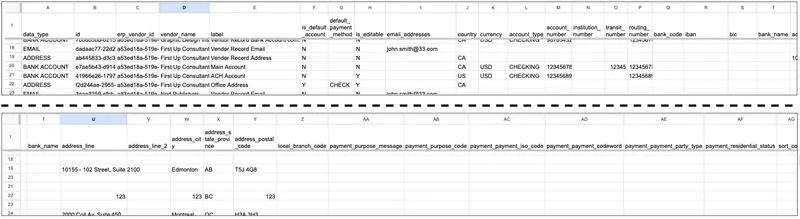
This file shows an example of what the import file can look like for one hypothetical vendor.
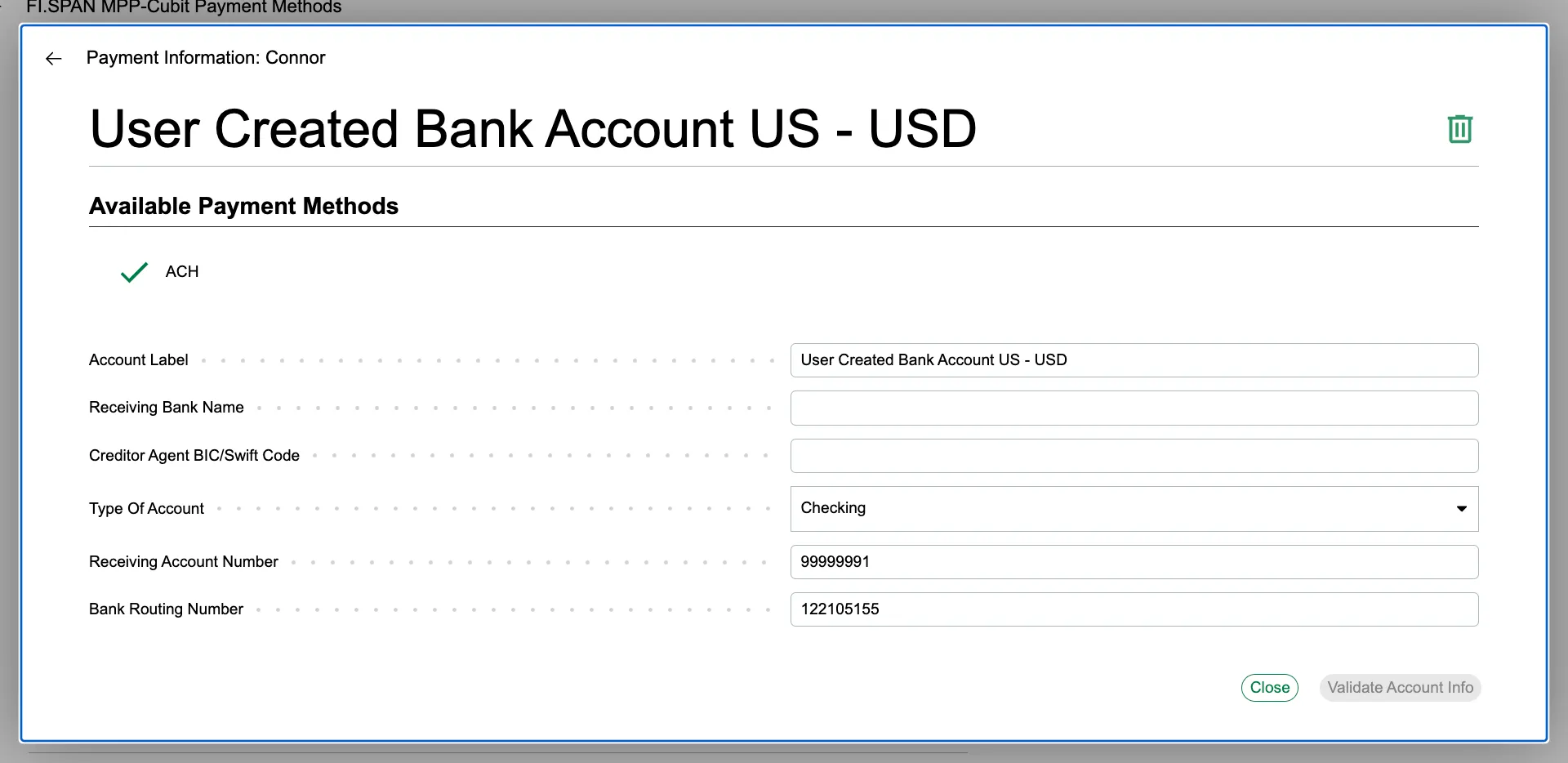
On the Payment Methods page, when you select the vendor, it shows that the bank account has been added.

When you open up the bank account, you can see the values match the import.
Potential Errors
Potential errors | Explanation | Steps to fix the error |
|---|---|---|
data_type must be: DEFAULT PAYMENT METHOD or DOMESTIC BANK ACCOUNT or INTERNATIONAL BANK ACCOUNT | data_type was not filled in. | Always include a data_type, this is a mandatory field. |
vendor_id must be filled in. | vendor_id was not filled in. | Always include a vendor_id, this is a mandatory field. |
default_payment_method must be of a valid Payment Type. | default_payment_method was not correctly filled in. | Ensure your account has this payment method enabled. |
email_addresses contains email(s) with an invalid email format. | Email address format was not respected. | Follow the following format: [email protected] If you would like to add multiple email addresses, ensure they are comma-separated as below: [email protected], [email protected] |
Both country and currency must be filled in. | Country and currency both need to be filled in. | |
country contains invalid country code | Country code is not valid. | Select a valid country code from this list: ISO alpha-2 country codes |
currency contains an invalid currency code. | Currency code is not valid. | Select a valid currency code from this list: Currency codes |