FAQs (NetSuite)
This page is your go-to resource for quick troubleshooting. We've compiled a list of the most common errors and frequently asked questions you might encounter when using the Customers Bank plugin in NetSuite, providing you with immediate answers and resolutions.
Installation & Setup
Common Errors
Below is a list of common errors encountered during installation and plugin setup in NetSuite. Click on any error message to view the cause and immediate troubleshooting steps for a resolution.
This error appears in a banner. You can see the banner on the bill payments or any of the plugin pages.
Reasons for error and what to do:
- This error occurs if the plugin has not been fully connected by completing the connection wizard
- Go through the wizard again and make sure the token IDs are present.
- This error can also happen if you don’t have currencies or the manage authentication field enabled.
This can show up on various pages in the plugin where the current user does not have permission to access it. To fix this issue, you must have a NetSuite Administrator or someone with permissions to configure scripts to assist you with the following steps.
Navigate to Script Deployments
Go to Customization → Scripting → Script Deployments
Give Access to Suitelets
Use the following filters:
- Select Suitelet in the Type dropdown
- Select 2.1, in the API Version dropdown
Click Edit on each of the following script deployment Suitelets you wish to edit:
- Customers Bank Pay Bills
- Customers Bank Paid Bills History
- Customers Bank Transfer Funds
- Customers Bank Transfer History
- Customers Bank Trans Checks (Positive Pay)
- Customers Bank Trans Checks History (Positive Pay)
- Customers Bank Balances & Transactions
Select the appropriate role, subsidiary, employee, or department you wish to give access to.
Click Save
If you encounter this, you will need to get in touch with a support agent. It is likely that your account either:
- Hasn’t been whitelisted
- Has an incorrect Account ID
- Has a SuiteApp from a different environment
Common Questions
This list provides answers to common questions that arise during the installation process, to help ensure a smoother setup in NetSuite.
The plugin will not auto-update, therefore you must update the plugin manually.
Navigate to Customization → SuiteCloud Development → SuiteApp Marketplace.
Find the Bank SuiteApp and click on the tile.
Click the Upgrade button in the top-right corner to begin the update.
Permissions must be granted to non administrators.
Please refer to Plugin Access Management step in the Plugin Setup > Installation section of this Support Website.
When a Sandbox Refresh occurs, you will need to complete the onboarding process again. Start by logging into sandbox.fispan.cloud and completing the onboarding steps again.
Cash Management (Information Reporting)
Common Errors
Below is a list of common errors encountered when using the Cash Management (Information Reporting) products in NetSuite. Click on any error message to view the cause and immediate troubleshooting steps for a resolution.
The error is likely due to one of these reasons:
- The system can't access or map the bank account because the information has not been entered into the NetSuite Chart of Accounts.
- To fix this, first update the plugin.
- Then, check your login information before retrying the process.
- Bank account information entered does not match the backend setup.
- Different IDs and environments that we don’t have access to.
The error is likely due to one of these reasons:
- The connecting user in NetSuite lacks the required permissions (e.g., is not an administrator).
- The Consumer Key and Secret were generated incorrectly.
- There are no bank accounts currently configured in your NetSuite environment.
You may have a pop-up blocker enabled on your browser. Please check if the pop-up blocker is preventing the download from appearing, and then try again.
It looks like the account you're trying to use isn't appearing when you use NetSuite's native bank reconciliation feature, Match Bank Data. This usually means the account isn't configured for reconciliation in your Chart of Accounts. You'll need to edit the account settings to enable the reconciliation feature.
Go to Setup → Accounting → Chart of Accounts
For the account you need to reconcile, select Edit.
Check the box labeled Use Match Bank Data and Reconcile Account Statement pages.
Click Save.
After following these steps, the account should now be available when you use the Match Bank Data feature.
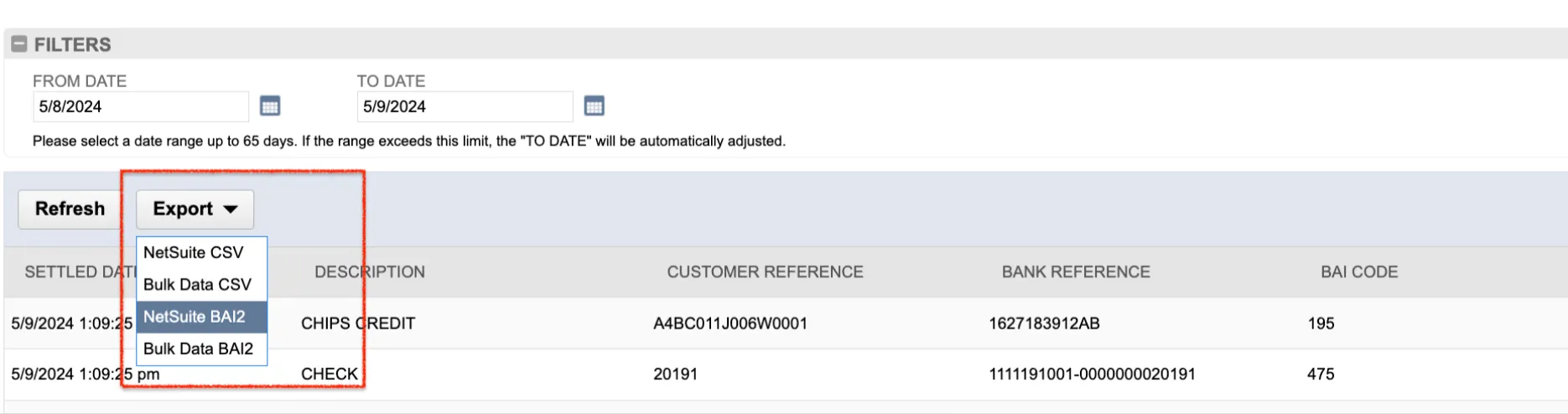
If you are running into this error message when completing a manual import, select NetSuite BAI2 as your Export Format instead.
Common Questions
This list provides answers to common questions that arise when using the Cash Management (Information Reporting) features in NetSuite.
If you are logged in and the plugin is no longer connected, the NetSuite Production may have been refreshed. You will need to re-establish this connection.
Log in to Production
Log in to sys.fispan.live and run through the wizard again.
Deactivate Plugin
If the plugin is still showing as Active or Connected, click on the three dots and select Deactivate.
If you have updated from a Bank plugin version that is older than 2022.2.0, the updated plugin SuiteApp will come with a premade Integration Record.
Define New Token
On the Creating a New Security Token step, you will need to define a new Token ID and Token Secret.
Please refer to 'Create a New Security Token in the NetSuite → Plugin Setup → Installation section of this support site for instructions on how to do this.
Revoke Old Tokens [OPTIONAL]
After creating the new Access Token, you may revoke the old ones associated with this Bank SuiteApp.
You can do this by following the steps below:
- Navigate to the homepage.
- Find the Settings box on the homepage. By default, this is located on the bottom left.
- Click on Manage Access Tokens.
- Click Edit beside the Token you wish to revoke.
- Click Revoke.
If you are logged in and the plugin is no longer connected, the NetSuite Sandbox may have been refreshed. You will need to re-establish this connection.
Log in to Sandbox
Log in to sandbox.fispan.cloud and run through the wizard again.
Deactivate Plugin
If the plugin is still showing as Active or Connected, click on the three dots and select Deactivate.
If you have updated from a Bank plugin version that is older than 2022.2.0, the updated plugin SuiteApp will come with a premade Integration Record.
Define New Token
On the Creating a New Security Token step, you will need to define a new Token ID and Token Secret.
Please refer to Create a New Security Token of the NetSuite → Plugin Setup → Installation section of this Support Site for instructions on how to do this.
Revoke Old Tokens [OPTIONAL]
After creating the new Access Token, you may revoke the old ones associated with this Bank SuiteApp.
You can do this by following the steps below:
- Navigate to the homepage.
- Find the Settings box on the homepage. By default, this is located on the bottom left.
- Click on Manage Access Tokens.
- Click Edit beside the Token you wish to revoke.
- Click Revoke.
This is likely the result of Token-Based Authentication not being enabled on this NetSuite Company.
Please refer to Configure NetSuite Feature of the NetSuite → Plugin Setup → Installation section of this Support Site for instructions on how to enable.
No, the plugin itself does not send email notifications or support push notification messaging. However, the NetSuite admin who set up the bank feeds for clients in NetSuite can receive email notifications from the native NetSuite account regarding successful import or failure. Please contact your NetSuite administrator to resolve the issue.
Yes. Contact your bank and ask them to enter a unique Account Holder Name for each Bank Account using the details you provide. If there is an entry in the Account Details → Account Holder Name field, this name will appear on Vendor Payments; otherwise, it will default to the Account Label (i.e., Company Name).
For example, if the umbrella company is ACME Holdings, the name on the payments would appear as coming from ACME North or ACME South, etc., based on the bank account used for the payment.