Authentication Methods (Workday)
FISPAN Sync supports multiple authentication methods to accommodate different organizational security requirements and user preferences. Authentication methods are configured by administrators during user setup and determine how users access the platform. Depending on their assigned configuration, users may authenticate using standard FISPAN credentials or through Login with Workday. In some cases, users may have access to more than one authentication method, allowing them to choose the sign-in experience that best fits their workflow while maintaining secure access controls.
The two primary authentication methods are detailed below:
Standard Authentication
Users authenticate using a FISPAN-managed username and password.
Key Features
- Uses the same credentials as FISPAN Control Center.
- Supports organization switching via in-app profile toggle.
- Available to both admins and end users.
Login with Workday
Users authenticate through Workday using their existing Workday credentials.
Key Features
- Single Sign-On (SSO) experience.
- No separate FISPAN password required.
- Authentication is managed through Workday.
User Provisioning
Authentication methods are assigned when users are created.
Configure a User Authentication Method
Administrators can create and manage user access through the Control Center.
Navigate to Users
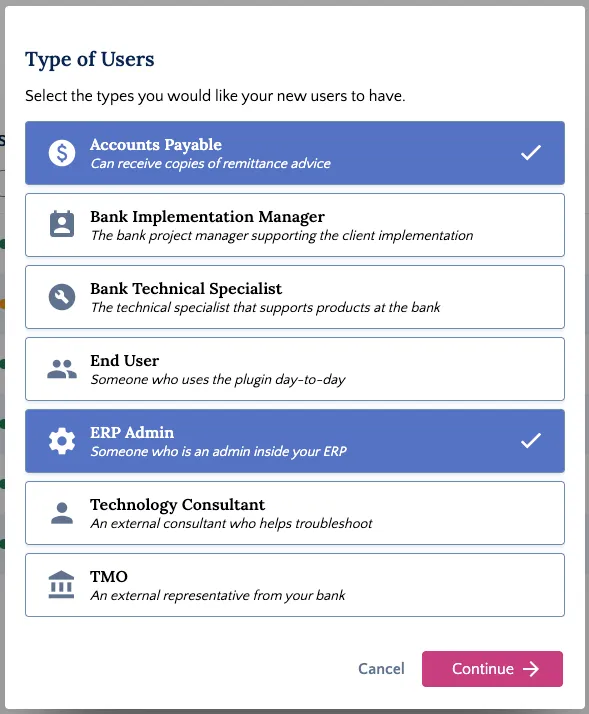
Select Add New -> User and select the types of users you want to add.
Select Authentication Method
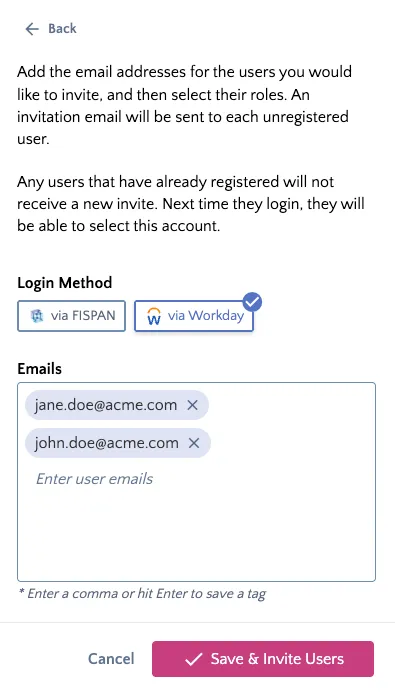
Under the Login Method section, select one of the following:
Authentication Method | Description |
|---|---|
Via FISPAN | User authenticates using FISPAN credentials |
Via Workday | User authenticates using Workday credentials |
Enter User Emails
Enter one or more email addresses. Press Enter or type a comma (,) after each email address to add it to the list.
Assign Roles
Configure the user's roles and access settings based on their responsibilities and organizational requirements.
Select Save & Invite Users.
Configure Multiple Authentication Methods
Administrators can assign multiple authentication methods using the same email address.
Navigate to Users
Select Add New -> User and select the types of users you want to add.
Enter Same Email Address
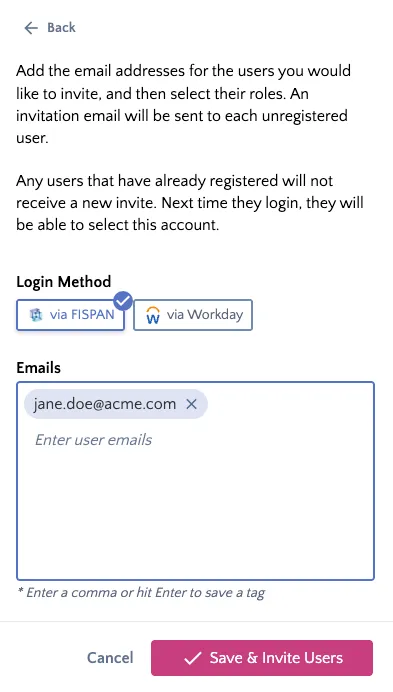
Enter the same email address used by the existing user profile.
Select an Alternative Authentication Method
Choose an authentication method that is different from the one already assigned to the user.
Assign Roles
Configure the user's roles and access settings based on their responsibilities and organizational requirements.
Select Save & Invite Users.
View Authentication Methods
Review the authentication methods assigned to users within your organization.
- Navigate to Control Center -> Users.
- Locate the Login Method column.
- Use the available sorting options to review user authentication configurations.
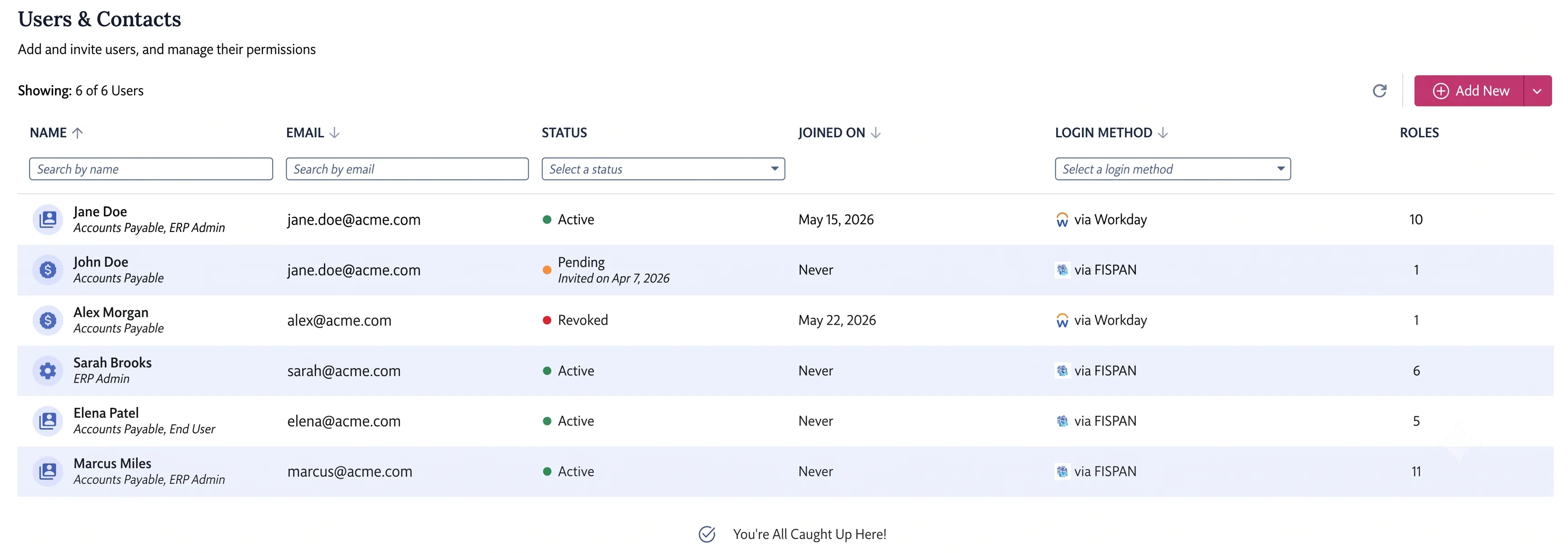
NOTE: The Login Method column displays the authentication method assigned to each user, enabling administrators to quickly audit and verify user access settings.