Bill Payments (QBO)
Paying vendor bills in FISPAN Sync allows you to remain connected to your accounting system without needing to access your Bank Account separately. Follow these steps to learn how.
Navigate to Pay Bills
From FISPAN Sync's navigation bar, select Accounts Payable → Pay Bills.

Select Bills to Pay
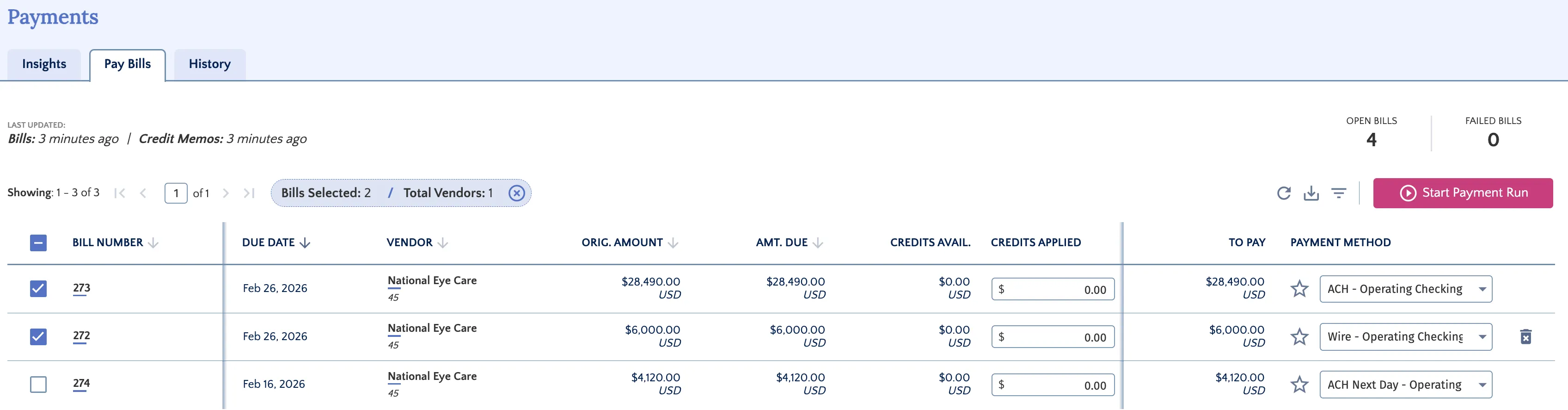
Use the filters to find the bills you would like to pay. If a default payment method has not yet been set for the vendor, choose your payment method from the respective column.
TIP: You can select the Star Icon beside the Payment Methods dropdown to set that method as your default.
Then, select the payments using the boxes on the left and select Start Payment Run.
Apply Vendor Credits (Optional)
If a vendor has available credits, you can apply them before submitting payment.
In the Credits Applied column, enter the specific amount you wish to use. The amount cannot exceed the Credits Available.
NOTE: If multiple credits exist for a vendor, they are automatically summed and displayed as a single available amount.
Once a credit is applied, the To Pay amount will automatically update to reflect the Amount Due minus Credits Applied.
Select your payment method and click Start Payment Run.

Start Payment Run
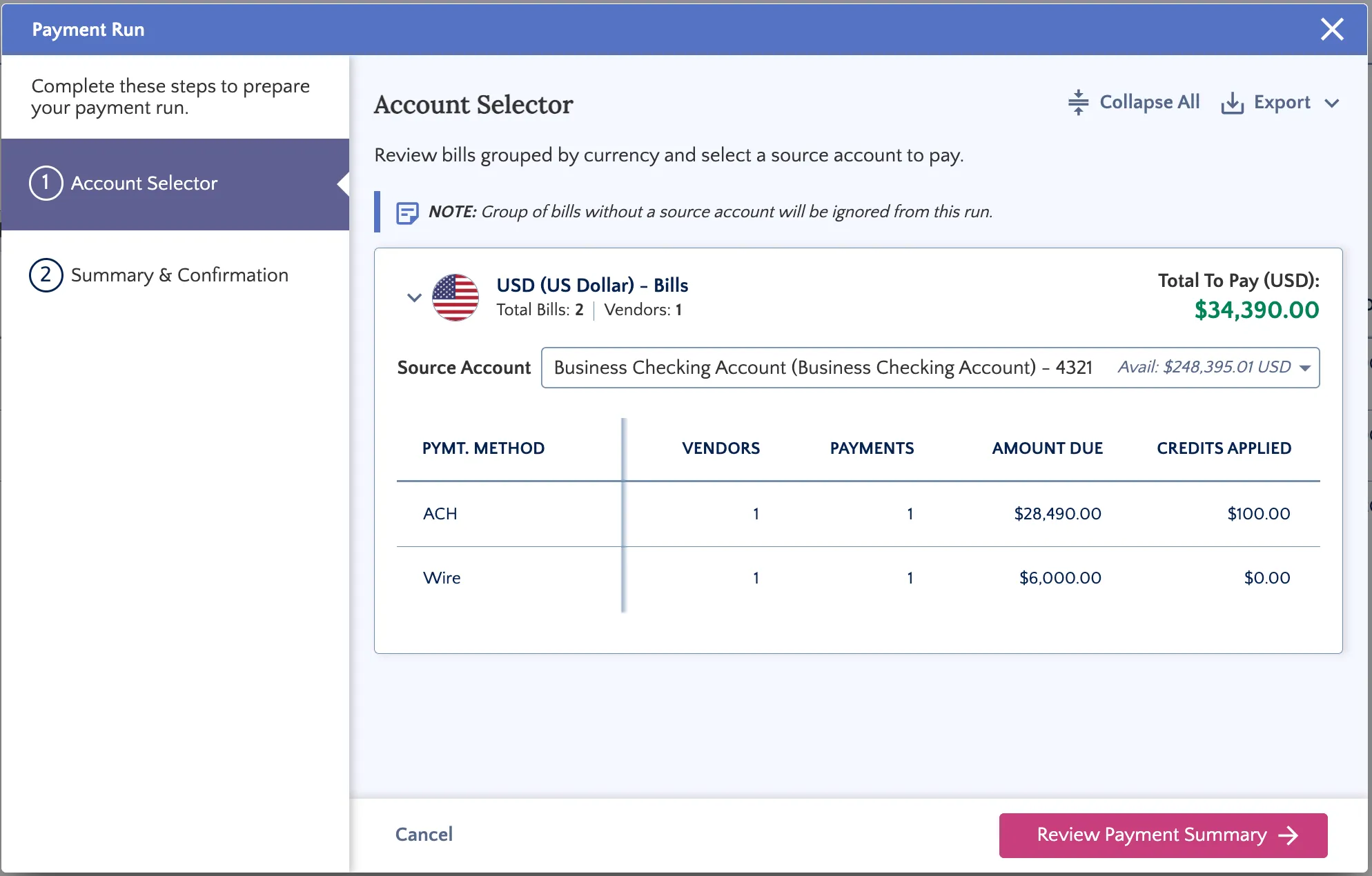
Select the account from the dropdown menu. Before proceeding, confirm that the number of bills, payments, and amounts are correct, and ensure all applicable credits and discounts (if any) have been applied.
Click Review Payment Summary to continue.
Review Payment Run
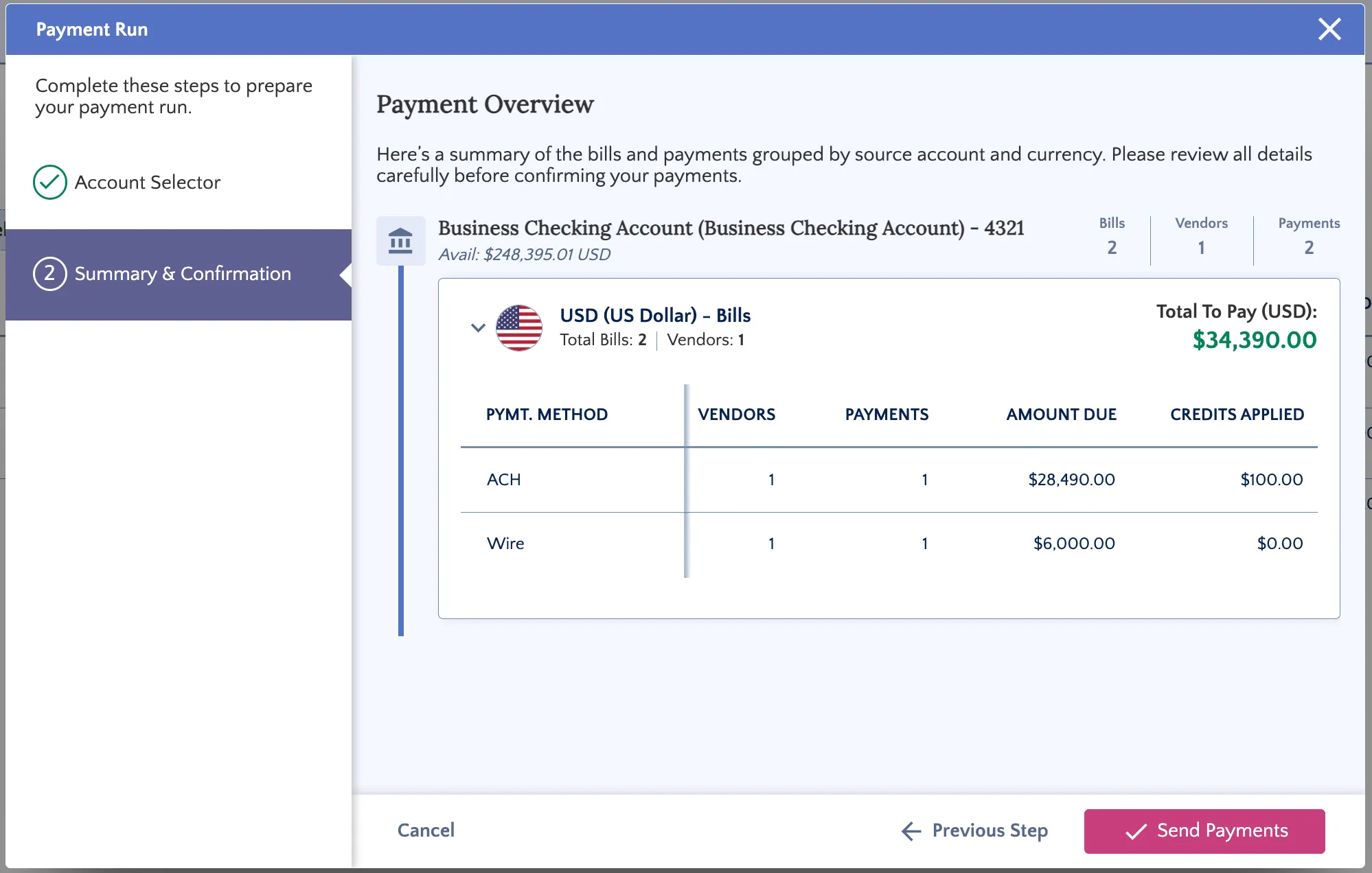
Once you have validated your bills to be paid, select Confirm.
Confirm Payment Run
Once submitted, you will receive a confirmation.
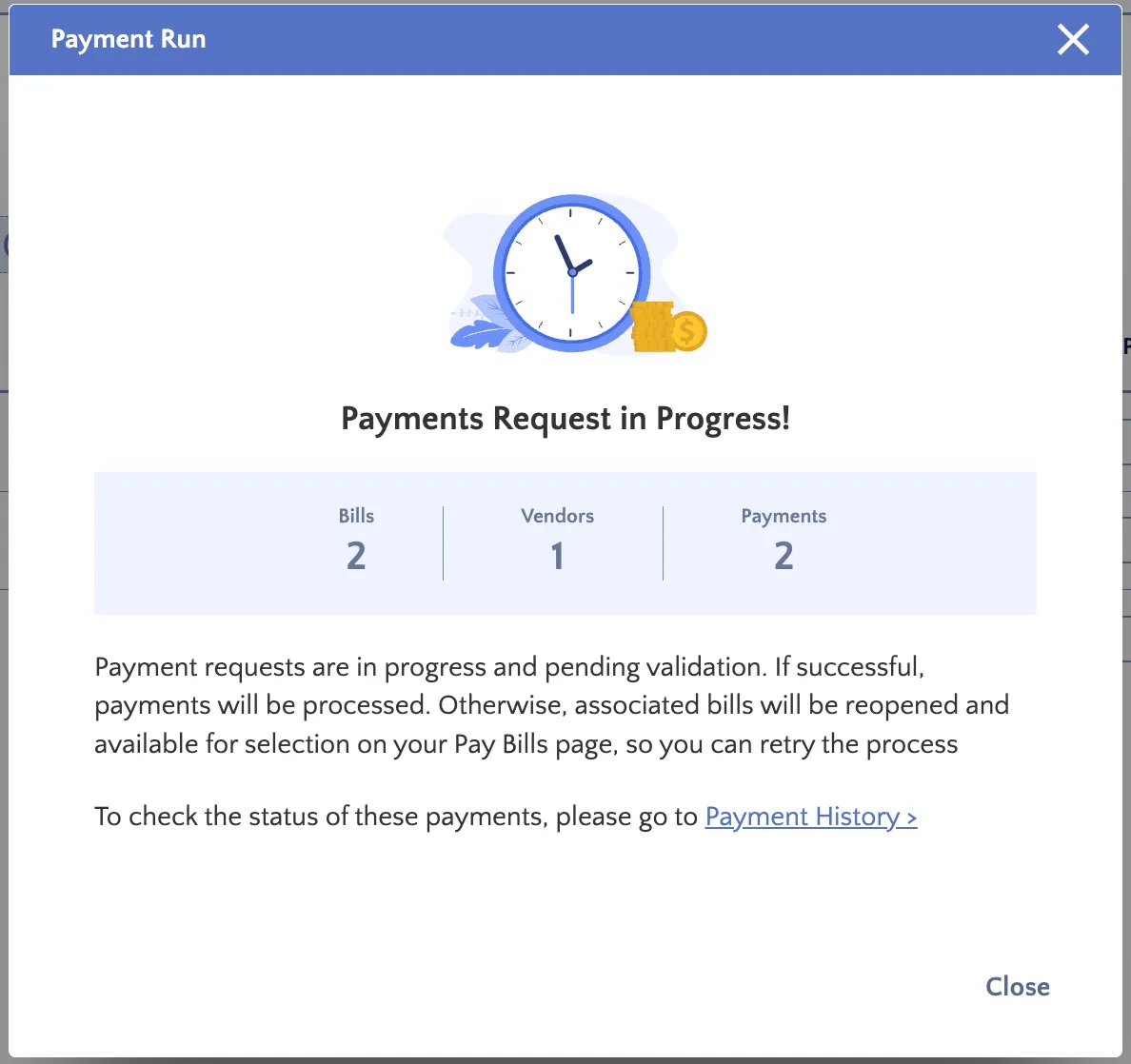
Navigate to the History tab to track the status.
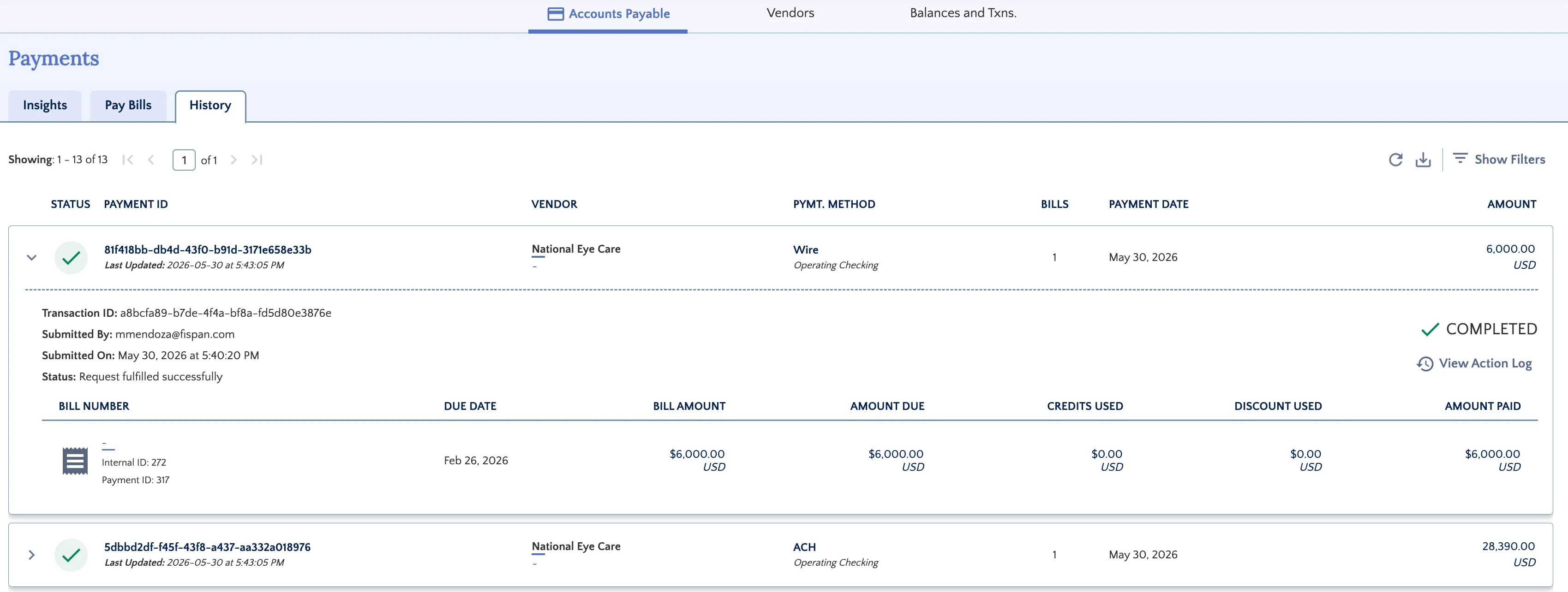
The status will appear as Received until the payment has been Sent for Processing. Once the payment is complete, the status will display as Completed.
If any payment fails during the run, a banner on the Payments page will alert you immediately.

A failed bill remains open on the Payments page and can be resubmitted for payment
Deleting Bills
If you need to remove a bill from your workflow, you must delete it from both your ERP and FISPAN Sync to ensure your records remain accurate and synchronized.
Locate the Bill
Find the bill you want to remove from the Bill Payments page.
Delete the Bill
Hover over the right side of the bill to view and select the delete (trash can) icon.

Confirm the Deletion
Click "Yes, Delete" to remove the bill. This bill will still be available for payment in your ERP.
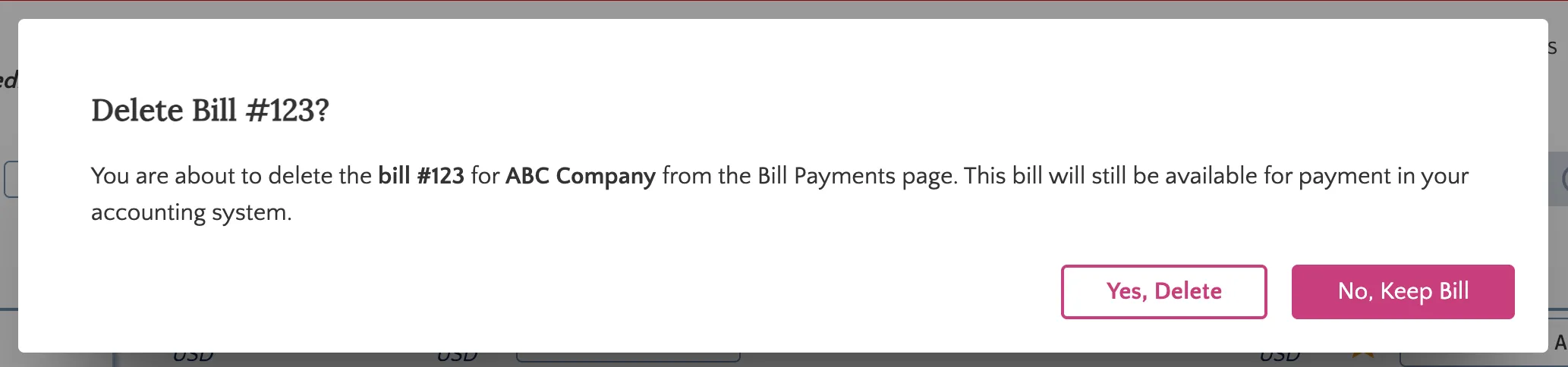
IMPORTANT: Deleting a bill in your ERP will not automatically remove it from FISPAN Sync. Always ensure you complete the steps above to manually delete the bill in FISPAN Sync after removing it from your ERP. Failing to do so may cause data mismatches between your systems.