Enabling Combined Bills (QBO)
Simplify your payments by using the Combined Bills option for vendors, which allows you to group multiple bills into a single payment.
Enable Combined Bills for Vendors
Follow these steps to learn how to enable Combined Bills for your vendors.
Navigate to Vendors
From anywhere in FISPAN Sync, you can navigate to the Vendors page.
Click on Vendors in the navigation bar.

Enable Combined Bills
Once the page loads, click the gear icon placed next to the Combined Bills.

You will now be prompted to select the Combine Bills settings you would prefer.
Once the option has been selected, click Update Changes.
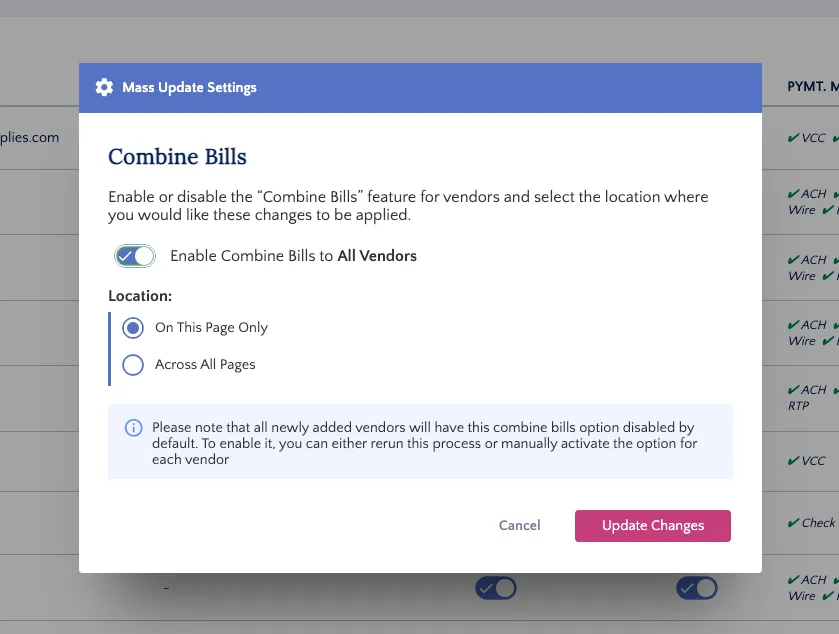
NOTE: If you apply this to all existing vendors, remember that you'll need to apply the update to future vendors too.
Complete Setup
The screen will reload, confirming the Combined Bills toggle is now on and displaying the settings you selected.

If you need to, you can disable the feature for specific vendors using the individual vendor toggles.
Disable Combine Bills
The page will refresh, and all the toggles will be updated to match the status you selected. From this page, you can disable a specific vendor or do a bulk edit using the above step.
Exclude Bills from Vendors
You can also exclude bills from certain vendors from being displayed on the Payments page.
Navigate to Vendors
From anywhere in FISPAN Sync, you can navigate to the Vendors page.
Click on Vendors in the navigation bar.
Exclude Bills/Invoices
On the Payment Methods page, simply enable the 'Exclude Bills' toggle to prevent a vendor's bills/invoices from appearing on the Payments page.
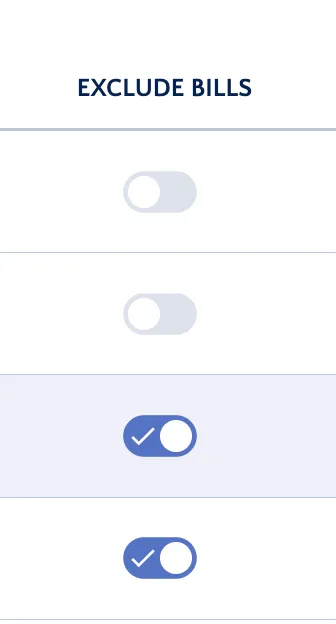
Once the toggle is enabled, the bills/invoices for that respective period will not appear on the Payments page anymore.